Baumer Commissioning | 7
V2 | OX100 Operating Manual 29
7 Commissioning
7.1 Connecting the sensor to the PC
Condition:
ð PC with web browser Mozilla Firefox from version 69 or Google Chrome from version77.
ð The sensor's part number code (product identification) must be available. The part number
code can be found on the sensor's silver label.
Instruction:
a) Connect sensor to a PC via a USB C cable.
b) Open the web browser on your PC.
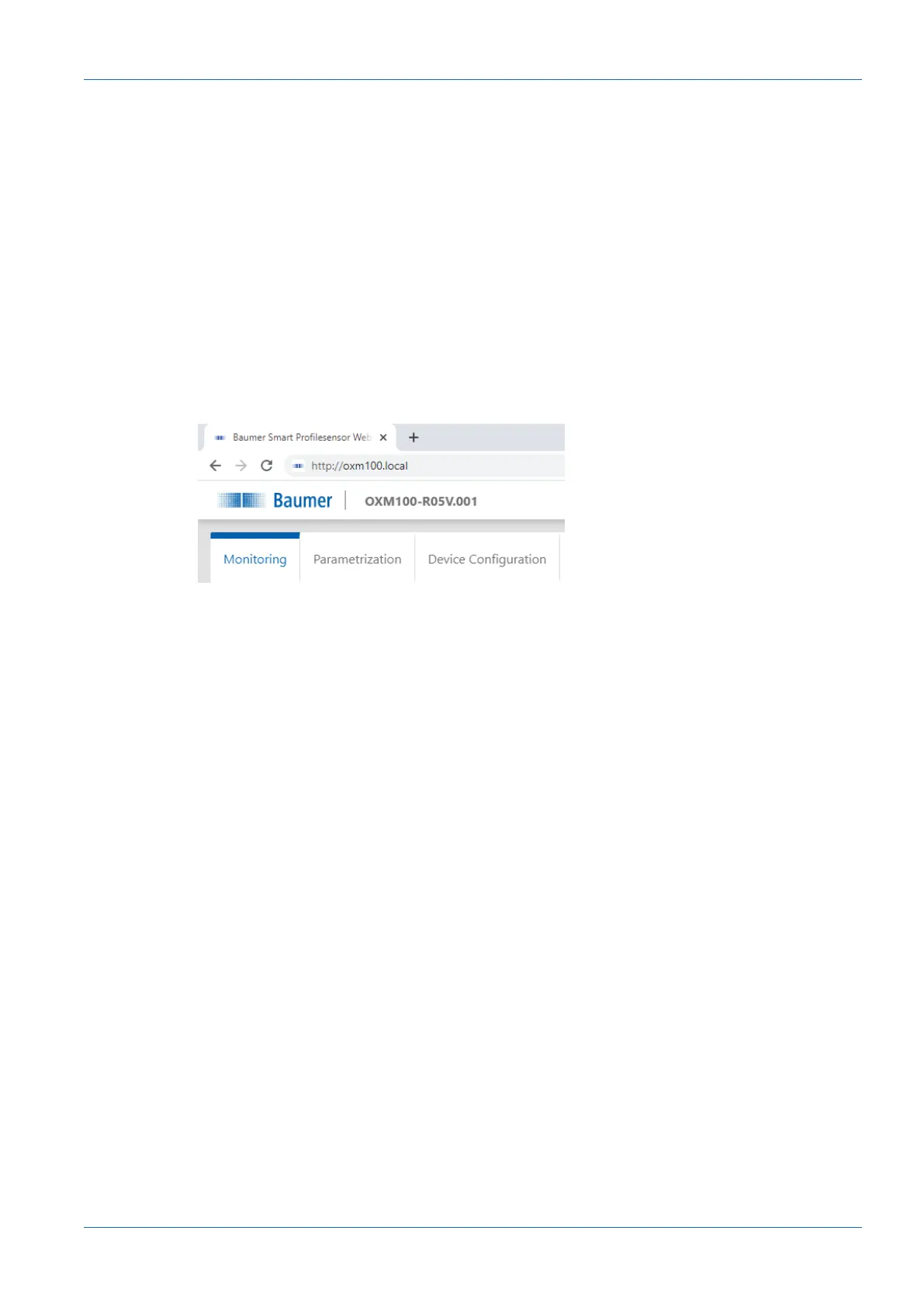
c) In the URL address line, enter the part of the product code before the "hyphen".
Example: For the product with part number code OXM100-R05V.001 enter http://
OXM100.local.
7.1.1 Tracking the sensor's IP address
Below is a description of how to identify the sensor's IP address. This is required if the IP ad-
dress was assigned via DHCP or the statically set IP address is no longer available. In general,
there are 2 options for identifying the IP address.
Option 1: IP address query via mDNS
Instruction:
a) Open a browser.
b) Enter the following command in the browser's URL line:
OXM100-[identifier].local
Replace [identifier] by the eight-digit product number or with the MAC address pro-
vided on the sensor.
Replace OXM100 with the part of the sensor product code before the hyphen " -."
Both are found on the silver label of the sensor.
Example: OXM200-11218413.local or OXM200-11-22-33-44-55-66.local
NOTICE! Inf only one sensor is active in the network or connected to your PC you may
omit the idenfication. In this case, the sensor is accessible under OXM100.local.
Result:
ü The device opens the web interface.
Option 2: IP address query via ping command
a) In Windows, select Start | Search.
b) In the search bar, enter the value cmd.
ü The Prompt window opens.


 To Next Page