Creative sewing
89
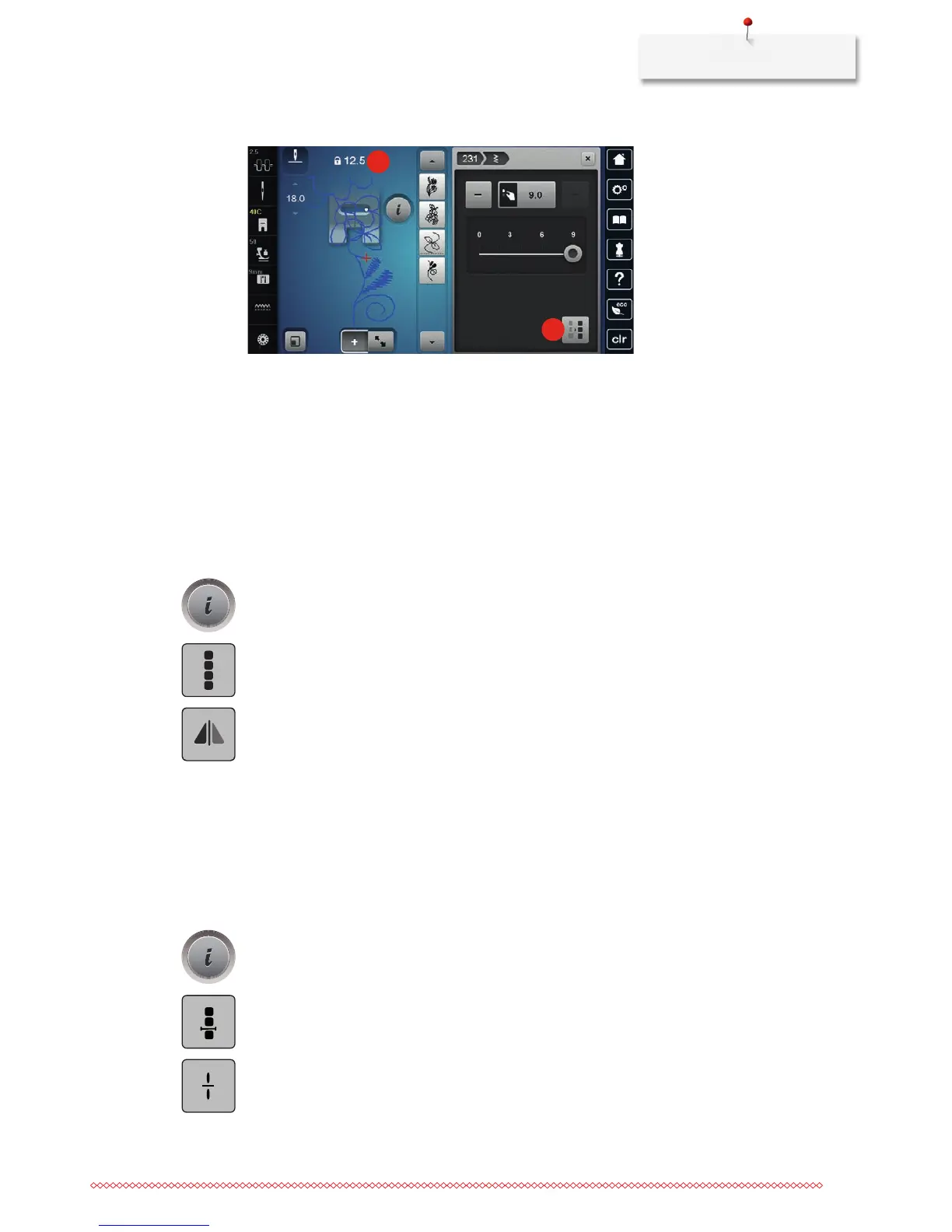
> Touch the icon «Adjust the width within a combination» (4).
3
4
> Turn the «Upper Multifunctional knob» to the left to reduce the width of the stitch pattern combination
proportionally.
> Turn the «Upper Multifunctional knob» to the right to enlarge the width of the stitch pattern
combination proportionally.
> Turn the «Lower Multifunctional knob» to the left to reduce the length of the stitch pattern combination
proportionally.
> Turn the «Lower Multifunctional knob» to the right to enlarge the length of the stitch pattern
combination proportionally.
Mirroring a stitch pattern combination
> Create a stitch pattern combination.
> Touch the icon «i»-Dialog.
> Touch the icon «Edit the complete combination».
> Touch the icon «Mirror image left/right» to mirror the whole stitch pattern combination from the left to
the right.
> Touch the icon «Mirror image left/right» again to reset the alterations to default setting.
Stitch pattern combination Subdivider 1
A stitch pattern combination can be subdivided into several sections. The subdivision is placed beneath the
cursor. Only this section is sewn where the cursor is placed. To sew the next section, the cursor must be
placed in the next section.
> Create a stitch pattern combination.
> With the touchscreen pen/finger select the desired position within the stitch pattern combination where
the stitch pattern combination is to be subdivided.
> Touch the icon «i»-Dialog.
> Touch the icon «Edit combination at cursor position».
> Touch the icon «Combination subdivider».


 To Next Page