Chapter 1
1-124
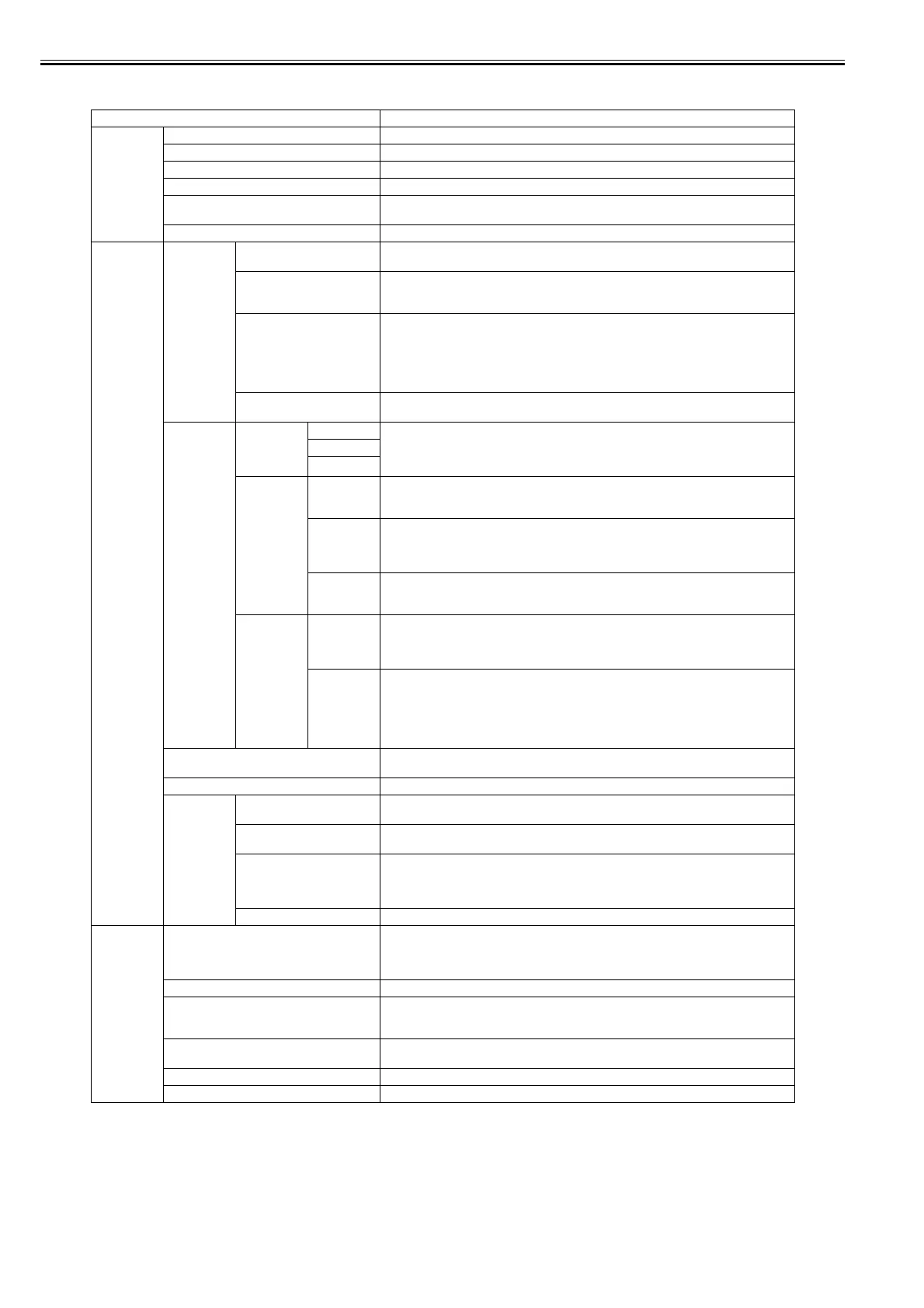
[Set./Adj. Menu]
T-1-85
Setting Item Description/Instructions
[Test Print] [Nozzle Check] Print a nozzle check pattern.
[Status Print] Print the printer information.
[Interface Print] Print the interface settings.
[Paper Details] Prints the paper settings set with [Paper Details].
[Print Job Log] Print print job information such as paper type, size, and ink consumption. Ink consumption is
the approximate amount of ink used to print one sheet.
[Menu Map] Print the menu list.
[Adjust
Printer]
[Head Posi.
Adj.]
[Auto(Standard)] The printer prints and reads a test pattern for automatic adjustment of Printhead alignment
relative to the printing direction.
[Auto(Advanced)] The printer prints and reads a test pattern for automatic adjustment of Printhead alignment
relative to the printing direction and spacing between nozzles and colors.
Try adjustment in this mode if "Auto(Standard)" does not improve printing.
[Auto(Expansion)] The printer prints and reads a test pattern for automatic adjustment of Printhead alignment
relative to the printing direction and spacing between nozzles and colors. Adjustment is
performed at a higher level of precision than Auto(Advanced).
Try adjustment in this mode if vertical lines are warped or colors are out of alignment when the
printer driver option "High-Precision Printing" or "Priority on dot placement accuracy" is
selected.
[Manual] Print a test pattern for adjustment of Printhead alignment relative to the printing direction. Enter
the adjustment value manually based on the resulting pattern.
[Feed Priority] [Adj. Priority] [Automatic] Set the priority feed precision. Normally select [Automatic]. Select [Print Quality] to print at
high quality. Select [Print Quality] to reduce horizontal streaks. Select [Print Length] to
accurately control the feed amount. However, selecting [Print Length] may cause colors to
become slightly uneven in the carriage scan direction.
[Print Quality]
[Print Length]
[Adj. Quality] [Auto(Genuine
Ppr)]
Set when using paper described in the paper reference guide.
A pattern to adjust the paper feed amount is printed, and the feed amount is automatically
adjusted from the printed result.
[Auto(OtherPa
per)]
Set when using paper not described in the paper reference guide.
A pattern to adjust the paper feed amount is printed, and the feed amount is automatically
adjusted from the printed result.
This takes longer than [Auto (GenuinePpr)] to print and consumes more ink.
[Manual] Select for paper that cannot be adjusted by [Auto(GenuinePpr)] or [Auto(OtherPaper)], such as
highly transparent paper.
Print a pattern to adjust the paper feed amount according to the type of paper.
[Adjust
Length]
[AdjustmentPr
int]-[A:High]/
[B:Standard/
Draft]
Print a test pattern for adjustment relative to paper stretching or shrinkage, after which you can
enter the amount of adjustment.
[Change
Settings]-
[A:High]/
[B:Standard/
Draft]
Displayed when [Print Length] is selected as [Adj. Priority] for [Feed Priority].
Adjust the expansion rate of the currently loaded paper.
Enter the result adjusted with [AdjustmentPrint] or the difference with your own measurement
in %.
Increase the adjustment value to increase the feed amount for paper that tends to expand, and
reduce it for paper that tends to shrink.
[Adj. Fine Feed] Displayed when you have selected Feed Priority >Adj. Priority >Automatic or Print Quality.
Fine-tune the feed amount manually during printing.
[Adj Far Ed Feed] Choose Yes to adjust the feed amount for the trailing edge.
[Calibration] [Auto Adjust] Choose Yes for automatic adjustment of the adjustment value after a test pattern for color
calibration is printed. The new color calibration adjustment value is applied in all print jobs.
[Calibration Log] Check the date when color calibration was executed, as well as the type of paper used, as shown
on the Display Screen.
[Use Adj. Value] Choose Disabled >OK if you prefer not to apply the color calibration adjustment value in print
jobs. The printer driver settings will be used instead.
Choose Enabled >OK to apply the color calibration adjustment value in print jobs. However,
printer driver settings are given priority.
[Return Defaults] Clear the color calibration adjustment value and the execution log.
[Maintenance] [Head Cleaning] Specify Printhead cleaning options.
Choose Head Cleaning A if printing is faint, oddly colored, or contains foreign substances.
Choose Head Cleaning B if no ink is printed at all, or if printing is not improved by Head
Cleaning A.
[Nozzle Check] Print a nozzle check pattern.
[Replace P.head] Not displayed during a warning message that the remaining Maintenance Cartridge capacity is
low.
When replacing the Printhead, choose Yes and follow the instructions on the screen.
[Repl. maint cart] When exchanging the maintenance cartridge, choose Yes and follow the instructions on the
screen.
[Head Info] Indicates information about the printhead.
[Clean Platen] Move the Carriage in preparation for cleaning the Platen.











 To Next Page