Chapter 3
3-22
3.2.1.2 Transporting the Printer
0025-0225
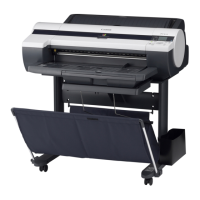
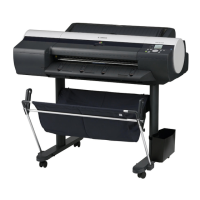
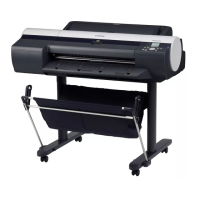
iPF6300 / iPF6350 / iPF6300S
This subsection describes how to transport the printer.
When moving the printer to another place on the same floor of the building, move it slowly so that it does not receive any shocks. Follow the steps shown in "1.
Moving the printer on the same floor having no step".
When moving it elsewhere, follow the steps shown in "2. Moving the printer on the same floor having a step(s)".
When transporting the printer, the printhead must be capped and stay in the carriage.
In spite of this precaution, shocks incurred during transportation can damage the printhead.
Print the nozzle check pattern before making preparations for transporting the printer, pint the nozzle check pattern again after installing the printer at the new lo-
cation, and then compare the two printouts.
If any problem such as nozzle clogging cannot be resolved by printhead cleaning, replace the printhead with a new one.
1. Moving the printer on the same floor having no step
(1) Turn off the Power button on the printer and check that the head is capped.
(2) Open the top cover and mount the belt stopper.
When mounting the belt stopper, be careful not to move the carriage by applying too much pressure to the carriage. If the carriage moves with the head capped, the
rubber part of the cap may touch the nozzles on the head and damage the printhead.
(3) Close the upper cover.
(4) Remove the roll holder from the roll holder slot.
(5) Remove the interface cable, power cord from the printer.
(6) Hold the carrying handles at the bottom, and then slowly move the printer.
- If the printer is subjected to strong vibrations when it is moved, it can cause ink leakage and damage to the printhead. Be sure to move the printer slowly and
carefully.
- Do not incline the printer during transportation. The internal ink may leak and the surrounding area may be stained.
2. Moving the printer on the same floor having a step(s)
Follow the steps shown in "a. When the printer is operating properly". When the printer is not operating properly due to breakdown or a power-supply problem,
follow the steps shown in "b. When the printer is not operating properly".
a. When the printer is operating properly
To prevent the waste ink from leaking, drain the ink, wait about 15 minute, and then remove the maintenance cartridge. Package the removed maintenance cartridge
so that the waste ink does not leak.
(1) Turn on the Power button on the printer.
(2) Remove the media.
(3) Remove the roll holder from the roll holder slot
(4) Enter the Main menu, and then select "Set/Adj. Menu" > "Prep. MovePrinter". Remove all ink tanks following the displayed messages.
Put the removed ink tanks in the plastic bag with the ink port up and close the opening. It takes about 4 minutes to complete the "Prep. MovePrinter" operation.
- "Prep. MovePrinter" cannot be selected when "MT Cartridge Full Soon" is displayed. In this case, replace the maintenance cartridge first.
- If the consumable parts counter is checked and a message to replace consumable parts appear, check the consumable parts counter from service mode and replace
the necessary consumable parts. After replacing the consumable parts and resetting the counter of service mode, perform the steps again. Refer to "SERVICE
MODE" > "Details of Servide Mode" > "PARTS CNT." and "MAINTENANCE" > "Consumable Parts" > "Consumable Parts".
- Never disconnect the power cord or open any cover while the "Prep. MovePrinter" operation is in progress since this can cancel the operation. If the "Prep. Move-
Printer" operation is canceled while in progress, the printer will remain in the offline mode and will not return to the online mode. The "Ink Filling" operation is
performed when the power is turned back on after canceling, so repeat the "Prep. MovePrinter" operation from the beginning.
- The "Prep. MovePrinter" operation will drain about 38 g of ink per color from the printer to the maintenance cartridge.
(5) When the "Prep. MovePrinter" operation is completed, turn off the Power button.
(6) Open the top cover to check that the head is capped, and then secure the carriage with the belt stopper.
(7) Close the top cover.
(8) Disconnect the interface cable and power cord from the printer.
(9) Wait about 15 minutes after completion of the "Prep. MovePrinter" operation, remove the maintenance cartridge, and then package it so that waste ink does not
leak.











 To Next Page