3
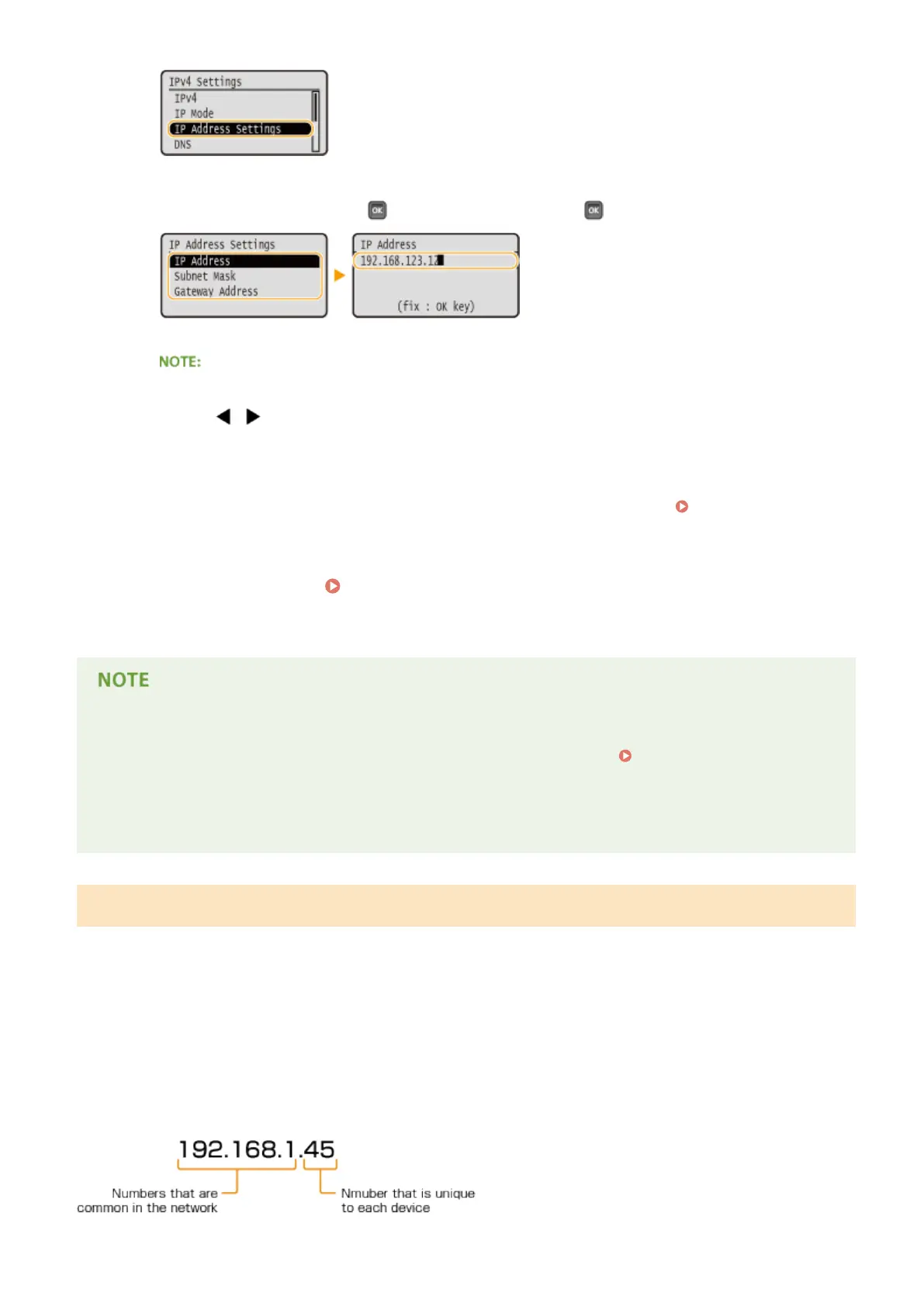
Specify the IP address, subnet mask, and gateway address (or default gateway).
● Select the item to set, press , enter an address, and press .
How to enter addresses
● Use / to move to the target eld (a period-delimited input area), and use the numeric keys to
increase/decrease the value.
When you are unsure of the IP address to input
● The IP address can be determined from the router settings of the network. Determining the IP
Address to Assign to the Machine(P. 193)
5
Perform a hard reset. Performing a Hard Reset(P. 498)
➠
The settings are enabled after the hard reset is performed.
Checking whether the settings are correct
● Make sure that the Remote UI screen can be displayed with your computer.
Starting Remote UI(P. 336)
If you have changed the IP address after installing the printer driver
● By following the procedure for changing the standard TCP/IP port described in the "Printer Driver
Installation Guide", specify the port to use again.
Determining the IP Address to Assign to the Machine
When you want to use a xed IP address for the machine, you can determine the IP address as shown below.
◼ To Determine the IP Address
An IP address consists of four numbers delimited by a period (.) (example: 192.168.1.45). Each number must be
in the range from 0 to 255. In general, set the rst three numbers to be the same as those for the router
because they are common in the network. Determine the last number (for example, 45 in 192.168.1.45) that is
different from that for other devices.
Network
193



 To Next Page