➠ After the secured document is sent to the machine, it is held in the memory of the machine waiting to be
printed.
If you selected [No] at step 3
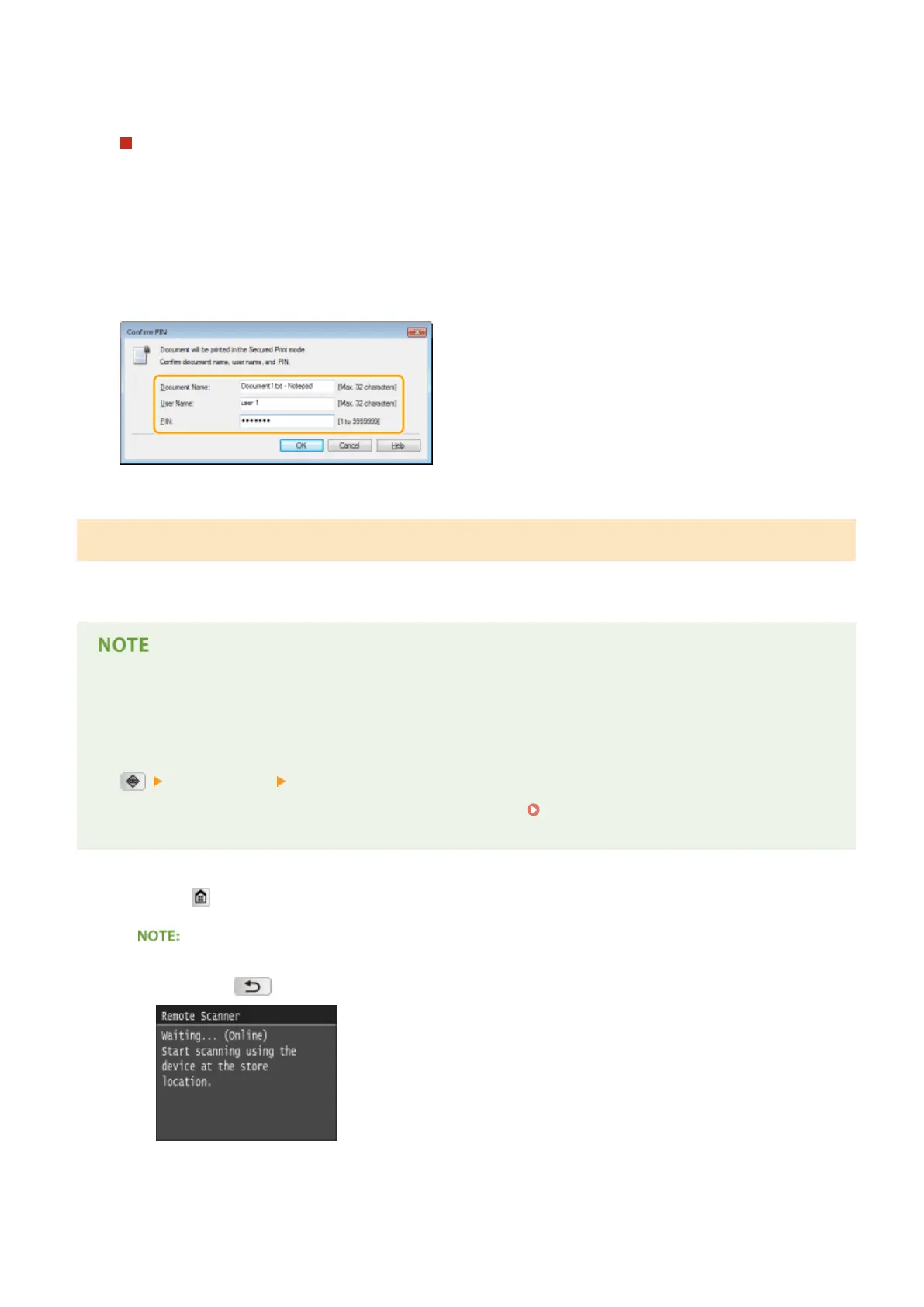
Enter the [Document Name], [User Name], and [PIN] and click [OK].
● The document name is automatically set based on the information from the application. If you want to
change the document name, enter up to 32 alphanumeric characters for a new document name.
● The computer name (logon name) of your computer is displayed in [User Name]. If you want to change the
user name, enter up to 32 alphanumeric characters for a new user name.
● Enter a number of up to seven digits to [PIN].
Printing Out Secured Documents
After you send the secured document to the machine, print it out within 30 minutes. After that, the secured document
will be deleted from the memory of the machine and can no longer be printed.
● If secured documents are left unprinted, they occupy the memory and may prevent the machine from
printing even ordinary (not secured) documents. Make sure that you print your secured documents as soon
as you can.
● You can check how much memory is being used for secured documents.
<Device Status> <Secure Print Memory Usage>
● You can change the valid time period for secured documents.
Changing the Valid Time Period for
Secured Documents(P. 282)
1
Press and tap <Secure Print>.
● You cannot proceed to the next step if the <Remote Scanner> screen shown below is displayed. In this
case, press to close the screen, and tap <Secure Print> again.
2
Select the secured document to print.
Using the Machine as a Printer
281








 To Next Page