Saving Documents Directly in Shared Folder/FTP Server
0UWX-05R
This section describes how to scan documents and save them to a shared folder or FTP server directly from the
machine. Scanned documents are saved as JPEG images, PDF les or in other digital le formats.
● To save documents directly to a shared folder or FTP server, you must complete preparations in advance,
including specication of the save destination.
Conguring the Machine for Scanning to Shared Folders(P. 474)
Conguring the Machine for Scanning to FTP Server(P. 480)
● Available destinations for shared folders/FTP servers are limited to the destinations registered in the
Address Book. To specify a destination using the Address Book, it is necessary to register that destination
before scanning the relevant folder/FTP server.
Setting a Shared Folder as a Save Location(P. 475)
Registering Destinations in the Address Book from Remote UI(P. 624)
● You can only specify one destination at a time.
1
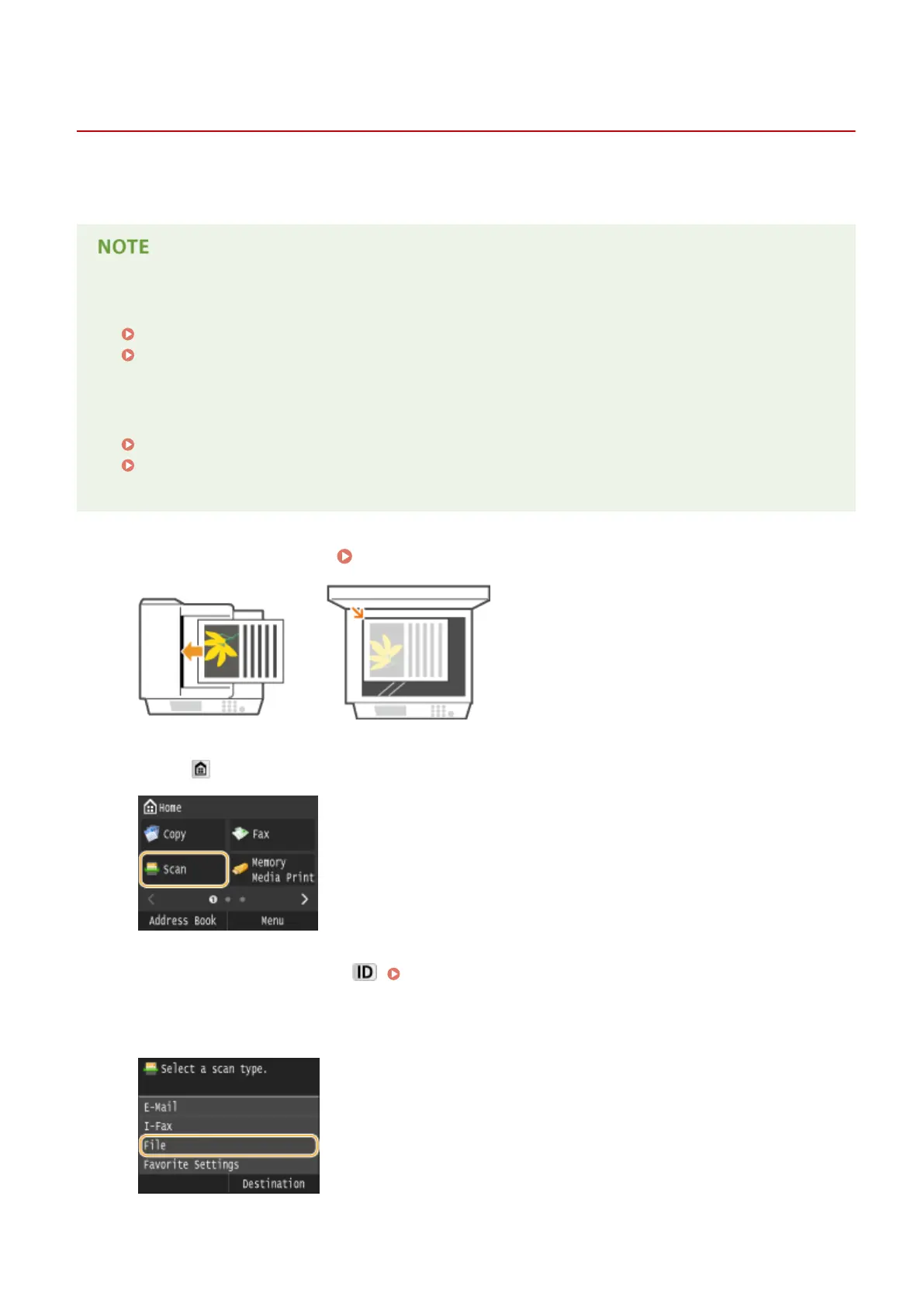
Place the document(s). Placing Documents(P. 47)
2
Press and tap <Scan>.
● When the logon screen appears, use the numeric keys to enter the user name and password. Then select the
authentication server and press
. Logging on to Authorized Send(P. 45) .
3
Tap <File>.
Using the Machine as a Scanner
342



 To Next Page