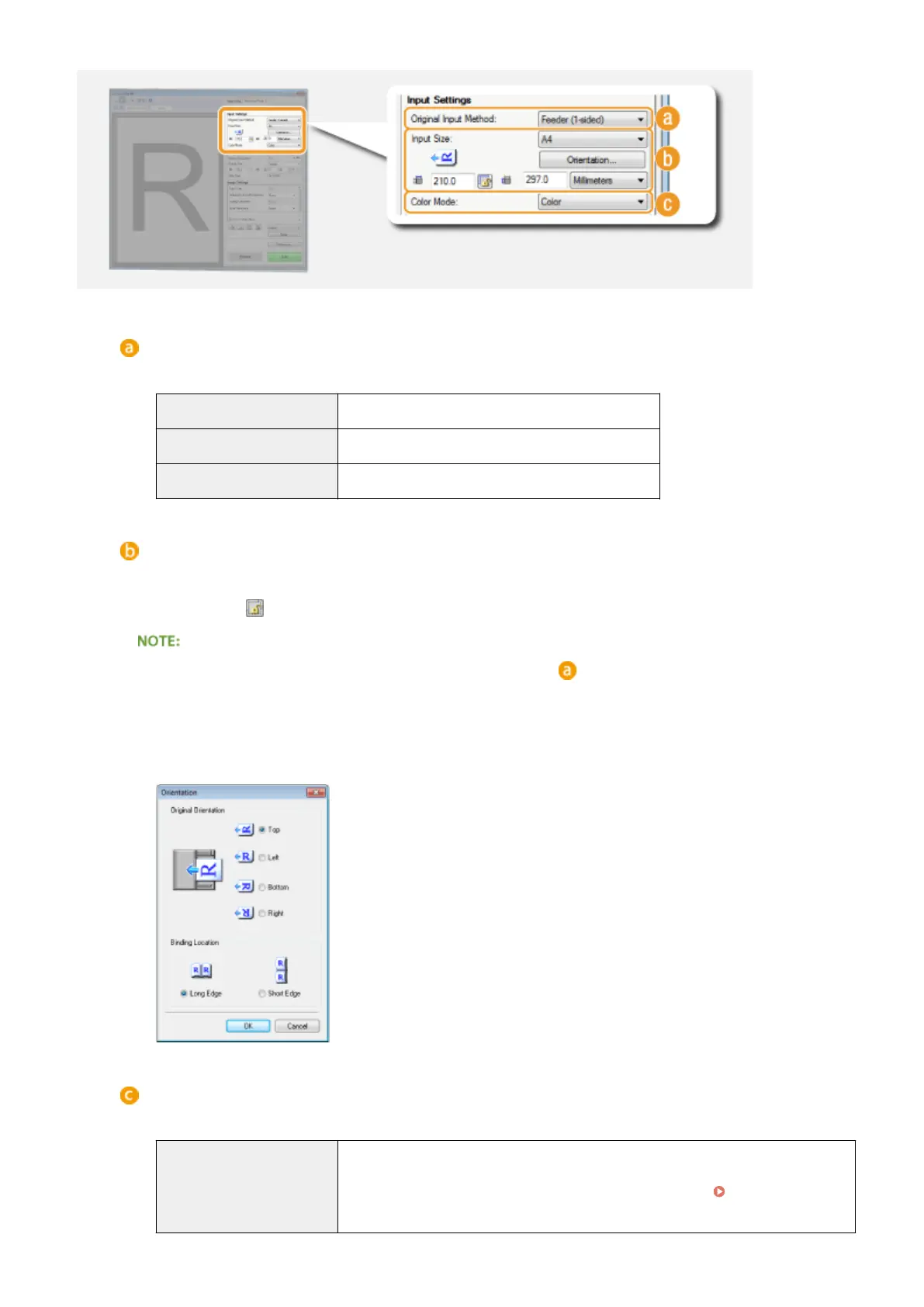
[Original Input Method]
Select a setting based on whether you place your documents on the platen glass or in the feeder.
[Platen Glass]
Select when placing documents on the platen glass.
[Feeder (1-sided)] Select when placing 1-sided documents in the feeder.
[Feeder (2-sided)] Select when placing 2-sided documents in the feeder.
[Input Size]
Specify the size of the scanning area. For normal cases, select the same size as the document. To specify the
size with values, select a unit, and enter the values for width and height. To lock the width to height ratio of
the image, click .
● If you select [Feeder (2-sided)] for [Original Input Method] ( ), you cannot specify the size by entering
the values.
● The image size that can be scanned is limited on some applications.
● If documents are placed in the feeder, set the orientation of the documents in [Orientation]. You can also
set [Binding Location] if 2-sided documents are placed in the feeder.
[Color Mode]
Select the image type to scan documents.
[Black and White]
The document is scanned as a black and white image (in black and white only, with no
intermediate shades of gray). You can change the threshold that separates text in the
document or the image into black and white with [Threshold] ( Adjusting
Brightness and Color(P. 322) ).
Using the Machine as a Scanner
319



 To Next Page