Printing via Secure Print
0UWX-051
This section describes how to print a document from an application as a secured document. The rst part of this
section describes how to send a secured document to the machine, and the second part of this section describes how
to print the secured document on the machine.
Sending a Secured Document from a Computer to the Machine(P. 279)
Printing Out Secured Documents(P. 281)
Changing the Valid Time Period for Secured Documents(P. 282)
Sending a Secured Document from a Computer to the Machine
1
Open a document in an application and display the print dialog box.
● How to display the print dialog box differs for each application. For more information, see the instruction
manual for the application you are using.
2
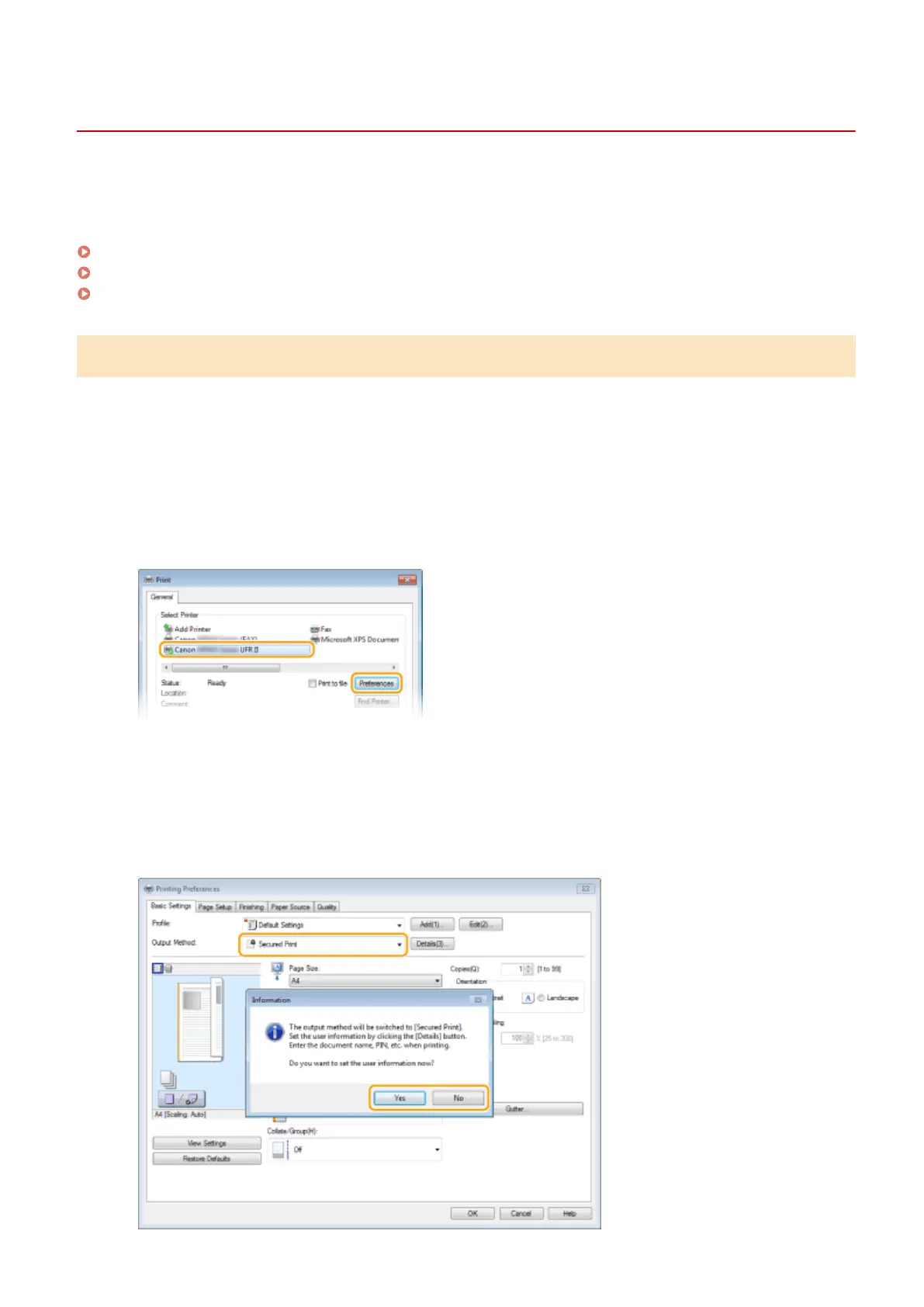
Select the printer driver for this machine, and click [Preferences] or [Properties].
3
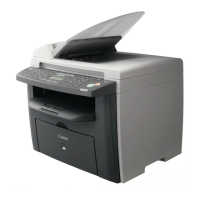
Select [Secured Print] in [Output Method].
● Click [Yes] or [No] on the [Information] pop-up screen.
● If you want to use the same user name and PIN every time, click [Yes]. To change the user name and PIN
every time, click [No].
Using the Machine as a Printer
279








 To Next Page