28
Starting the Camera Viewer Directly
Able to set [System] > [Viewer] > [General] > [Default Page] to [Display Viewer] in the Settings page to set the Viewer
as the default page (P. 146).
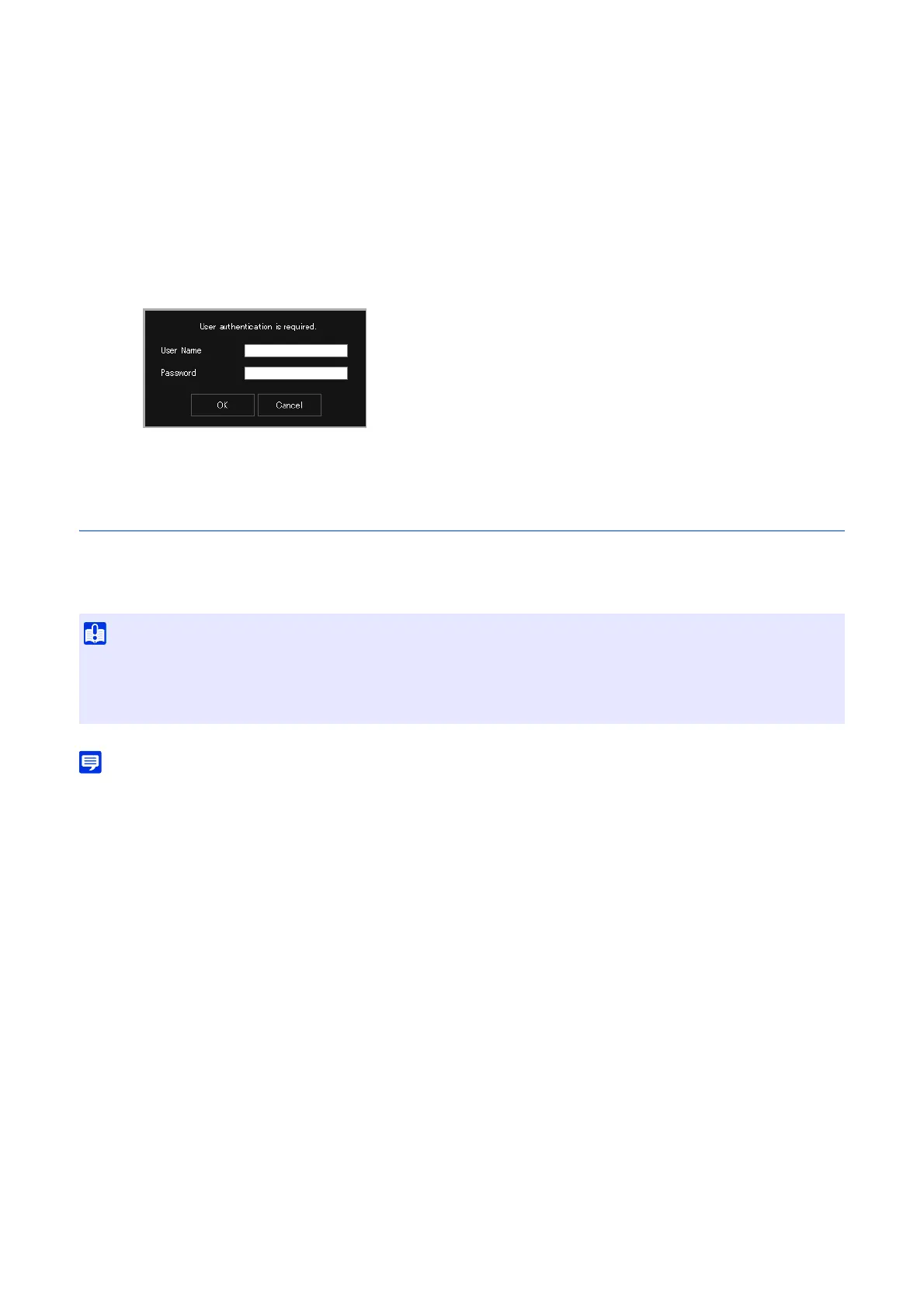
The authentication screen for the Viewer is displayed.
The Camera Viewer is displayed.
Camera Viewer Access Restrictions
Two types of users can be set; authorized users, which require user authentication, and guest users, that do not require
authentication.
The functions that each user can use in the Camera Viewer depend on the privileges assigned to the user (P. 142).
• If [System] > [Viewer] > [Viewer Settings] > [User Authentication] is set to [Do not authenticate] on the Settings page, the authentication
screen is not displayed when connecting to the Viewer, and the user is connected as a guest user. Guest users can only perform some
operations with the Viewer, however it is possible to later switch users in order to use the Viewer as an administrator or authorized user.
Click [Switch Users] to log into the Viewer again as an administrator or authorized user.
1
Start the web browser.
2
Enter the IP address and click the Enter key.
3
Enter the administrator name and administrator password, and click [OK].
• Multiple administrator accounts cannot connect to a single camera at the same time.
An authorized user or a guest user can connect to the camera from multiple computers at the same time. When controlling a camera,
the authorized user who acquired the control privilege later will be given the priority. On the other hand, guest users are placed in a
queue.



 To Next Page