33
Displaying in Full Screen Mode
The video display area is displayed in full screen mode by clicking the [Full Screen Mode] button in the upper right of
the Viewer.
Menus
When displayed in the full screen mode, the menu panels required for controlling the camera are displayed on the
bottom of the screen, as well as on the Camera Viewer screen.
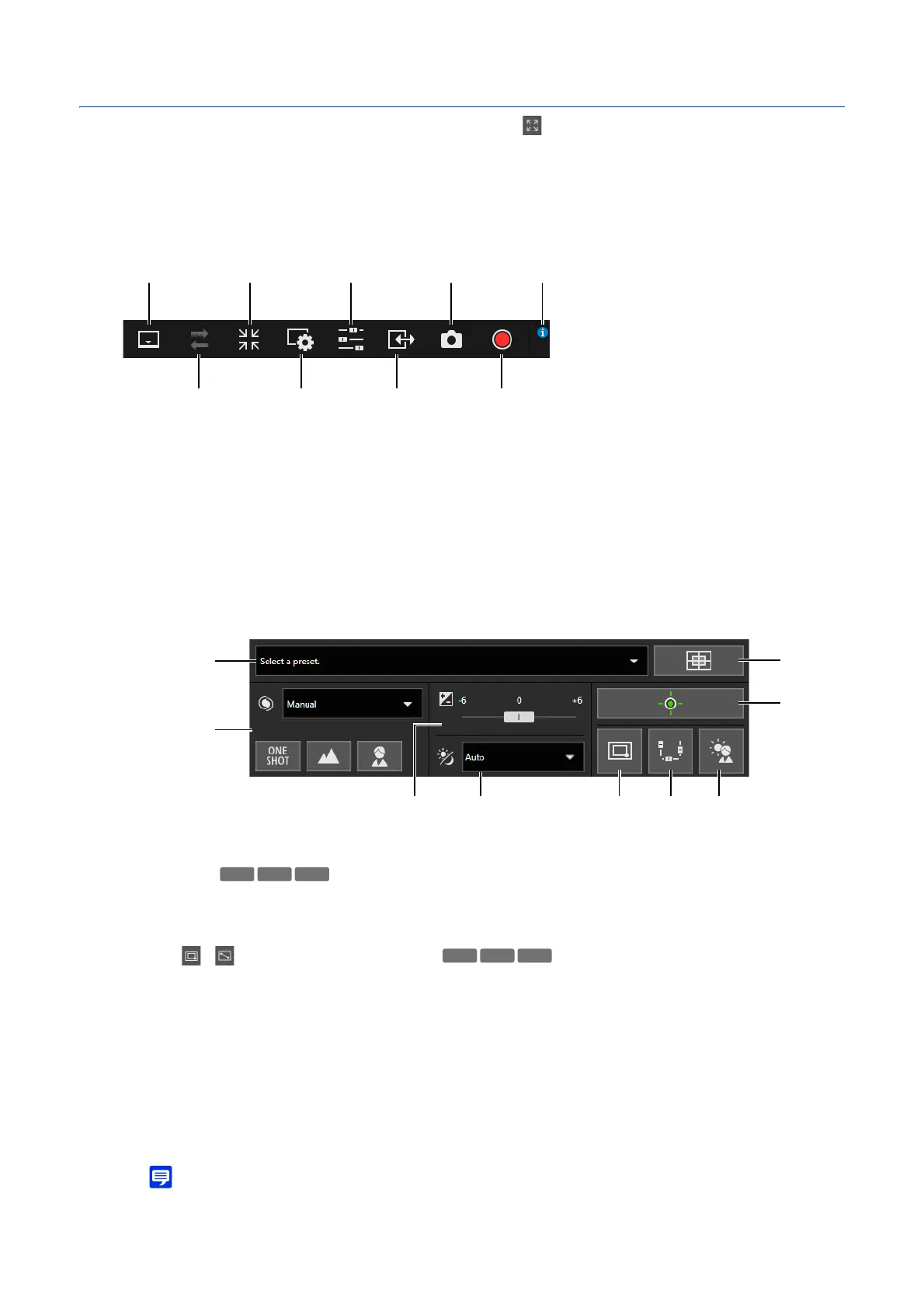
(1) [Menu Bar] Button
Switches between displaying and hiding the menu bar.
(2) [Reconnect] Button (P. 29)
(3) [Exit Full Screen Display] Button
Returns the video display area to the regular view.
(4) [Video and Audio Menu] Button (P. 32, P. 48)
(5) [Camera Operation Menu] Button
Switches the display/non display of the camera operation menu. For [Day/Night], privileged camera control or
higher privilege is required. For other items, camera control or higher privileges is required.
(A) Preset Selection Menu (P. 41)
(B) Focus (P. 40)
(C) Exposure Compensation (P. 40)
(D) Day/Night (P. 40)
(E) / Switch Area Zoom/Drag to Move (P. 37)
(F) Pan/Tilt/Zoom
Turn on this button (purple) to display the pan/tilt/zoom sliders on the screen, and operation of the sliders
will be enabled.
The pan slider is displayed on the bottom of the screen, the tilt slider on the left edge of the screen, and the
zoom slider on the right edge of the screen.
(G) [Back Light Compensation] (P. 40)
(H) [Home Position] (P. 41)
(I) Obtain/Release Camera Control Privileges (P. 35)
• (B) Focus, (C) Exposure Compensation, and (D) Day/Night items are displayed when [System] > [Viewer] > [In-Viewer
Picture Adjustment] (P. 146) on the Settings page is set to [Allow].
(5)
(2)
(1) (7) (9)(3)
(4) (8)(6)
(A)
(H)
(B)
(I)
(E) (F) (G)(D)(C)
S32D
S32VE S32D



 To Next Page