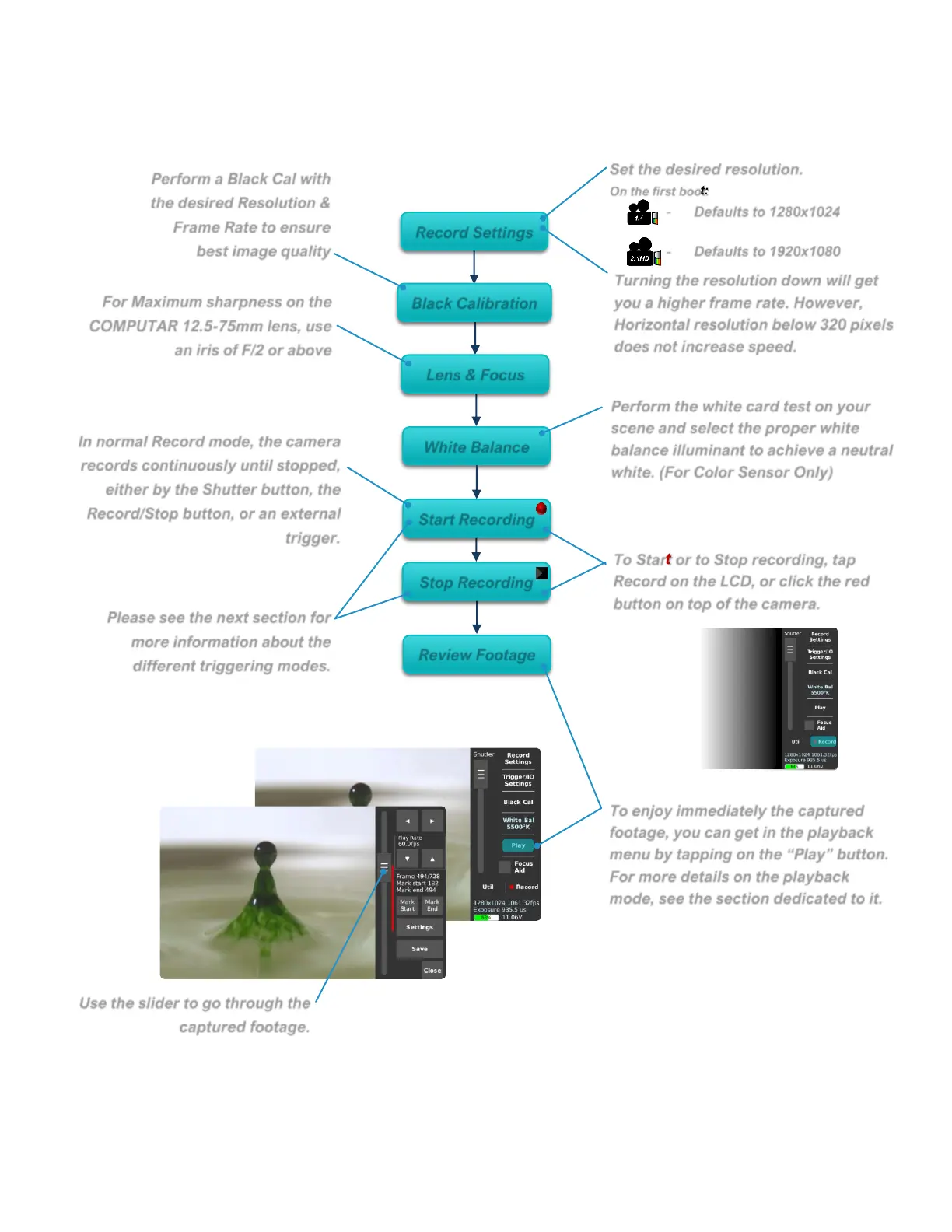
Set the desired resolution.
On the first boot:
-
Turning the resolution down will get
you a higher frame rate. However,
Horizontal resolution below 320 pixels
does not increase speed.
Perform a Black Cal with
the desired Resolution &
Frame Rate to ensure
best image quality
For Maximum sharpness on the
COMPUTAR 12.5-75mm lens, use
an iris of F/2 or above
Perform the white card test on your
scene and select the proper white
balance illuminant to achieve a neutral
white. (For Color Sensor Only)
To Start or to Stop recording, tap
Record on the LCD, or click the red
button on top of the camera.
To enjoy immediately the captured
footage, you can get in the playback
menu by tapping on the “Play” button.
For more details on the playback
mode, see the section dedicated to it.
In normal Record mode, the camera
records continuously until stopped,
either by the Shutter button, the
Record/Stop button, or an external
trigger.
Please see the next section for
more information about the
different triggering modes.
Use the slider to go through the
captured footage.
CHEAT SHEET TO YOUR FIRST RECORDING


 To Next Page