114
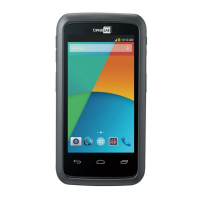
CP30 Mobile Computer
Reference Manual
8.1 CAMERA INTERFACE
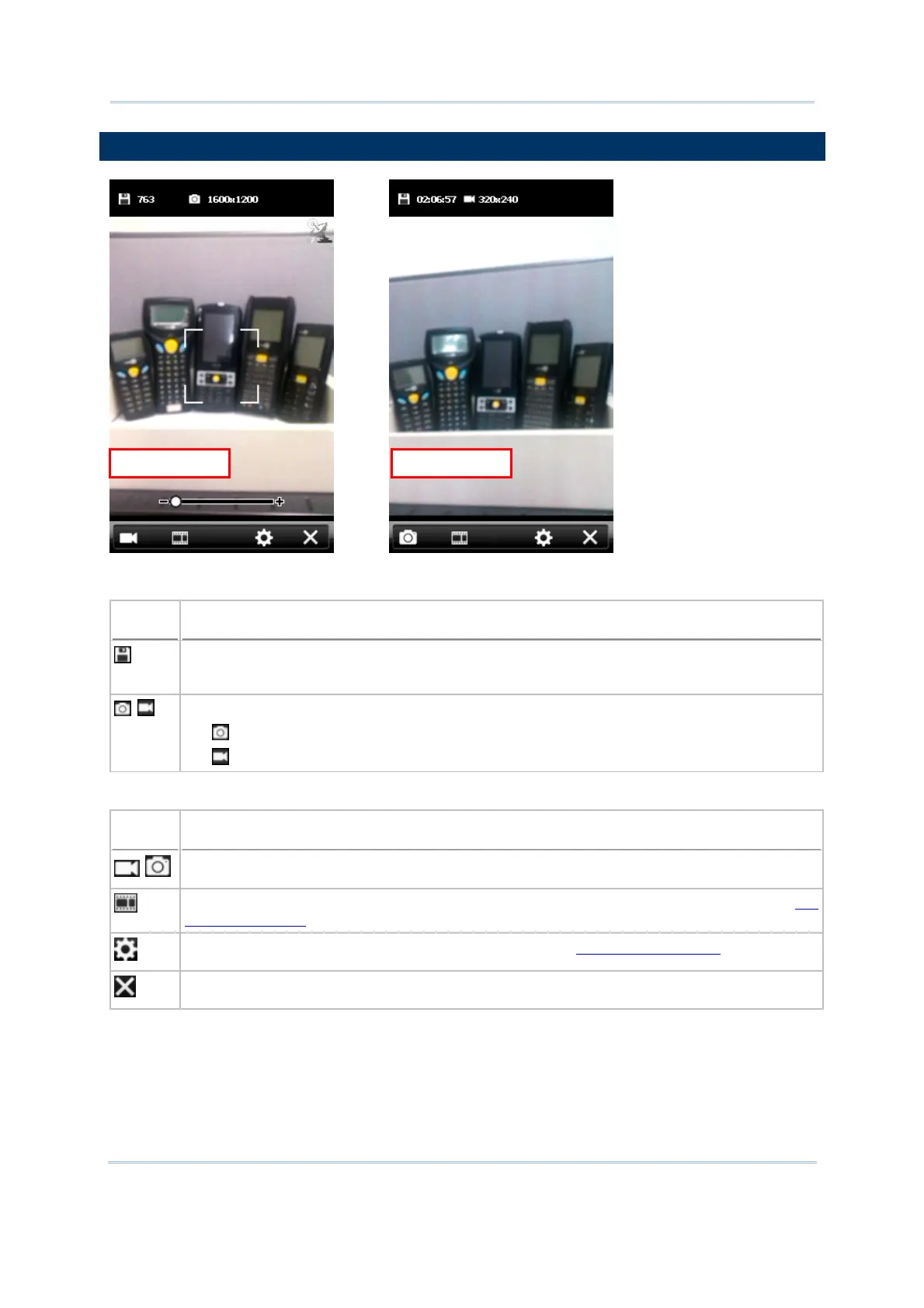
The icons on top of the screen are for camera status and image properties.
Icon
Description
In Still mode: number of pictures can be taken
In Video mode: available recording time
/
Camera status and information of image resolution
indicates the camera is in Still mode
indicates the camera is in Video mode
The buttons on bottom of the screen, from left to right, are described as below.
Button
Description
/
Tap to switch between Still and Video modes.
Tap to open Pictures & Videos folder to view images and playback videos. Refer to
8.4
Pictures & Videos.
Tap to configure camera settings if necessary. Refer to
8.5 Camera Settings.
Exit and turn off the camera.
ideo ModeStill Mode



 To Next Page