30
CP30 Mobile Computer
Reference Manual
2.1 GETTING STARTED
2.1.1 HOME SCREEN
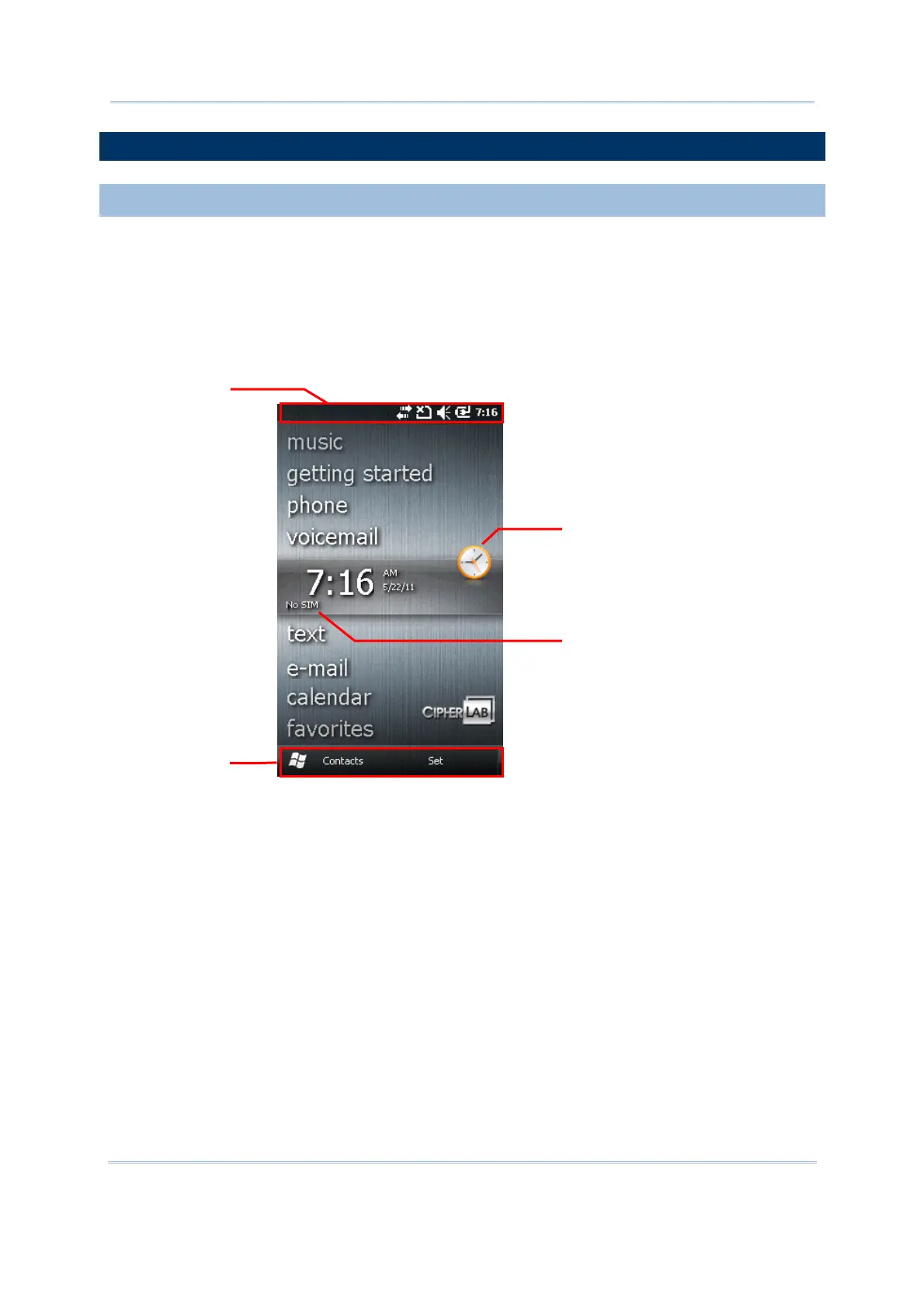
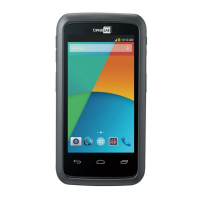
When the mobile computer is fully charged, press the Power key for three seconds to
turn on the mobile computer and wait for the Home Screen to come up.
Tap and hold the Home Screen up and down to highlight a desired application. The
additional information or items will appear sideways, and right soft key will be available
at the bottom of the screen as well.
If you are using the mobile computer for the first time, there are a couple of things to do
after the Home Screen comes up. The Getting Started wizard that will walk you through
e-mail setup, changing the background image, setting up Bluetooth headset connection,
etc.
Go to Start | Settings, and tap Home to change theme, background, and status
items shown on the Home Screen, etc.
Go to Start | Settings, and tap Clock & Alarms to select time zone, change local
time, set alarms, etc.
Title Bar
Soft Key Bar
Application Info.
Application Icon



 To Next Page