19
Chapter 1
Usin
he
CP30 Mobile Computer
1.3.2 ALPHA KEY
This alphanumeric keypad is set to numeric mode by default. The Alpha key [α] serves as
a switch key among numeric, alpha (lower-case alphabetic) input modes.
Note: Press [α] key to switch the numeric and lower-case alphabetic modes.
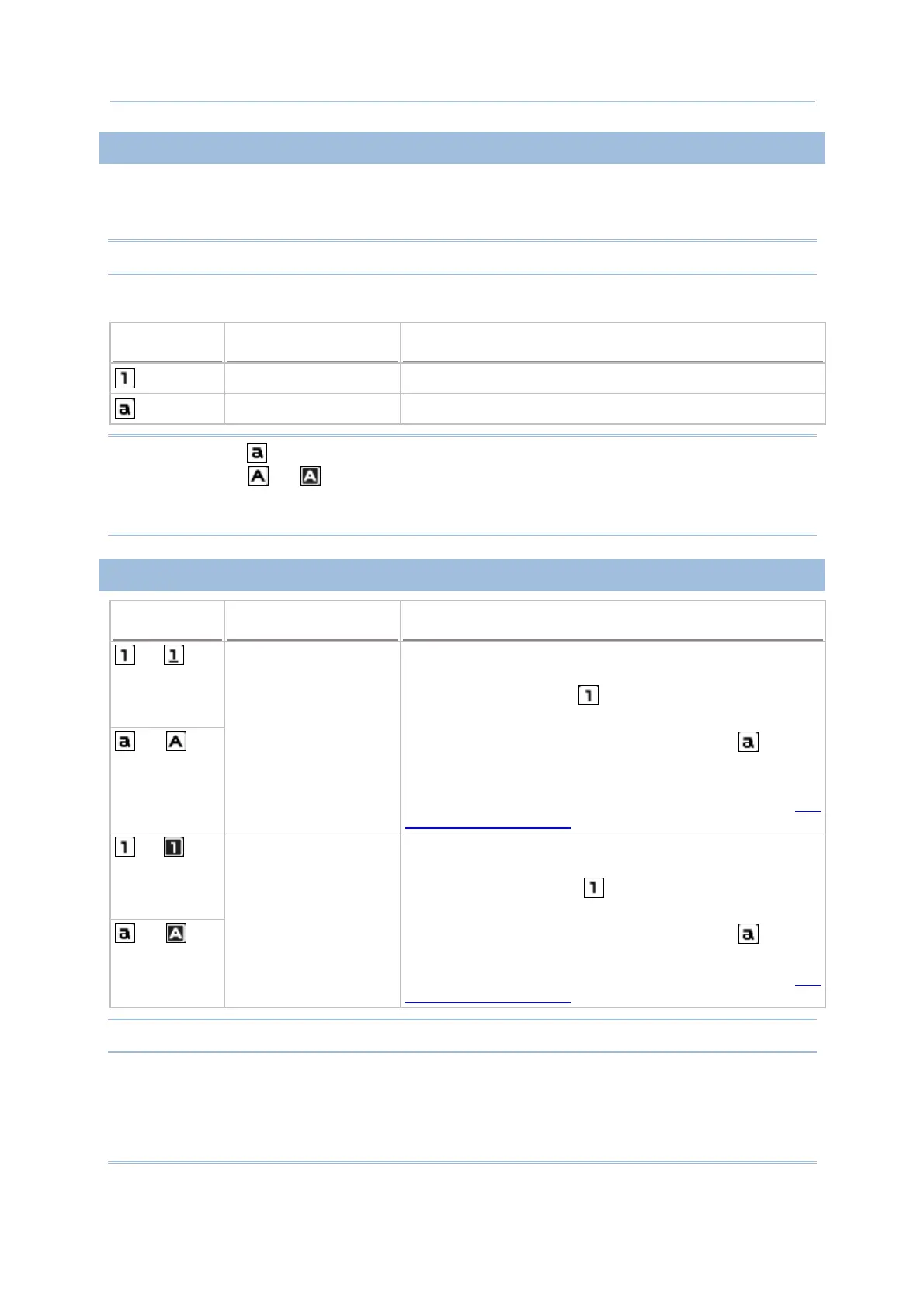
The alpha icon will appear on the status bar with a sequence as shown below.
Status Icon
Alpha Key Input Mode
--- Numbers
Press [α] one time Lower-case alphabetic
Note: (1) Under mode, use the Shift key [] to enter ALPHA (upper-case alphabetic)
character ( or ) mode.
(2) If you are using the software keyboard via screen, tap CAP (Caps Lock) to
switch upper-case and lower-case alphabetic modes.
1.3.3 SHIFT KEY
Status Icon Shift Key Input Mode
→
→
Press [
] one time The Shift key [] modifies the next key pressed.
Depending on the input mode.
(1) In numeric mode ( ), it will modify the next key
pressed and is user-definable.
(2) In alpha (lower-case alphabetic) mode (
), it will
show a single upper-case character after press Shift key
[
] one time.
For example, input “ABC”, it will show “Abc. Refer to Use
of Alpha (α) & Shift ().
→
→
Press [
] two times
(enter Shift Lock Mode)
If you press Shift key [] two times will lock the present
input mode.
(1) In numeric mode ( ), it will lock numeric mode
pressed and is user-definable.
(2) In alpha (lower-case alphabetic) mode ( ), it will
lock all upper-case characters (= Caps Lock).
For example, input “ABC”, it will show “ABC”. Refer to
Use
of Alpha (α) & Shift ().
Note: It is not necessary to long press the Shift key [].



 To Next Page