67
Chapter 4 Using 802.11 Radio
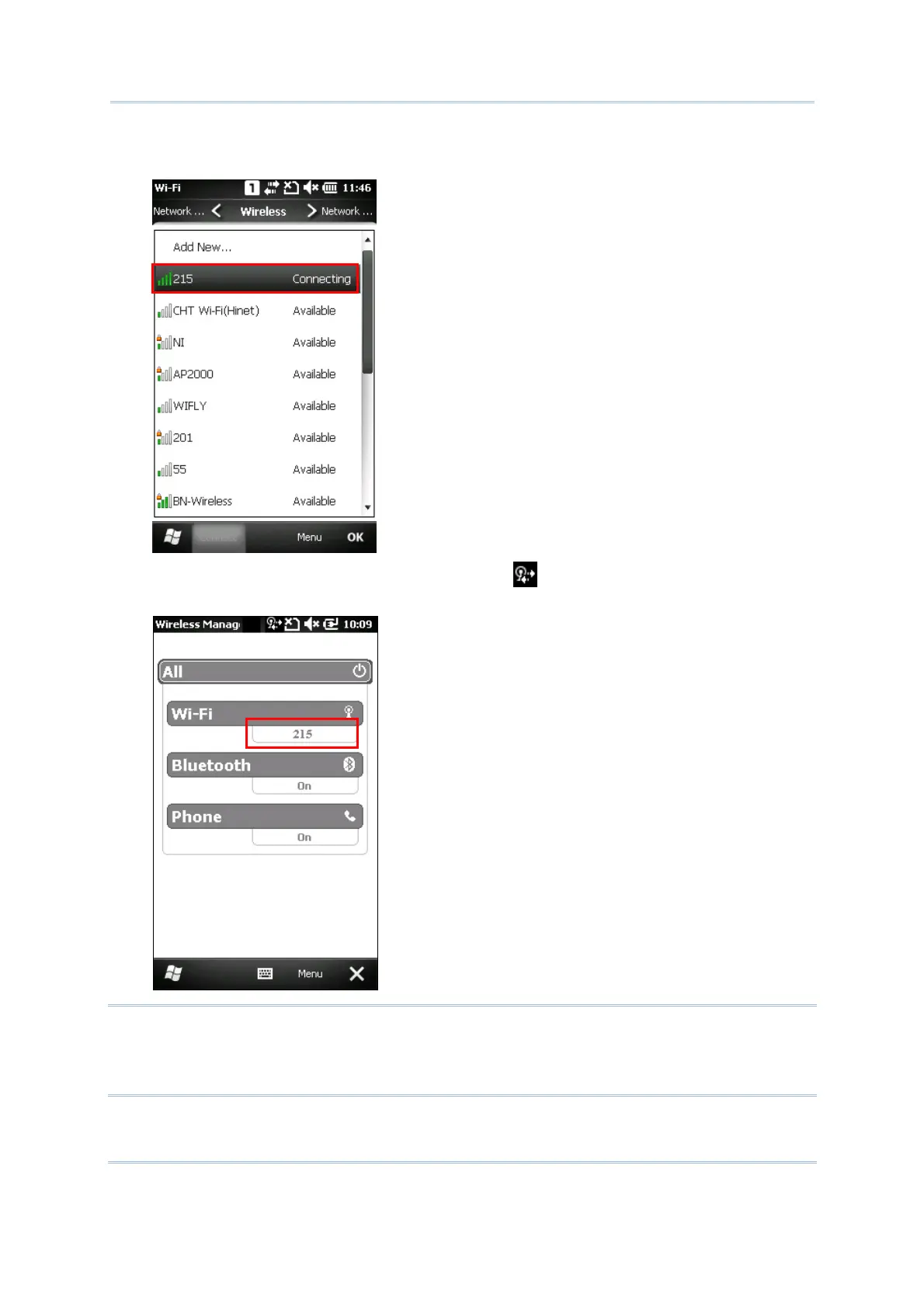
3. Wait a few seconds for the mobile computer to connect to the preferred network you have
configured. Tap [OK] to close the current window.
4.
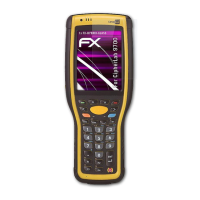
Once connected successfully, the associated icon
will appear on the title bar and the
connected network name will be displayed for Wi-Fi status in Wireless Manager.
Note: If the Wi-Fi power item is disappeared during the Wi-Fi connection, please go to
the ActiveSync configuration screen to enable “Allow wireless connection on device
when connected to the desktop” check box that located in the File | Connection
Settings of ActiveSync to appear Wi-Fi power item.



 To Next Page