
EasyManua.ls Logo

cobas h 232 - User Manual

cobas h 232
212 pages
Print Icon
To Next Page IconTo Next Page
Loading...
cobas h 232
Operators Manual

Table of Contents

Other manuals for cobas h 232

Questions and Answers

  • M
    Michelle JacksonJul 27, 2025
    What to do if cobas Measuring Instruments shows 'Battery Low'?
    • O
      olewisJul 27, 2025
      If your cobas Measuring Instruments meter displays 'Battery Low', it means the battery is running out of power. To resolve this, recharge the battery pack as soon as possible.
  • H
    heathersinghAug 3, 2025
    Why is my cobas Measuring Instruments meter display not powering on?
    • G
      Gregory RoseAug 3, 2025
      If your cobas Measuring Instruments meter display does not power on, try waiting 10 seconds before attempting to power it on again. Also, verify that the meter is receiving power. If you're using an external power adapter, ensure it's properly connected to the meter. Alternatively, place the meter in the Handheld Base Unit or check if the Handheld Battery Pack is correctly installed.
  • W
    Willie LongAug 8, 2025
    What to do if Roche logo does not appear within 60 seconds during reset of cobas Measuring Instruments?
    • A
      Alexis FischerAug 8, 2025
      If the Roche logo doesn't appear within 60 seconds during reset of your cobas Measuring Instruments, place the meter in the Handheld Base Unit for at least 15 minutes to recharge the battery pack.
  • M
    Margaret ZimmermanAug 14, 2025
    What to do if cobas Measuring Instruments has communication problems with the Data Management System via RF?
    • M
      Michael BryantAug 14, 2025
      If your cobas Measuring Instruments experiences communication problems with the Data Management System via RF, check the WLAN functionality on the meter. You can also dock the RF enabled meter into a hard-wired base unit to transfer the data, or try resetting the meter.
  • F
    Frederick HarrisonAug 21, 2025
    What to do if cobas Measuring Instruments says 'Patient ID Required'?
    • J
      Jillian RobinsonAug 21, 2025
      To resolve the 'Patient ID Required' error on your cobas Measuring Instruments, enter a valid patient ID.

Summary

Introduction

The cobas h 232 meter

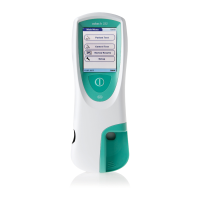
Overview of the cobas h 232 meter as an immunoassay instrument for quantitative evaluation.

Important safety instructions and additional information

Guides on safety alerts, warnings, cautions, and notices for proper system handling.

Overview of the meter and its accessories

Details on the meter's components and accompanying accessories with labeled diagrams.

Putting the Meter into Operation

Installing or replacing the battery pack

Step-by-step guide for removing and installing the meter's battery pack.

Powering the meter on and off

Instructions on how to power the cobas h 232 meter on and off using the power button.

Meter Setup

Basics setup

Configuration of fundamental meter settings including contrast, language, date/time, sound, and auto-off.

Data Handling setup

Settings for data exchange with external devices like computers and printers, including QR code options.

ID Setup setting

Configuration for user management, including Administrator, Operator, and Patient ID settings.

Lockout setup

Options for setting up quality control and operator lockouts to ensure proper test procedures.

Optional Screens setup

Customization of display formats and test procedures, including additional information and result management.

Performing a Test

Proper sample collection

Guidelines for collecting blood samples, ensuring accuracy and avoiding incorrect results.

Inserting a test strip

Procedure for correctly inserting the test strip into the meter for accurate measurement.

STAT tests

Procedure for performing tests in emergency situations to override lockouts.

Control Testing and Quality Control

Performing a quality control test (QC)

Steps for performing quality control tests using control solutions to verify meter and strip performance.

Instrument quality control (IQC)

Performing IQC tests to check the meter's optical system performance.

Review Results

Reviewing test results

Accessing and reviewing stored test results, including patient history, QC, and IQC data.

Patient history

Viewing results sorted by Patient ID to retrieve individual patient test data.

Quality control (QC) results

Accessing and reviewing stored quality control test results.

Extended Functionalities

Data handling

Connecting the meter to a data management system (DMS) for data transfer and system configuration.

Operator lists

Managing operator lists for login and restricting meter use to authorized personnel.

Maintenance and Care

Conditions for storage and shipping

Guidelines for storing and shipping the meter and test strips to maintain optimal conditions.

Cleaning and disinfecting the meter

Procedures for cleaning and disinfecting the meter to ensure hygiene and proper functioning.

Troubleshooting

Errors and unusual behavior without error messages

Common issues and their solutions when the meter displays no error or status messages.

Meter reset

Instructions for performing a hard reset on the meter when other remedies fail.

General Product Specifications

Operating conditions and technical data

Technical specifications including temperature, humidity, altitude, and memory capacity.

Ordering information

List of items, descriptions, and reference numbers for ordering consumables and accessories.

Warranty

Product limitations

Information on product limitations and data from test strip package inserts.

Information about software licenses

Details on the use of open source software modules and licensing conditions.

Appendix A: Working with Barcodes

Risk of barcode read errors

Guidance on preventing barcode read errors and ensuring accurate patient/operator identification.

Operator and patient ID barcode masks

Definition of barcode mask characters used for ID validation and format checking.

Appendix B: Wireless Network (WLAN)

Technical implementation

Recommendations for WLAN site surveys and network setup for optimal meter connectivity.

RF specific functionalities and effective performance claims

Performance capabilities of the meter's wireless connectivity, including data transfer speeds and reliability.

Appendix C: Observed Test Sequence (OTS)

Using the OTS function

Procedure for using the OTS function to assess and record operator performance during tests.

Appendix D: Contact Roche

cobas h 232 Specifications

General IconGeneral
Device TypePoint-of-care analyzer
Sample TypeWhole blood, plasma
Measured ParametersTroponin T, Myoglobin, D-Dimer, NT-proBNP
ConnectivityUSB
Intended Usecardiac markers
Data ManagementLIS connectivity
ThroughputSingle test
Sample Volume150 µL
Operating Temperature15-30 °C
Operating Humidity10-85% (non-condensing)
DisplayColor touchscreen
Measurement PrincipleElectrochemiluminescence immunoassay (ECLIA)