79
7.11.4.1 Delete
This will delete the currently selected key frame. This is only available if the number of key
frames is larger than two.
7.11.4.2 Change Position
This will bring up the three-axis sliders for adjusting the position of the motor. After you change
the position and return to this pop-up screen you will need to confirm your new position by
pressing the “Use Current Position” button.
7.11.4.3 Use Current Position
After changing the motor’s position using the “Change Position” button, pressing “Use Current
Position” will update the key frames position with the new position and return you back to the
curve screen.
7.11.4.4 Change Time / Change Frame
Here you can edit what time or frame number for this key frame. By doing this you will expand
or contract the total length of your motion profile (it won’t change the time between other key
frames).
7.11.4.5 Smooth
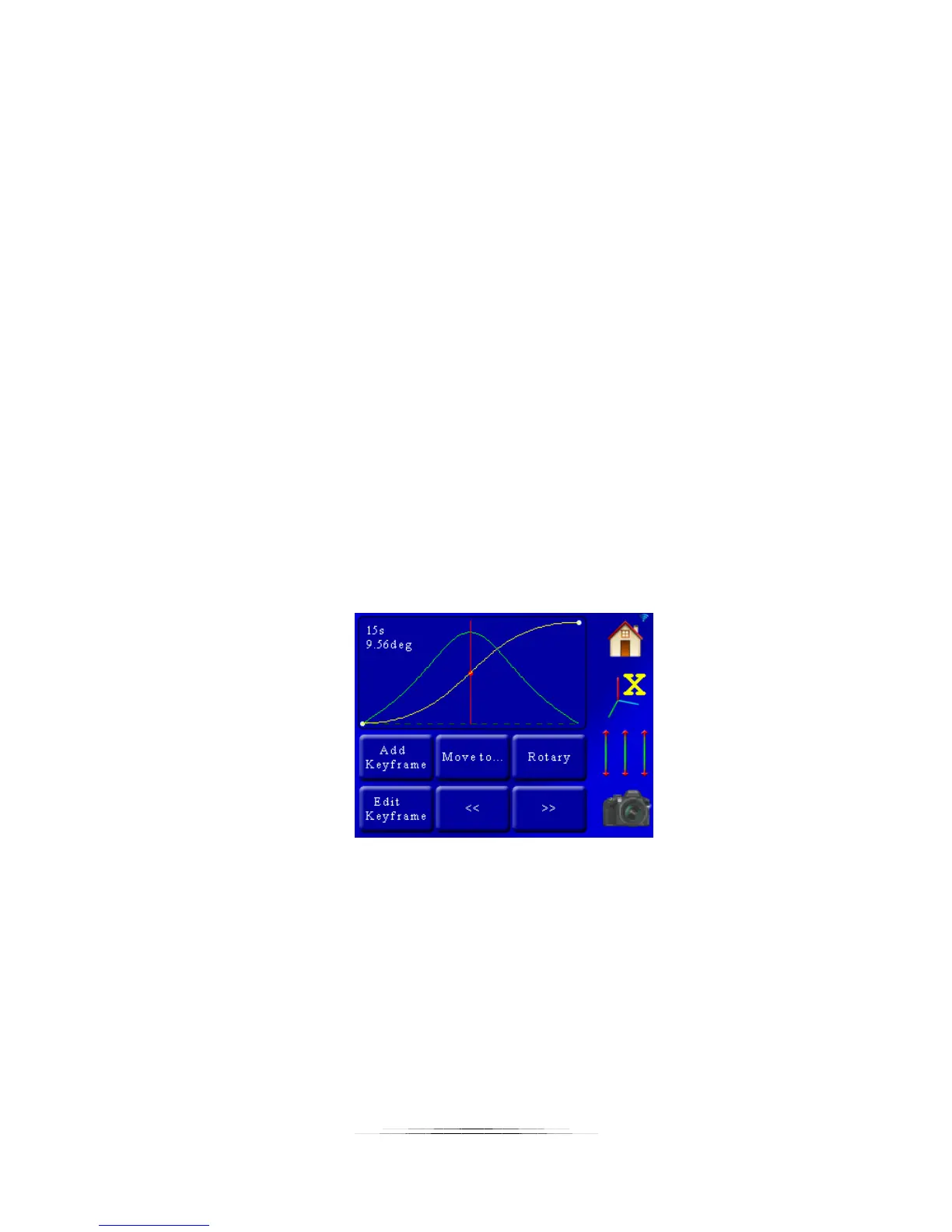
Smoothing a key frame means that the speed entering this key frame will try and match the
speed leaving the key frame. This creates a smooth motion. The example below is of a smooth
key frame:
7.11.4.6 Linear Ramp
A linear ramp keeps the velocity constant going into and out of the key frame. It won’t stay that
way though the further you get away from the key frame since the key before and after this key
frame will start to influence the motion profile. This is what it looks like setting the above
middle key frame to linear. Note how it has a straight-line velocity going into and out of the key
frame. Sharp-edge transitions like shown below will cause a noticeable change in velocity:


 To Next Page