94
This way you will know which axis is busy and which ones are waiting to start – handy for X-Y-Z
stacking that may take quite some time to complete.
To exit the Time Lapse screen just touch the display. The next time you start an operation the
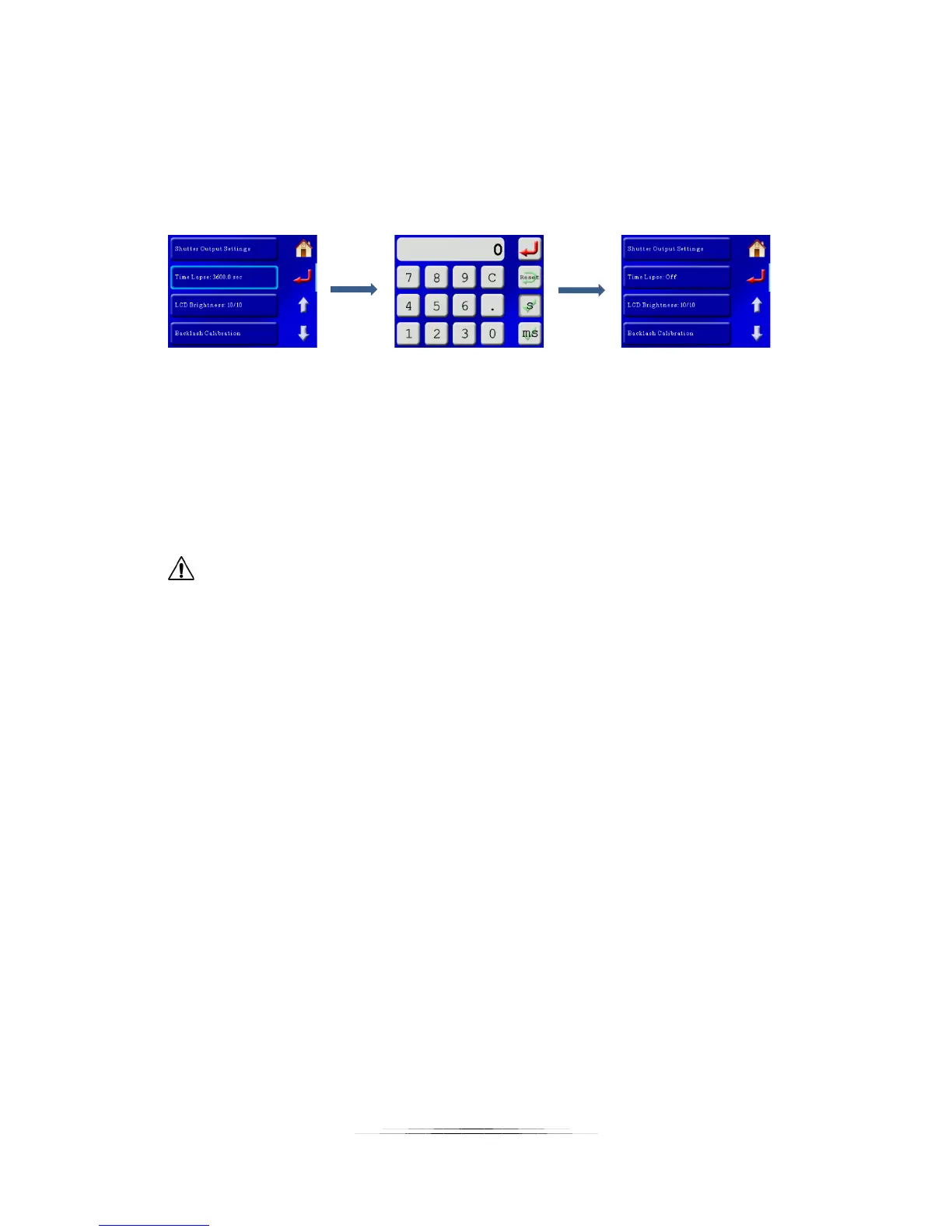
“Time Lapse” screen will re-appear. To prevent Time Lapse from starting you need to set the
interval to zero from the settings screen:
Note: If the “Time Lapse” time is faster than the time it takes to complete a task it will skip that
time lapse event and wait for the next interval (You’ll miss that opportunity). Therefore, you
should make sure that the “Time Lapse” time is at least as long as the duration it takes for the
current task to complete. The interval may be adjusted from one second up to 24 hours.
CAUTION: Time lapse mode will potentially cause the un-attended operation of the
equipment. Use caution to avoid situations where someone may be seriously hurt or something
seriously damaged due to this feature.
8.7 LCD Brightness
This setting adjusts the brightness of the LCD. Valid numbers are from 1 – 10. See section “8.15
- LCD Power Save” for turning off the LCD completely when not in use.
8.8 Backlash Calibration
Backlash calibration is a simple process to fine-tune the backlash for the macro rail, rotary table,
or slider. In this example we will walk through calibrating the macro rail.
StackShot 3X ships with a default backlash setting that is based off of a sample of rails. Due to
manufacturing tolerances and your specific application, the backlash may need to be adjusted.
To calibrate a device attach it to the StackShot 3X controller and press the “Backlash
Calibration” button. In this example we will calibrate a macro-rail attached to the X-axis:


 To Next Page