78
7.11.4 Edit Key frame
This button lets you edit a specific key frame. Use the “<<” and “>>” buttons to select the key
frame you would like to edit.
Continuing with our example, we added a key frame at 15 seconds by doing:
“Move To…”->15 seconds
“Add Keyframe”->”Add X Keyframe”
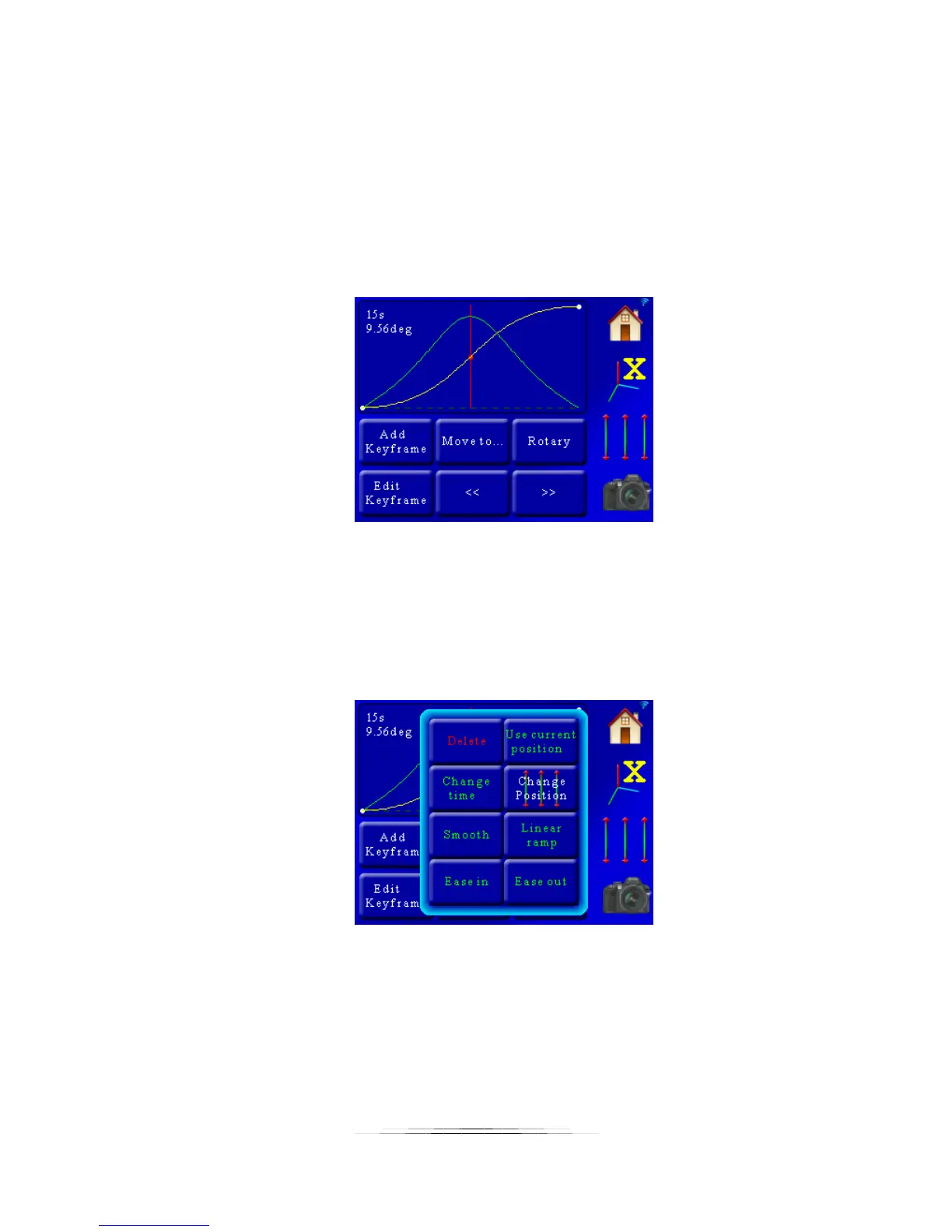
Those steps added a key frame at 15 seconds:
You can see the red circle and red line showing the active key frame. As you recall, our total
movement (the key frame on the right) was 19.12 degrees. By adding a key frame half way
through the motion profile we see that the position is 9.56 degrees. Nice! Half-way through the
time of the move and half the position – the math is good! Now let us see what happens when
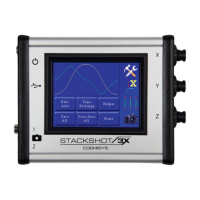
we press “Edit Keyframe”. Since the red vertical line indicates the currently selected key frame,
that is the key frame we will be editing:
If you decide you don’t want to edit a key frame just press any portion off of the edit pop-up
window to dismiss it.


 To Next Page