96
8.9 Axis Linking (Focus Stacking only)
This setting will help you link more than one axis together to perform a task. It is only available
in focus-stacking mode. Once the “Axis Linking” button is pressed a helper will ask you
questions for setting up the link. This will let you perform complex stacks. Usually you can use
one of the existing modes in stacking like Stack/Rotate or X-Y Scan to meet your requirements
but occasionally some people have one of those “different” applications that we just didn’t
consider. Axis linking will let you loop between different axes with mixed stacking modes. It’s
extremely flexible but is best to be avoided due to its potential complexity.
8.10 Wireless Config
This menu lets you configure the wireless settings for StackShot 3X. The controller supports
802.11 a/b/g/n using a variety of security protocols. In this section we’ll refer to a computer,
tablet, or camera as “your device”.
8.10.1 Wireless Mode
There are two modes for wireless connectivity:
1. Access Point: Other devices connect up to StackShot 3X (such as your computer, tablet, or
camera). Think of StackShot 3X as behaving like your wireless router in your home.
2. Client: StackShot 3X connects to another device (home router, WiFi hot-spot, or camera)
To change the mode you touch the top button that says “Wireless Mode”. It will change
between “Access Point” and “Client”.
8.10.1.1 Wireless Mode: Access Point
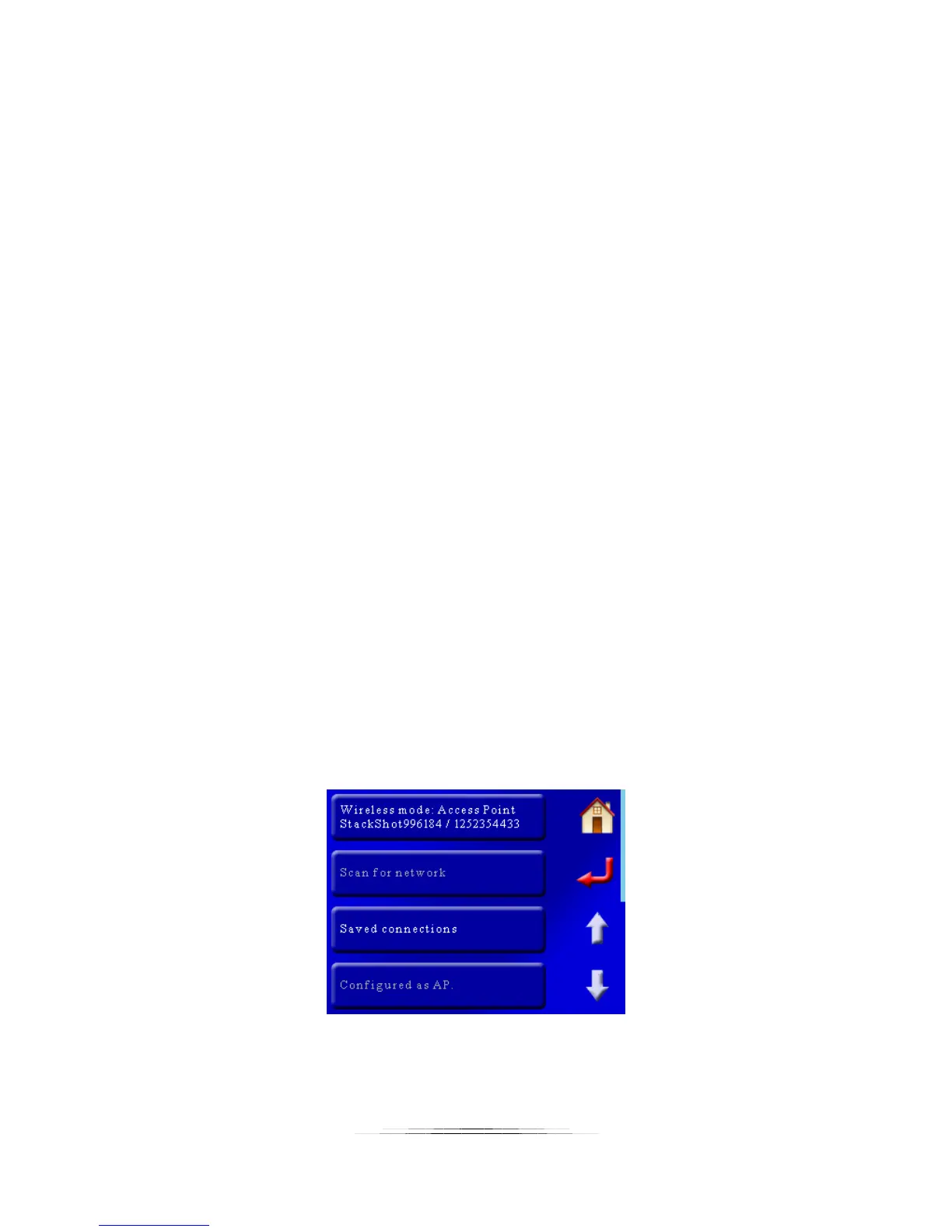
When StackShot 3X is set as an access point you will see a screen similar to this:
“Wireless mode: Access Point”, and below it are two pieces of information. You will see
“StackShotXXXXXX” where “XXXXXX” is a unique ID for your StackShot. This is what you will see


 To Next Page