60
5. Goto Zero All: This will send all axes to their zero position. It will not follow the
motion profile to do this and will get to the zero location in a hurry.
6. Start: Begins the motion profile.
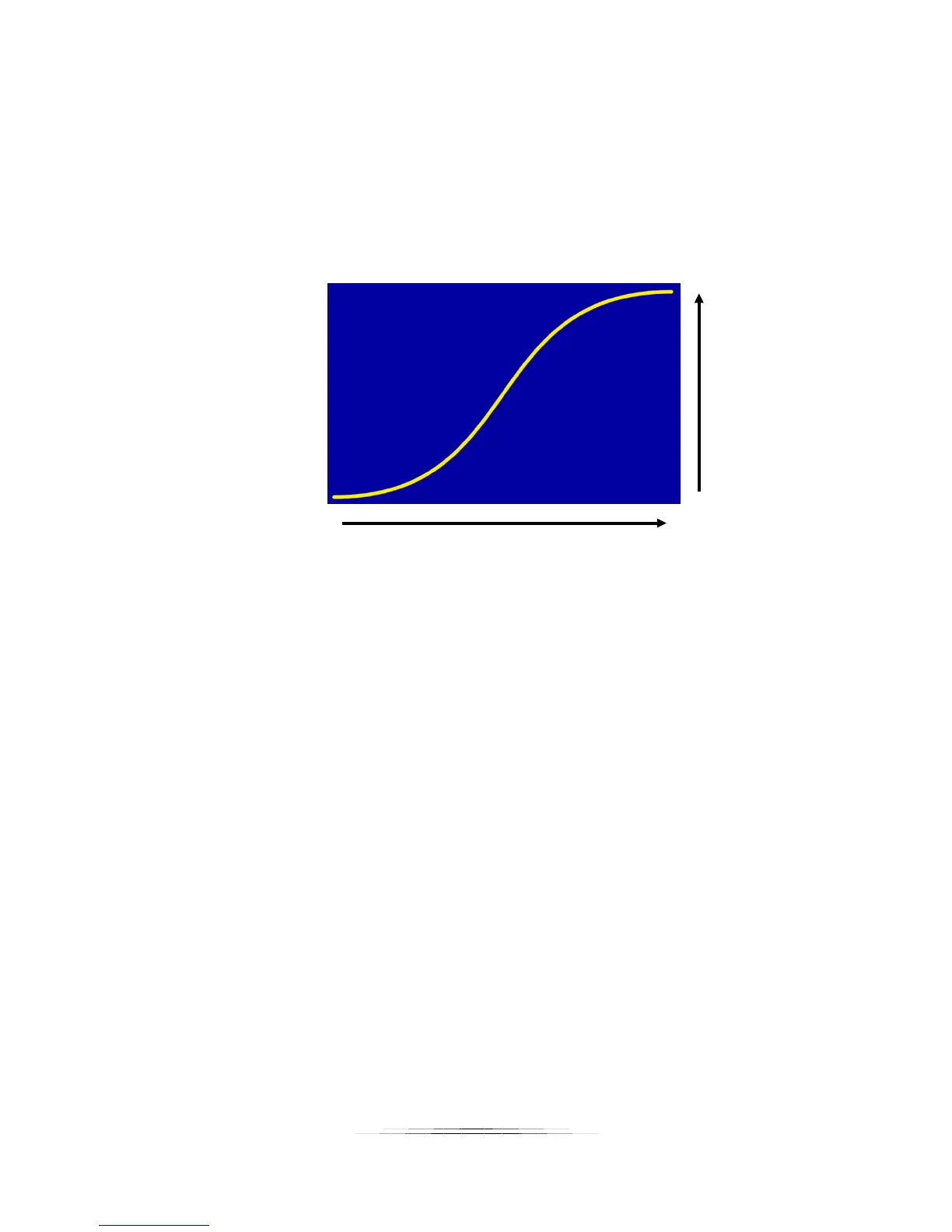
Now let’s discuss the curves and what they mean. Time is going left to right. The motors start
at time zero and run for the duration you specify (we’ll get to that in a bit). Position on the
other hand is bottom to top. Let’s take a closer look at the position curve (the one that isn’t
green):
As your motion profile runs time will move from left to right. The position moves up and down.
The starting position is on the left (time = 0), and the end position is on the right (at a duration
you specify). The curve above shows the position increasing as time goes on – the end position
on the right side is above the start position. Still not clear? Not a problem. Once you use the
helper in section “7.3 - Motion Helper” and run your first move it will clear things right up for
you.
You will also see a green curve. This is the velocity (speed) that this axis will move. If you see
red in this curve then you’re in trouble! Again, we’ll talk more about that below in section “7.5 -
Velocity Curve”.
7.3 Motion Helper
The Motion Helper is an easy way to set up a motion profile without the burden of using key
frames. Here are examples of using the motion helper.
7.3.1 Video: Continuous
From the main screen press the “Helper” button:
Time
Position


 To Next Page