152 - Troubleshooting and Technical Support DeviceMaster Installation and Configuration Guide: 2000594 Rev. F
Troubleshooting and Technical Support
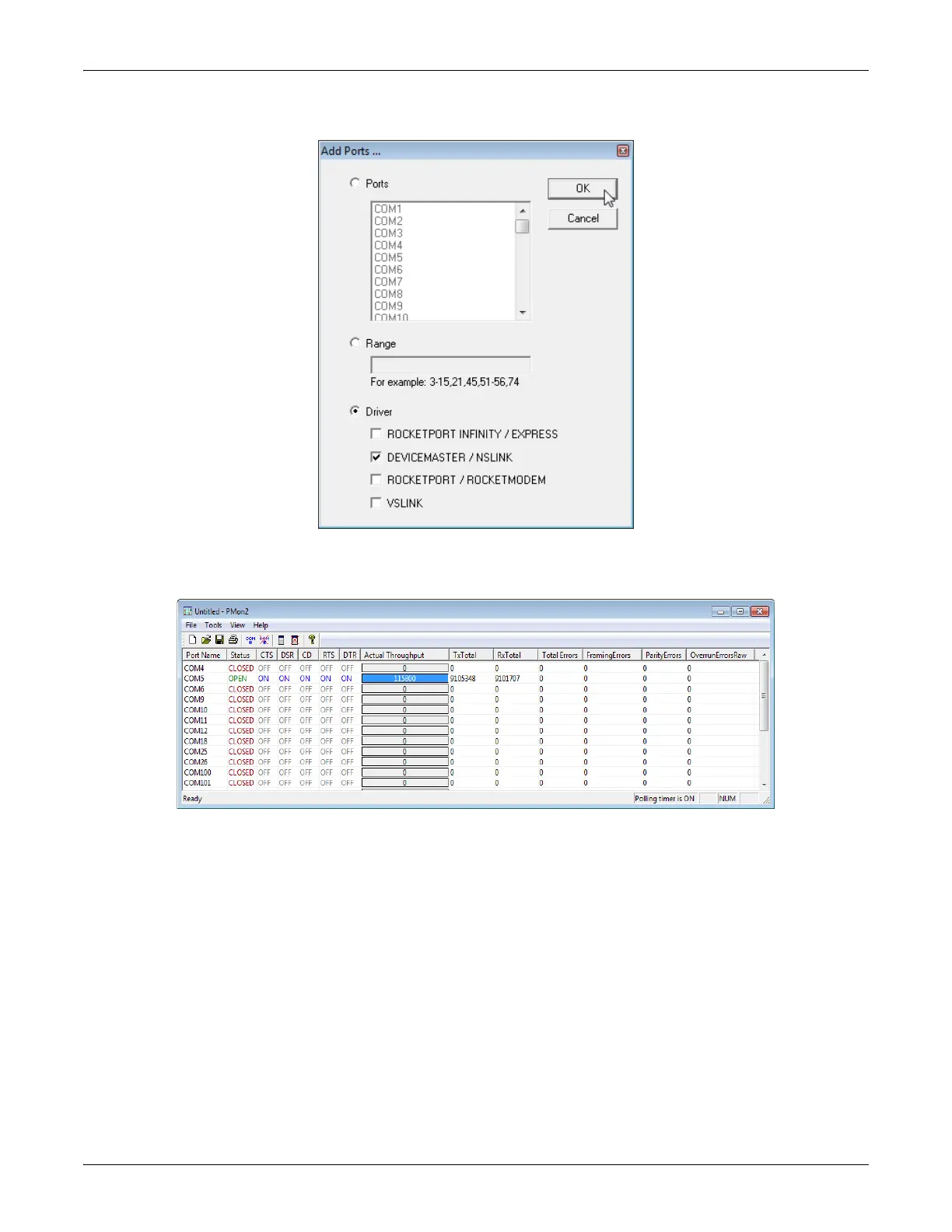
4. Click Driver, click RPSHSI/NSLINK.
5. If the DeviceMaster is communicating with the device driver for Windows, Port Monitor should display
CLOSED status. If a port is open for an application, it displays as OPEN, and displays Actual Throughput,
TxTotal and RxTotal statistics.
Normally, there should be no data errors recorded or they should be very small. To find out what the
actual errors are, scroll to the right. You will see three columns: Overrun Errors, Framing Errors, and Parity
Errors.
If the errors are:
• Overrun Errors represent receive buffer overflow errors. If this is the case, you will have to configure
either software or hardware handshaking to control the flow of data. The most common errors are
Overrun errors.
• Framing Errors indicate that there is an synchronization error between the beginning of a data frame
and the end of the data frame. A frame usually consists of a start bit, 8 data bits, and a stop bit or two.
The framing error occurs if the stop bit is not detected or it occurs in the wrong time frame. Most causes
for framing errors are electrical noise on the data lines, or differences in the data clocks of the
DeviceMaster and the connected device.
• Parity Errors occur when parity is used and the parity bit is not what is expected. This can also be
caused by noise on the data lines.



 To Next Page