42 - Initial Configuration DeviceMaster Installation and Configuration Guide: 2000594 Rev. F
Uploading SocketServer with PortVision DX
4. If the version on the web site is later than the version on the DeviceMaster, download the file, and then go
to Uploading SocketServer with PortVision DX
on Page 42.
If the SocketServer version on the DeviceMaster is current, you are ready to continue the installation and
configuration process.
Uploading SocketServer with PortVision DX
Use this section to upload a newer version of SocketServer on the DeviceMaster using PortVision DX.
Technical Support recommends updating SocketServer before any further configuration to avoid configuration
problems.
You can use this procedure if your DeviceMaster is connected to the host PC, laptop, or if the DeviceMaster
resides on the local network segment.
1. Make sure that you have downloaded the latest SocketServer version from:
http://downloads.comtrol.com/dev_mstr/rts/software/socketserver
.
2. If necessary, open PortVision DX: Comtrol > PortVision DX or use the desktop shortcut.
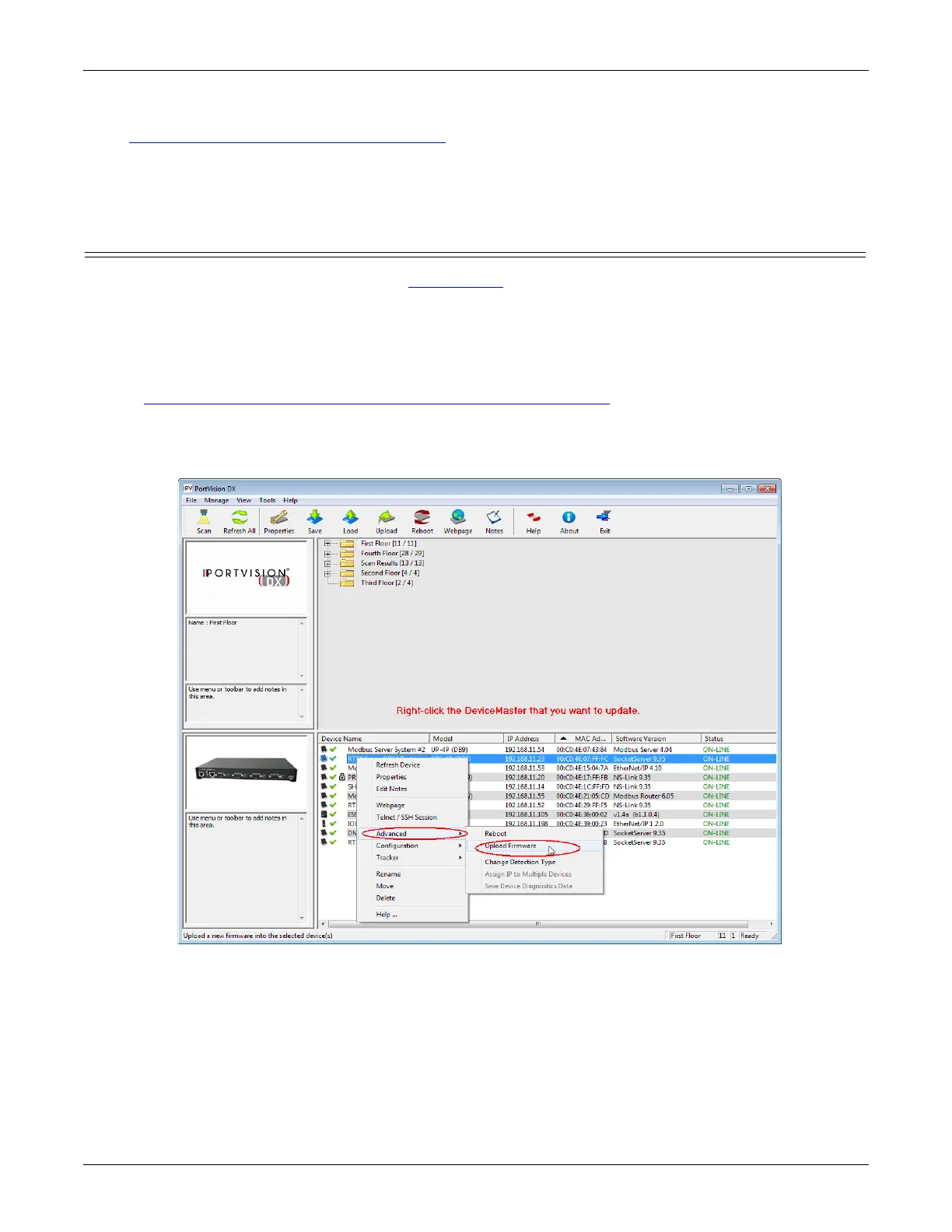
3. Right-click the DeviceMaster or DeviceMasters for which you want to update, click Advanced > Upload
Firmware, browse to the SocketServer .cmtl file, and then click Open.
If the Detection Type is set to REMOTE, you may want to change it to LOCAL. The DeviceMaster Status on
a DeviceMaster that is set to REMOTE displays in blue: ON-LINE (TCP).
Optionally, you can highlight the DeviceMaster and
click the Upload button in the Launch bar.



 To Next Page