DeviceMaster Installation and Configuration Guide: 2000594 Rev. F RedBoot Procedures - 135
RedBoot Procedures
Changing the Bootloader Timeout
Use the following procedure to change the Bootloader timeout value.
1. Establish communications with the DeviceMaster using the serial (Page 132) or telnet (Page 133) method.
2. At the RedBoot prompt, type timeout.
RedBoot responds with the current Bootloader timeout value.
3. Type timeout and a value to change the timeout value. For example, timeout 45 to change the Bootloader
timeout to 45 seconds.
Determining the Bootloader Version
Use the following procedure to determine what Bootloader version is loaded in the DeviceMaster.
1. Establish communications with the DeviceMaster using the serial (Page 132) or telnet (Page 133) method.
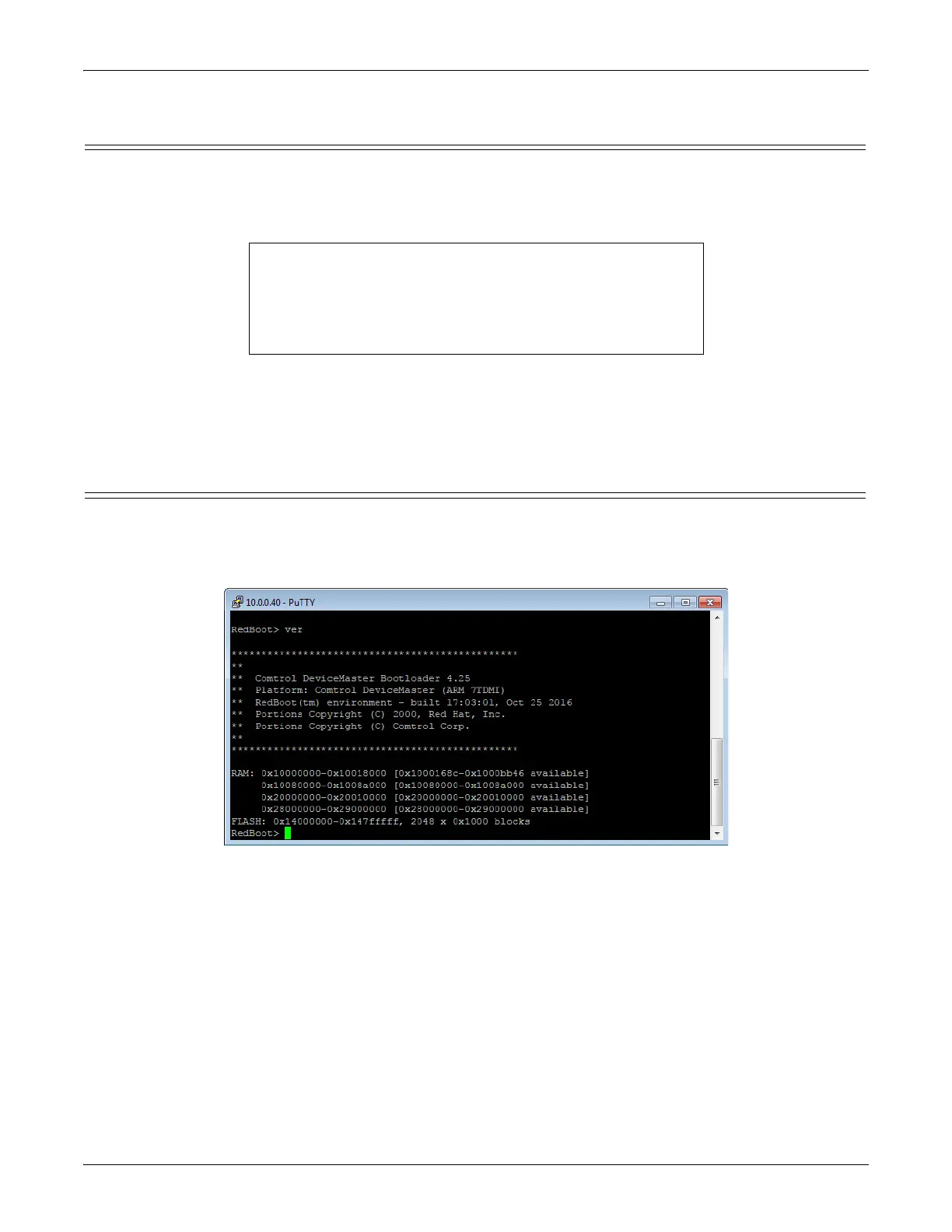
2. At the RedBoot prompt, type version.
The Bootloader information displays.
3. Type reset to reset the DeviceMaster, if you do not have any other related RedBoot tasks.
Note: Optionally, you can install PortVision DX on a Windows system on the network and see the Bootloader
version in the Device List pane. Reboot the DeviceMaster, right-click the DeviceMaster and click Refresh
Device until the Bootloader version displays. The Bootloader version is only displayed for a few
moments.
RedBoot> dis
Loading disabled
RedBoot> timeout
Timeout 15 seconds
RedBoot> timeout 45
timeout 45 seconds
RedBoot>_



 To Next Page