DeviceMaster Installation and Configuration Guide: 2000594 Rev. F Troubleshooting and Technical Support - 155
Troubleshooting and Technical Support
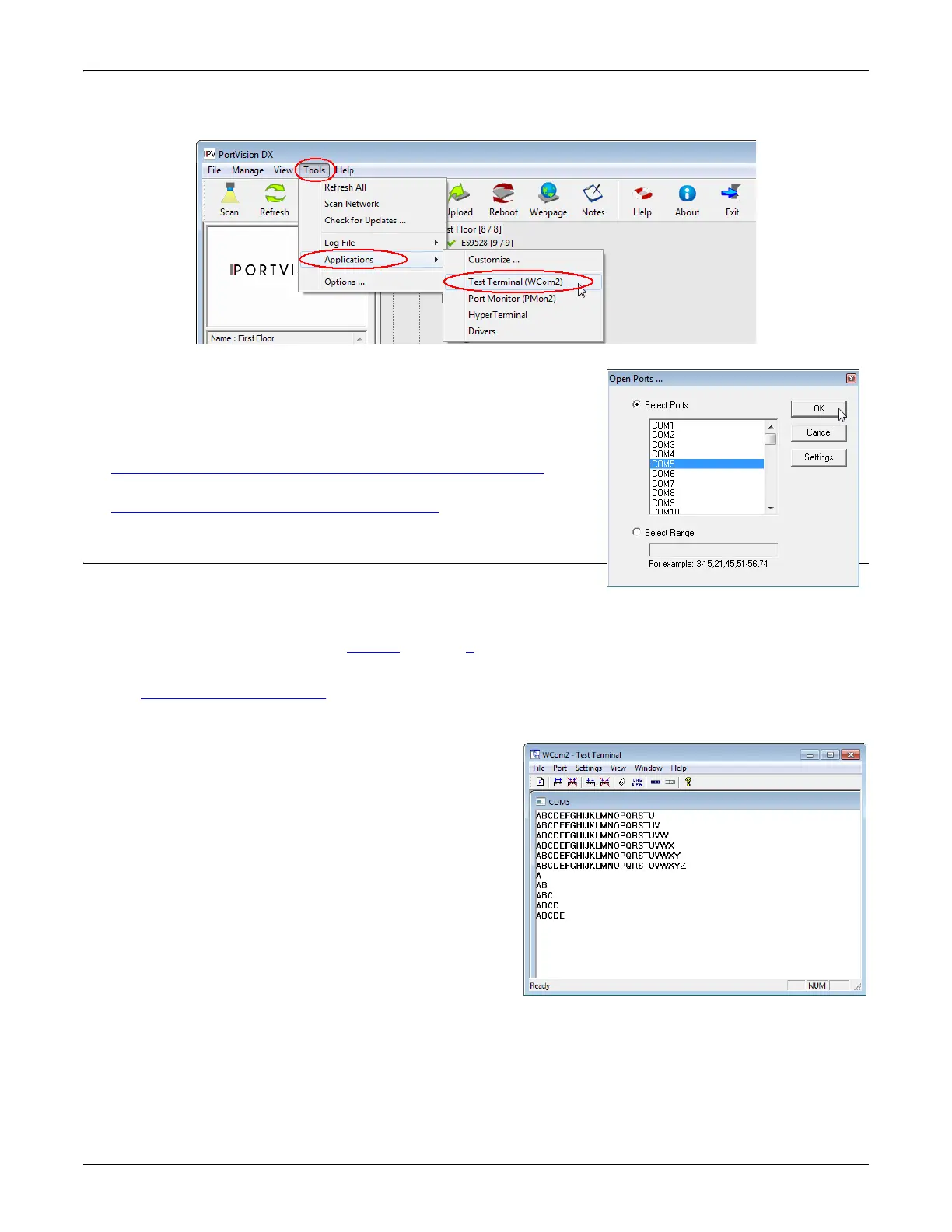
3. Select Tools > Applications > Test Terminal (WCom2).
4. Select File > Open Port, the appropriate port (or ports) from the
Open Ports drop list and Ok.
Note: If you left Port Monitor open from the previous subsection,
you should show that the port is open.
Go to the appropriate procedure to send and receive test data.
• Sending and Receiving Test Data (RS-232/422/485: 4-Wire)
(below)
• Sending and Receiving Data (RS-485: 2-Wire)
on Page 156
Sending and Receiving Test Data (RS-232/422/485: 4-Wire)
You can use this procedure to send and receive test data through the
RS-232/422/485 (4-wire, full-duplex) port or ports that you want to
test.
1. If you have not done so, perform Steps 1
through 2 on Page 154.
2. Install the loopback plug onto the port (or ports) that you want to test.
See Connecting Serial Devices
on Page 87, if you need to build loopback plugs.
3. Select Port > Send and Receive Test Data.
You should see the alphabet scrolling across the port. If
so, then the port installed properly and is operational.
Note: If you left Port Monitor running, it should show
data sent and received and show the average
data throughput on the port.
4. Select Port > Send and Receive Test Data to stop the
scrolling data.
5. You can go to the next procedure to run the Loopback
Test on Page 156 if this is an RS-232 port.
If this test successfully completed, then the port is
operational as expected.
Note: Do NOT forget to restart the communications
application.



 To Next Page