104 - Managing the DeviceMaster DeviceMaster Installation and Configuration Guide: 2000594 Rev. F
Managing the DeviceMaster
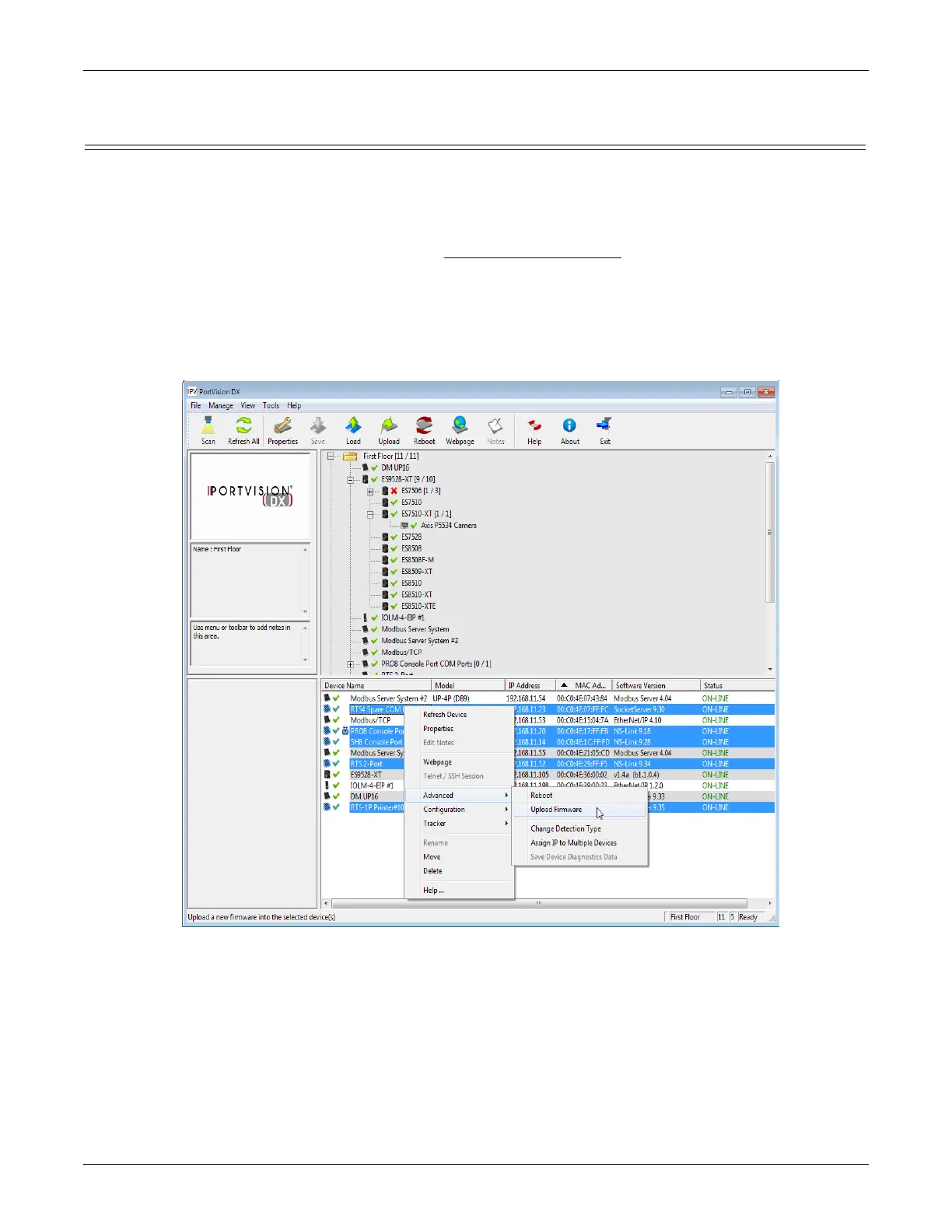
Uploading SocketServer to Multiple DeviceMasters
If an older version of the NS-Link driver for Windows (before v9.xx) has been installed, make sure that the
driver is disabled through the Device Manager before uploading SocketServer.
You can use this procedure if your DeviceMaster is connected to the host PC, laptop, or if the DeviceMaster
resides on the local network segment.
1. If you have not done so, install PortVision DX (Installing PortVision DX on Page 35) and Scan the network.
2. Shift-click the multiple DeviceMasters on the Main screen that you want to update and use one of the
following methods:
•Click the Upload button.
• Right-click and then click Advanced > Upload Firmware.
•Click Advanced >Upload Firmware in the Manage menu.
3. Browse, click the firmware (.cmtl) file, Open (Please locate the new firmware), and then click Yes (Upload
Firmware).
It may take a few moments for the firmware to upload onto the DeviceMaster. The DeviceMaster reboots
itself during the upload process.
4. Click Ok to the advisory message about waiting to use the device until the status reads ON-LINE.
In the next polling cycle, PortVision DX updates the Device List pane and displays the new firmware version.



 To Next Page