114 - Managing the DeviceMaster DeviceMaster Installation and Configuration Guide: 2000594 Rev. F
Managing the DeviceMaster
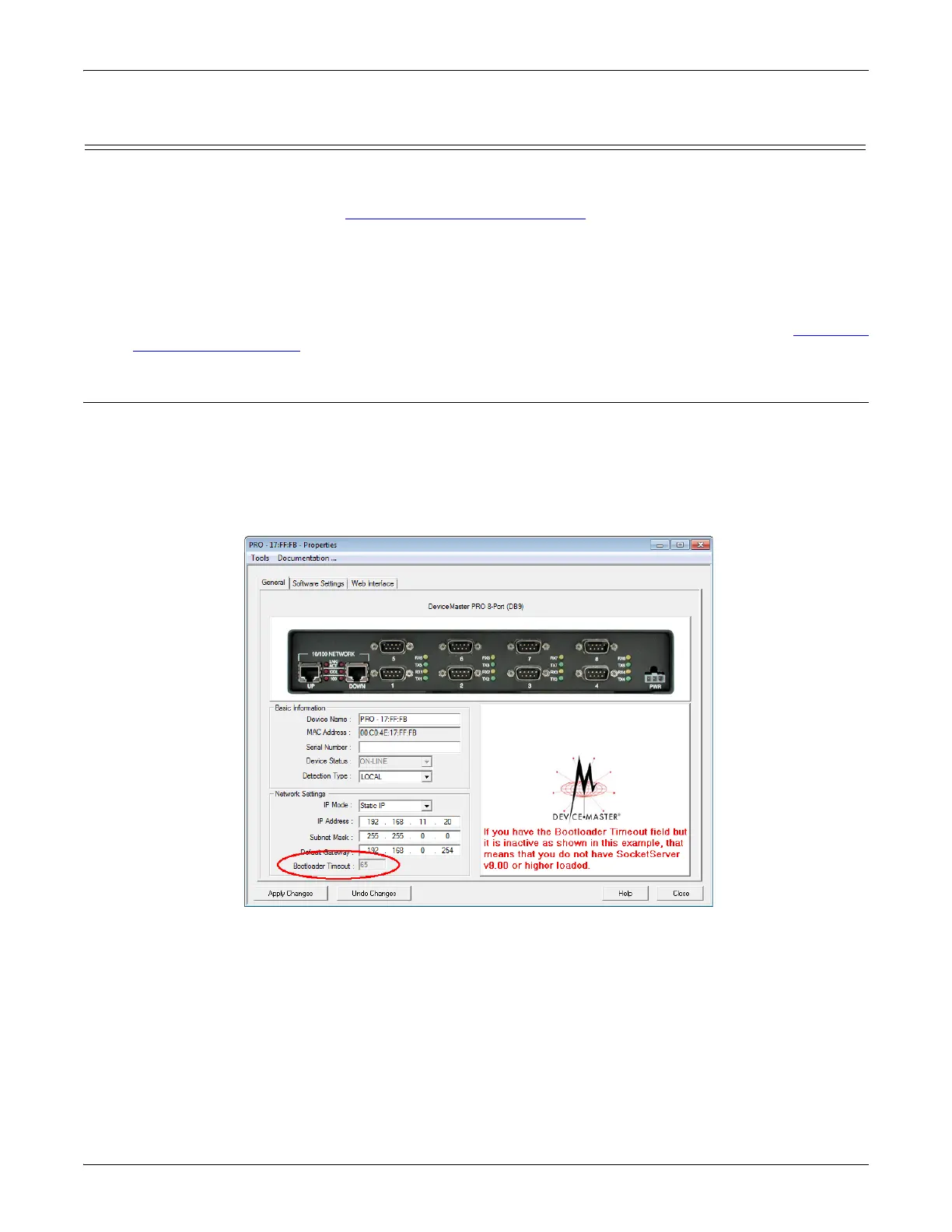
Changing the Bootloader Timeout
If SocketServer fails during the upload process, you should change the Bootloader timeout value to 45 seconds.
Note: The DeviceMaster must be able to communicate using an IP address, which is compatible with this local
network. If necessary, refer to
Configuring the Network Settings on Page 38.
You must meet these requirement to use this procedure.
• NS-Link device driver assembly v10.xx or higher installed
• SocketServer v11.xx or higher loaded on the DeviceMaster
• PortVision DX installed
Note: If you cannot meet these requirements, you can use RedBoot to change the timeout value. See Changing
the Bootloader Timeout on Page 135.
PortVision DX - Changing Bootloader Timeout
Use the following procedure to change the Bootloader timeout to 45 seconds. You can use this procedure to
return the Bootloader timeout to 15 seconds after you have successfully uploaded SocketServer.
1. If necessary, start PortVision DX, from Comtrol > PortVision DX > PortVision DX.
2. Right-click the DeviceMaster in the Device Tree or Device List pane and click Properties.
3. Type 45 in the Bootloader Timeout text box and click Apply.
Note: You should return the Bootloader Timeout value back to 15 seconds after you upload SocketServer.



 To Next Page