108 - Managing the DeviceMaster DeviceMaster Installation and Configuration Guide: 2000594 Rev. F
Managing the DeviceMaster
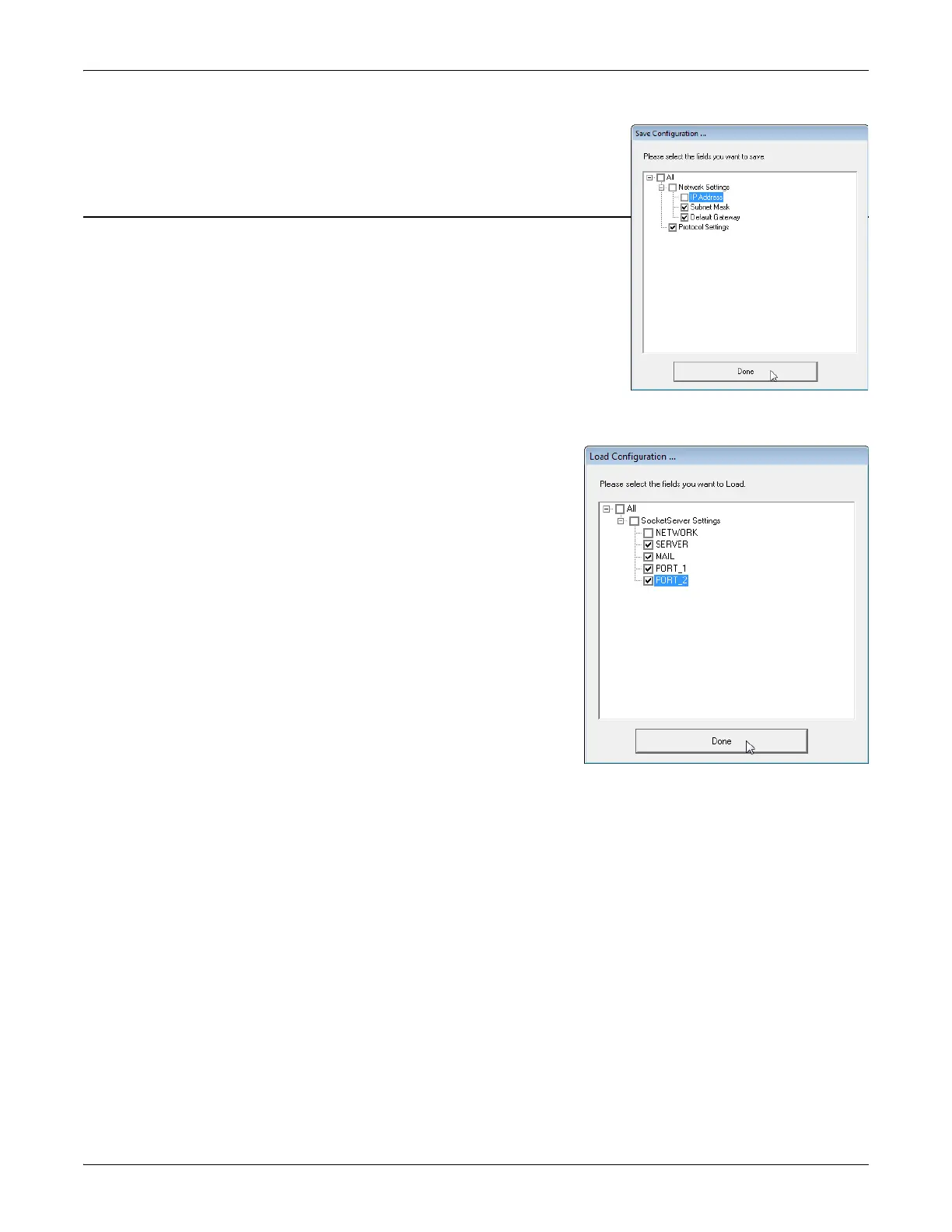
4. Click the All check box or click only the properties that you want
saved for each property page in the configuration file and click Done.
5. Click Ok to close the Save Configuration Completed message.
PortVision DX - Loading a SocketServer Configuration File
Use the following procedure to load a previously saved a DeviceMaster
configuration file. Load a configuration file and apply it to a selected
DeviceMaster or DeviceMasters from the Main screen or the Software
Settings tab on the Properties screen.
Note: Configuration files saved before SocketServer 9.xx cannot be loaded
onto a DeviceMaster with SocketServer versions above 9.xx.
Use this procedure to load a configuration file using the Device List pane
to one or more DeviceMaster units.
Note: The configuration file does not need to be the same model or port
density. For example, the saved configuration file could be from a
DeviceMaster PRO 8-port that you want to load on a DeviceMaster RTS 1-port.
1. Highlight the device or devices in the Device List pane that you
want to load and use one of the following methods:
•Click the Load button
• Right-click and then click Configuration > Load
2. Click Yes to the warning that it will take 25 seconds per device
and it may also reboot the devices.
3. Browse to the location of the configuration file, click the file
name (.dc) and then Open.
4. Click the All check box or click only the properties that you want
to load for each property page in the configuration file and then
click Done.
Note: If you click All, every selected DeviceMasters will be
programmed with the same IP address.
5. Close the Load Configuration popup message.



 To Next Page