DeviceMaster Installation and Configuration Guide: 2000594 Rev. F Managing the DeviceMaster - 113
Managing the DeviceMaster
Loading Port Configuration
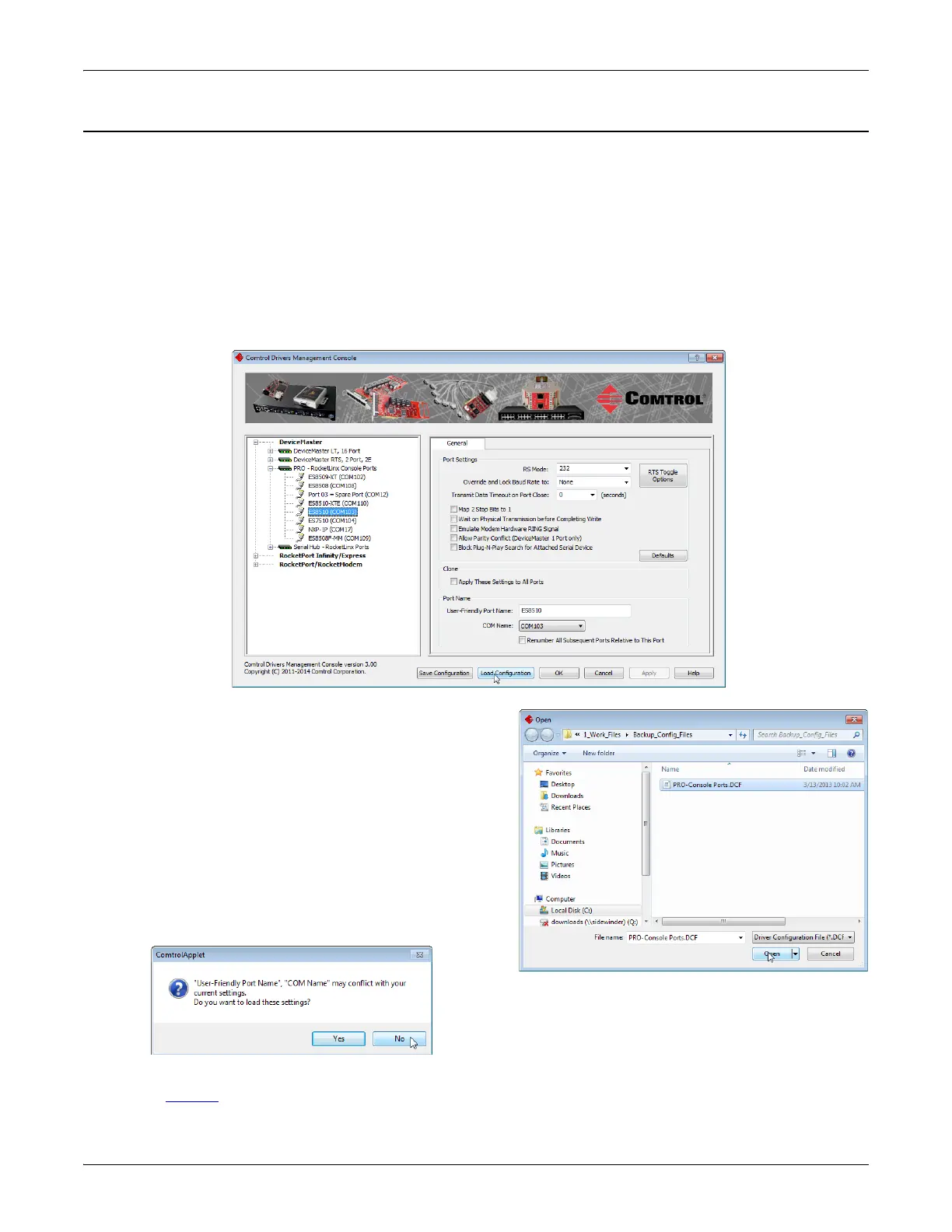
Use the following procedure to load the configuration file for port-level settings for your DeviceMaster.
Note: Device driver configuration files must be for the same model with the same port density. For example,
you cannot load a DeviceMaster PRO configuration file onto a DeviceMaster RTS or a configuration file
for a 32-port DeviceMaster RTS onto a 4-port DeviceMaster RTS.
1. If necessary, open the Driver Management Console located under Comtrol> DeviceMaster Driver
Management Console.
2. Depending on your operating system, you may need to click Yes to the Do you want to allow the following
program to make changes to this computer? User Account Control message.
3. In the left pane, highlight the port for which you want to load the port-level settings from the
configuration file.
4. Click Load Configuration.
5. Browse to the location of the configuration file that
you want to load.
6. Highlight the configuration file and click Open. The
configuration file loads in a few moments.
7. Make the appropriate choice for your situation:
•Click No to the ComtrolApplet message, if you are
using the file to set up multiple DeviceMasters
with the same port-level settings.
•Click Yes to the ComtrolApplet message, if you are
using the file to restore a specific DeviceMaster.
For example, you needed to remove and then re-
install the DeviceMaster NS-Link device driver.
8. Click Apply so that the configuration is saved on the DeviceMaster.
9. Repeat Steps 3 through 8 for each port that you want to restore.



 To Next Page