Scanning 55
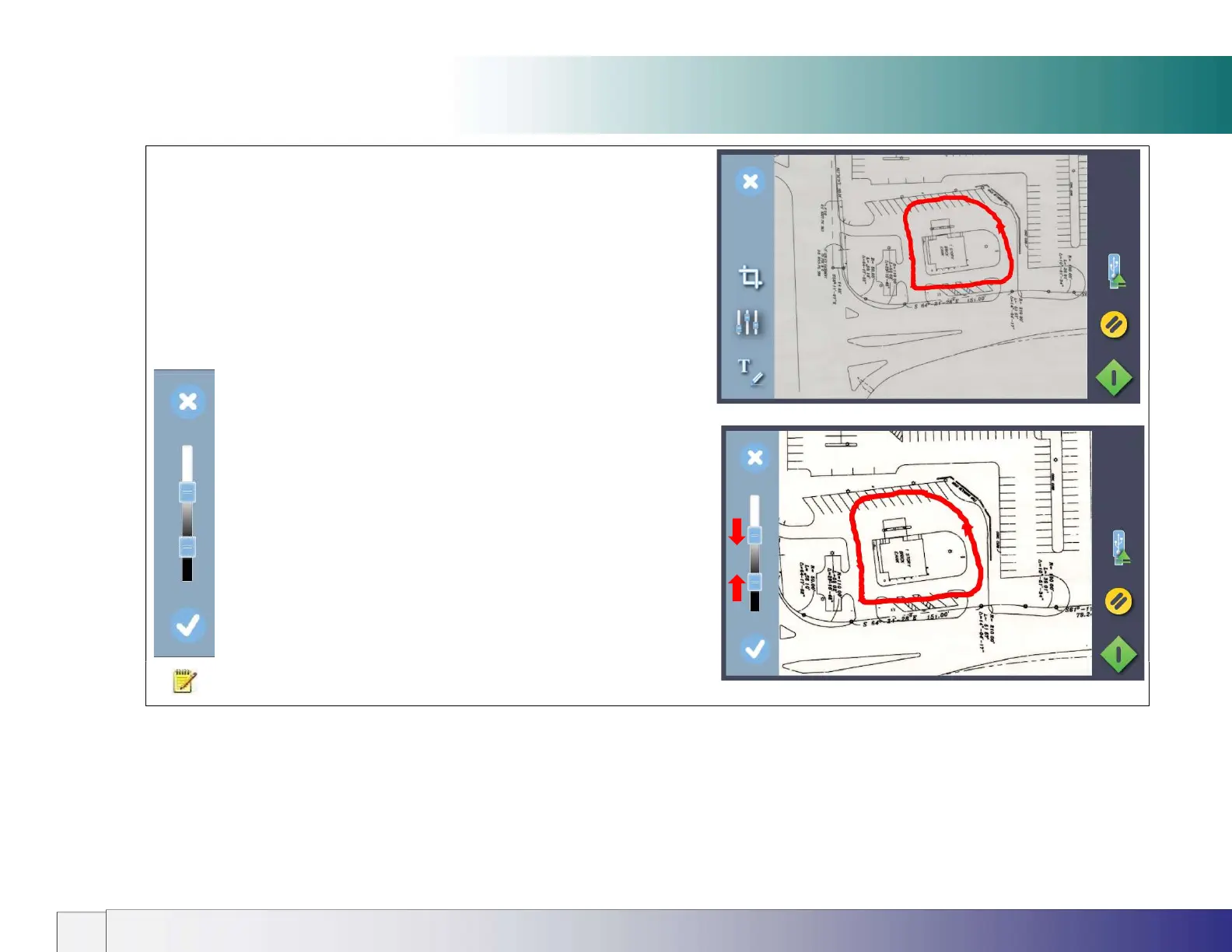
Color Validation (change brightness)
Preview, Adjust, Crop and Annotate
Validate opens a preview of the document before it is sent to file. Use this screen to
clean up the scanned image by cropping or adjusting the brightness. Also add
freehand lines and text annotations to the scanned image if required.
Color of annotations is not affected.
(Above) Validation Screen with annotated image before adjustment
Adjust Screen adjusted for bightness
CANCEL brightness adjustment
Moving top slider down CHANGES NEAR-WHITE COLORS TO
WHITE
Moving lower slider up CHANGES NEAR-BLACK COLORS TO
BLACK
ACCEPT BRIGHTNESS CHANGES and return to Validation screen
NOTE: Pressing the green button stores any validation edits permanently into the
scan file. Changes cannot be reversed after leaving the validate screen.













 To Next Page