Copying 61
Copy settings
Setting What does it mean?
Document The type of document you are copying
Full Color Color photos, posters etc.
Grayscale Photo or image with gray shades
Color CAD/Map Color line drawing or map
Grayscale CAD/Map Line drawing or map gray shades
Black & White Line drawing or map solid black lines
Quality Determines the copy output quality
Draft 150 dpi resolution for fast copies
Standard 300 dpi resolution suitable for most copies
High 600 dpi resolution for best quality but slower
Area Determines the scanner capture area
Auto Scanner detects the size automatically.
All Scan the full width of the scanner.
Manual User input of scan width and scan length
Resize Determines how the copy should be resized(or not)
None
No resizing in copy
Paper Resize to paper size
Scale Percentage resize
Media The type of media or paper you are using
The media in the printer. If there is no option that matches your
media then you will need to create a media profile. See installation
- Set up your printer’s media profiles
Copies The number of copies you want output
Select the number
Validate Open a copy preview for validation and to add small edits
before making the copy.
YES Opens the preview
NO Bypasses the preview
Validate options:
SELECT– select validation entity
CROP – drag green border, press green button to save
DRAW – add freehand lines and markups
TEXT – add text to the image
ADJUST – change brightness to improve copy
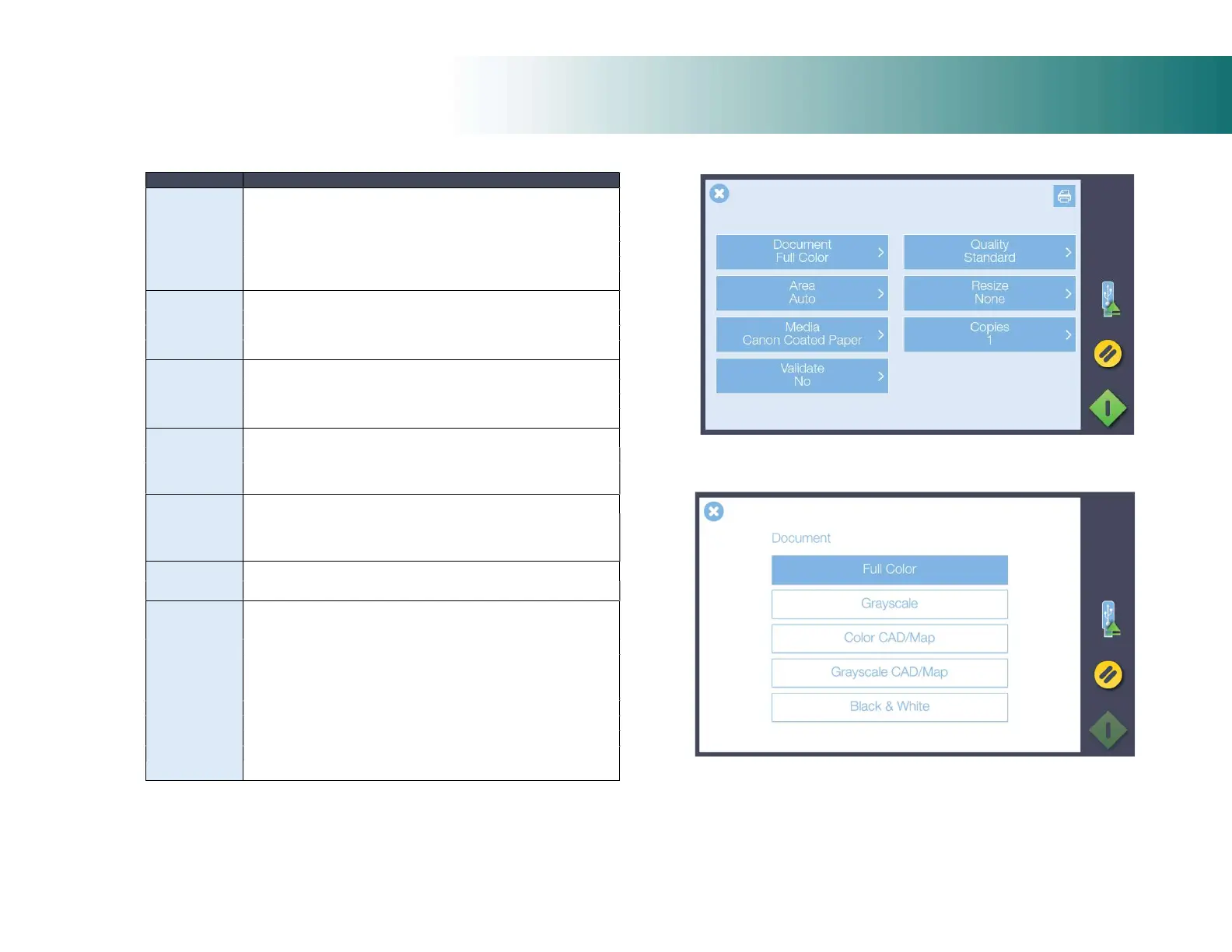
(Above) Menu to change: Document Color, Copy Quality, Copy Size
Resize Option, Media Type, Copies and Validate COPY options.
Full Color (selected), Grayscale, Color CAD/Map, Grayscale
CAD/Map and Black & White options for scanning to file.













 To Next Page