Settings 64
Settings and preferences
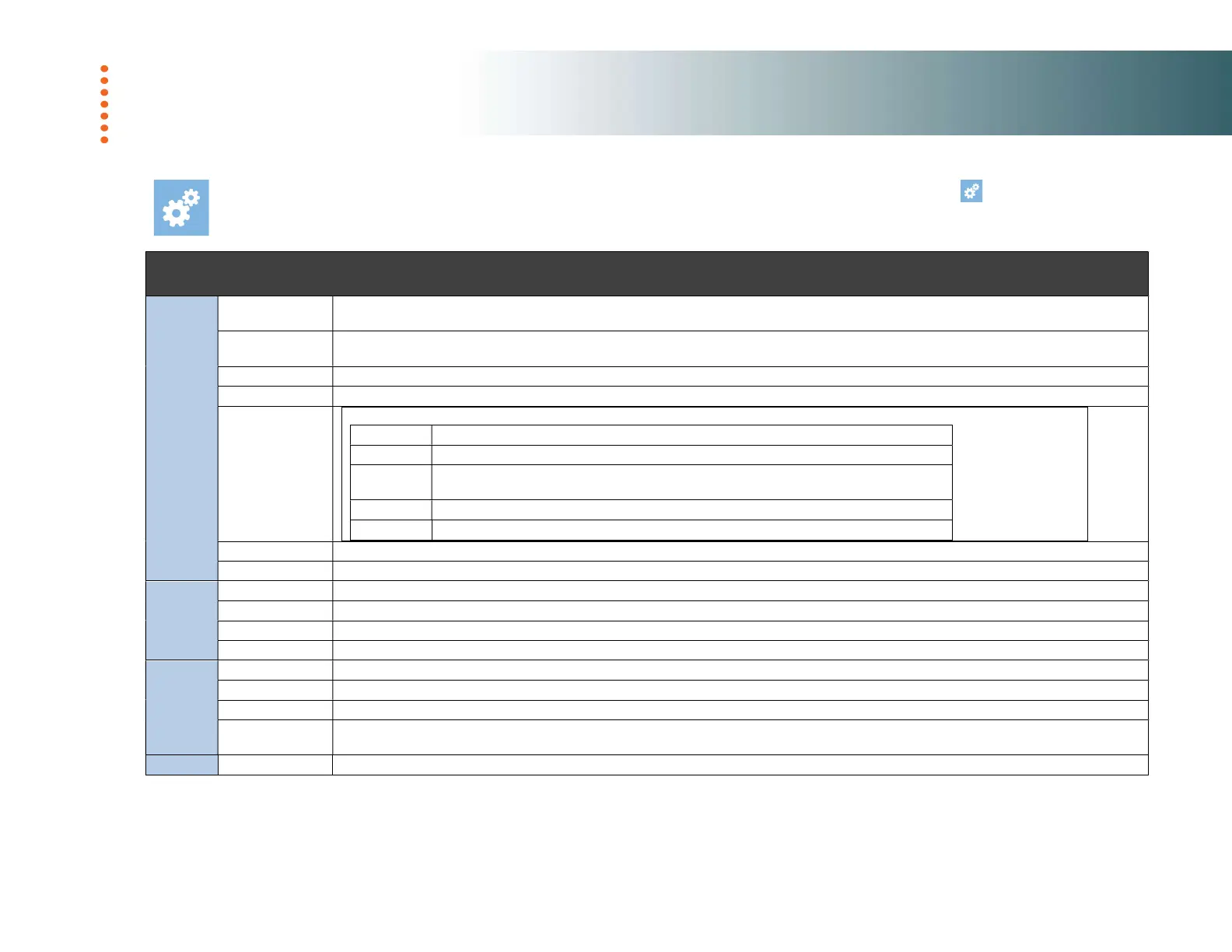
The IQ FLEX offers a wide range of setting options to match the scanner to your specific needs. Press the Settings icon to reach the available
options. The available settings are grouped under System settings, Scanner settings, Printer settings, and About.
Options
Group
Group
System
Network
LAN settings - to add the scanning system to the local network. Select DHCP for automatic connection (recommended). Or, contact your network
administrator for information. See also Installation - Enter your network settings. You can also view your scanner IP address here.
Email
Setup the outgoing email server for sending scans to email destinations. Some of the settings, or the need for these will depend on your system's
server configuration. Please contact your network administrator for information. See also Installation - Enter your email server settings.
Wi-Fi Displays Wi-Fi networks in range of the scanner. Use screen touch keyboard to enter SSID, password etc.
Secure FTP Setup the Secure FTP server to be used. Please contact your system administrator for the required information.
Options
In Options you will find rarely changed settings:
Language
Select preferred languages for Screen and Keyboard. They do not need to be the same.
Timers
Timeout is the time the scanner will stand idle before the scanner resets itself to its default
settings so that it is ready for the next user. Sleep is the time
the scanner can stand idle
Regional
Set your local date, time, metric system (inch or mm.), and paper series (ANSI, ISO, ISO B,
ARCH).
Buttons Here you can select which icons to be displayed in scroll menu.
Settings
Save settings or reset settings to defaults
Password You can set up a password to control access to the scanner. Leave empty if you don’t need password protection.
Update To update your system software with the latest version. The system will search for a newer version and install through the internet if available.
Scanner
Calibrate Start the Scanner Calibration Wizard. See section Maintenance – Scanner Calibration for instructions and more details
Paper Handling Eject paper to rear or front
Service Distribute the log data from the scanner for service and support. Send info by email to support@contex.com or Save info to USB.
Upgrade Scanner activation – scan the license certificate
Printer
Printer Displays make, model, IP address, media, media profile and busy status of the selected printer
Setup Enter the printer IP address – the scanner will detect the printer on the LAN and connect. Contact your IT support for information.
Media Profile Create a media profile for the chosen media by printing the color then scanning it using the scanner.
Compensate for
printer margins
Make the scanner account for outer paper edges that cannot be reached /printed on by the printer. Ensures margins are not increased or the
scale of the copy is affected.
About
Information about your current scanner firmware, software versions and network addresses













 To Next Page