Nextimage Software 65
WIDEsystem
Connect a LAN cable and power on the scanner. After installing the
software WIDEsystem will show a grey icon in the system tray area
(near Windows clock).
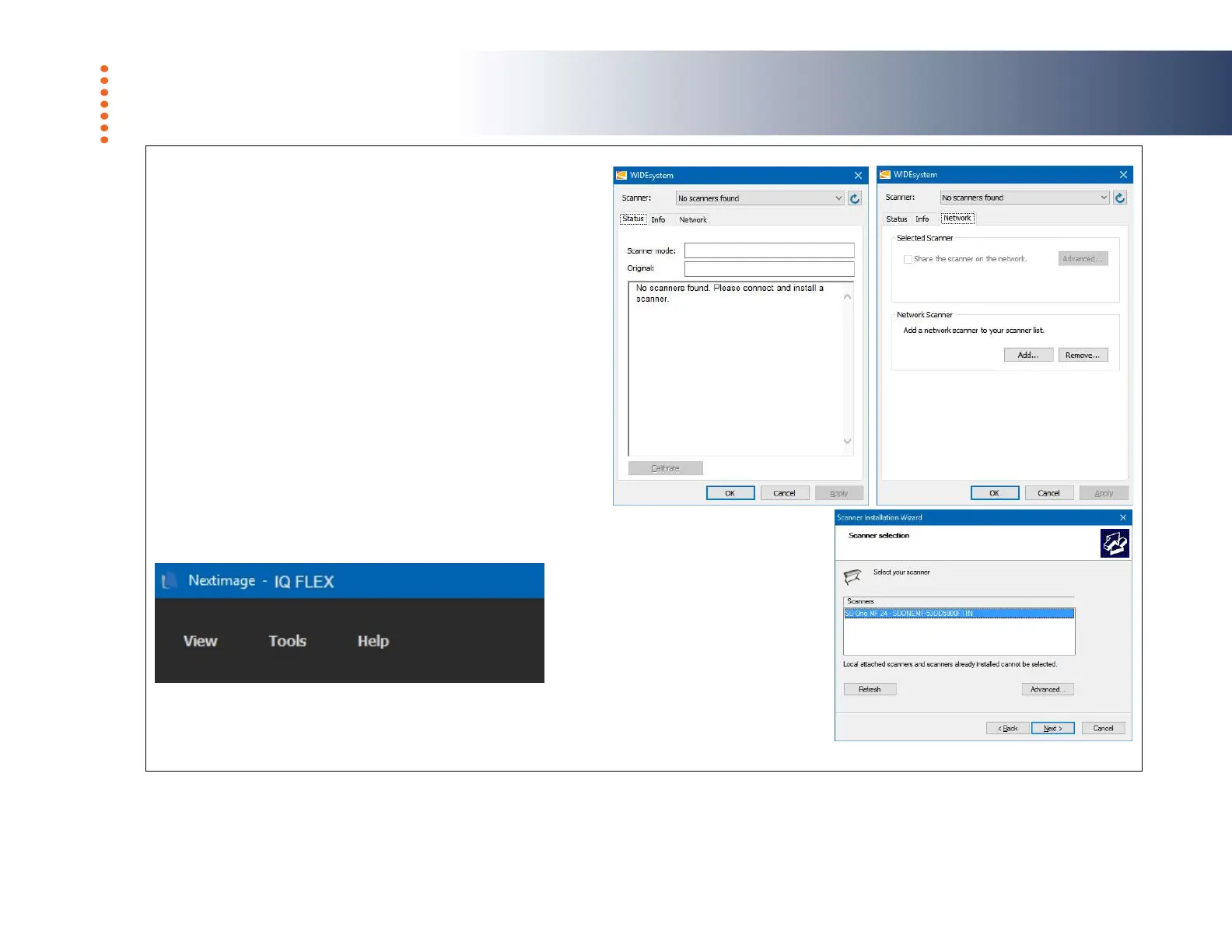
Right-click the icon and click Restore WIDEsystem
The Status tab will show ‘No scanners found’
Go to the Network tab and click Add… and follow the prompts to start
the scanner detection Wizard.
When you see your scanner appear in the list click Next. The wizard
will now complete and display a message that the scanner IQ FLEX
53Dxxxxxxxxx has been successfully installed. The Status and Info
pages will now show information from the scanner.
An orange WIDEsystem icon indicates a connected scanner.
Nextimage
Start Nextimage software from the icon or the program menu. During
startup Nextimage will begin searching and then connect to the
scanner found by WIDEsystem. Nextimage will display the scanner
name in the top-left corner of the program interface.
NOTE: When Nextimage first loads you will be asked to supply your
email address and company name in order to continue.
IQ FLEX can now be controlled from Nextimage using Wi-Fi or a
cabled network connection.













 To Next Page