All Cooper Wiring devices share common configuration options. You can select your preferred configuration
for each device on your system. Note: It is recommended that you be in the same room as the device you
are configuring. If you are out of range, the device configuration may not get updated. The configuration
options available are as follows:
• Off Delay • Power On State
• All Switch On & Off • Ramp Time
• Panic On Time (Dimmer Only)
• Panic Off Time • Parameters
(Typically used for
non Cooper devices)
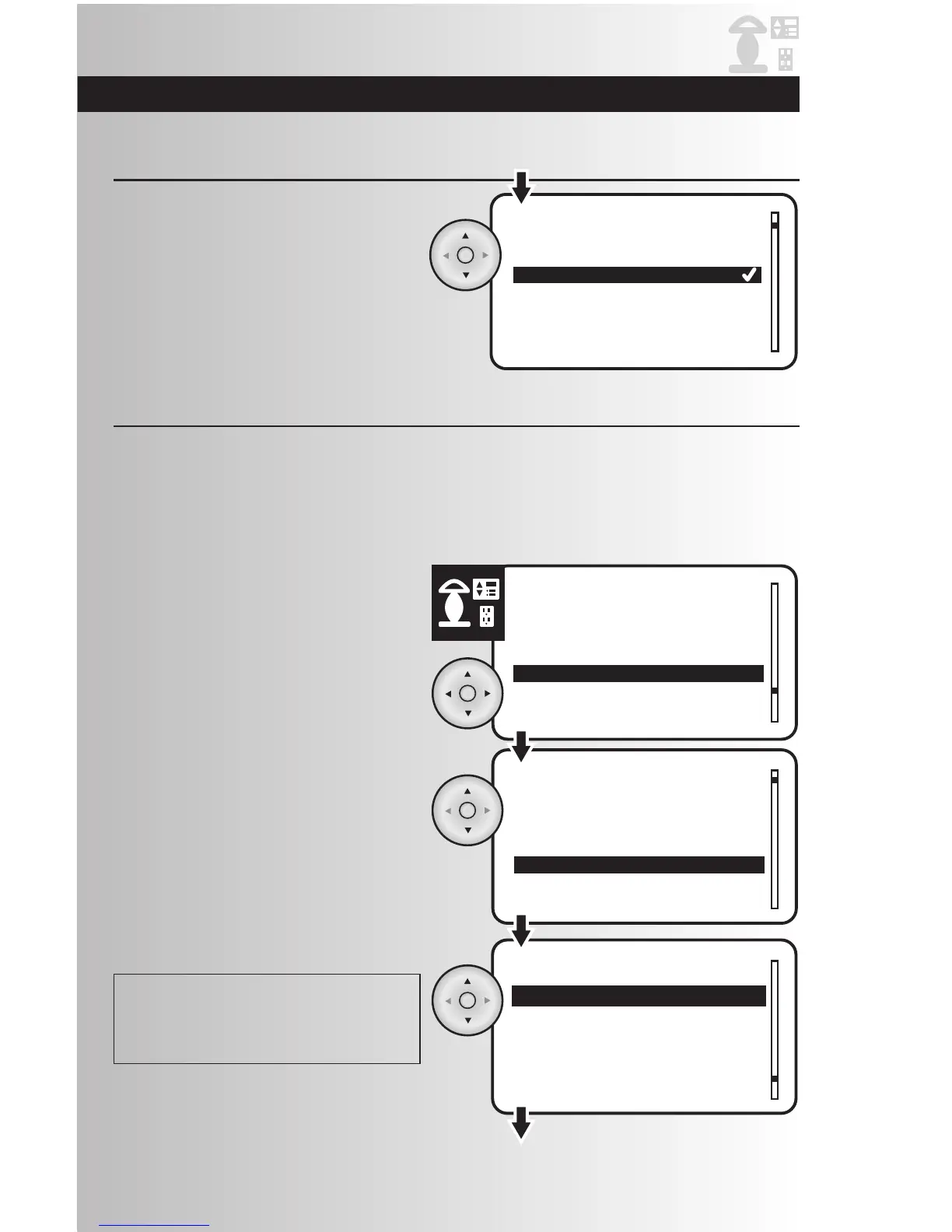
1. Scroll up or down and highlight the
“Configure” option from the Devices menu.
Press the OK button.
2. Scroll up or down to highlight the location of
the device that you would like to configure or
choose “Whole House.” Press the OK button.
3. Scroll up or down (or enter number for
handheld controller) to highlight the specific
device that you would like to configure.
Press the OK button.
! If you attempt to configure a device not
manufactured by Cooper Wiring, an error message
may appear. You can press the Back button to
return to the configuration menu.
Install a Device (continued)
4. The controller will now prompt you to select
a location for the device. Use the up and
down arrows to scroll and highlight the
location of your device. Press the OK button
to save.
Note: Selecting None will put the device into
the default Location, which is Whole House.



 To Next Page