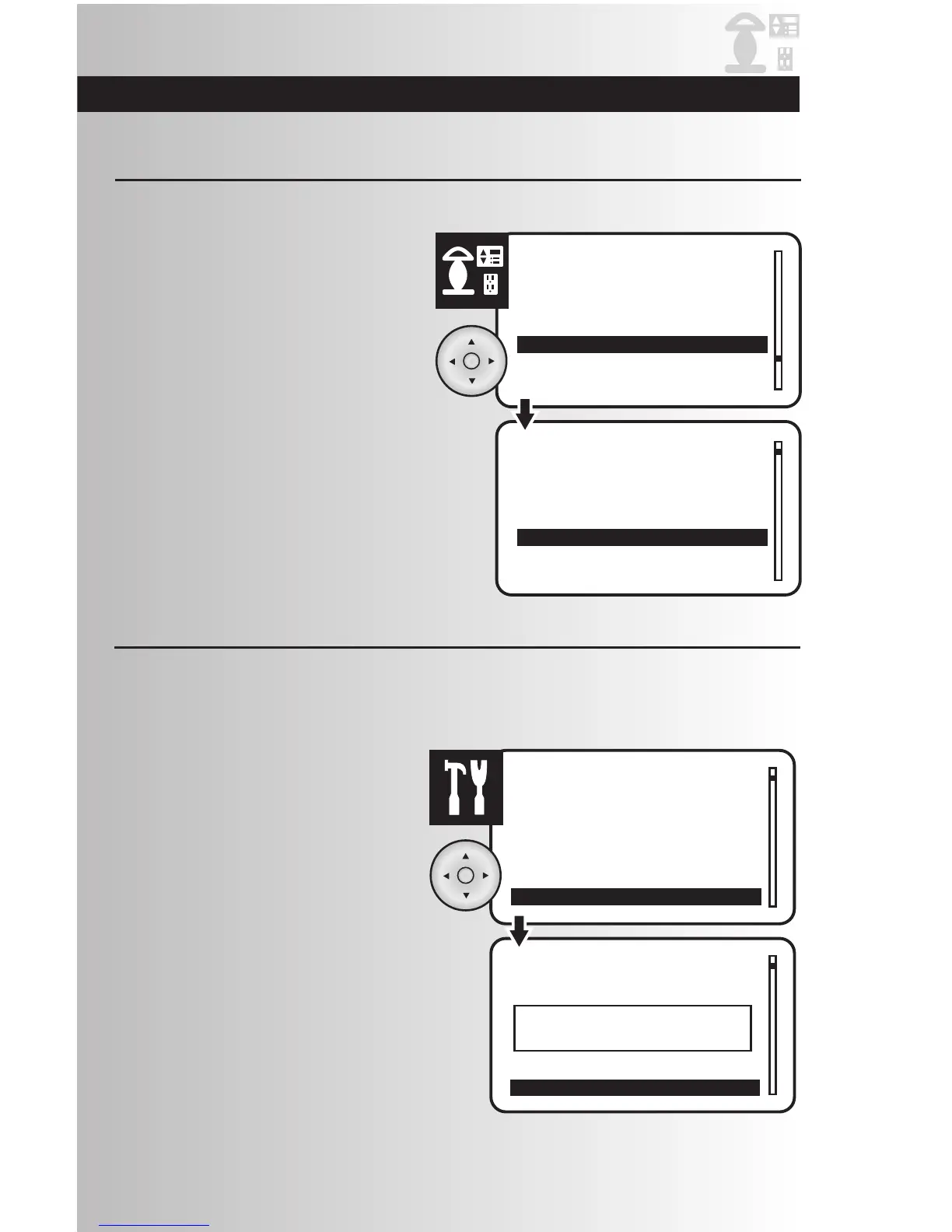
1. Select the “Who Are You” option from the
Devices menu. Press the OK button.
Who Are You Feature
This feature allows you to view the Node ID, Name, and Location of any installed device.
2. Press the install button on a device. The
screen will display Node ID, Name and
Location for the device.
Note: this information will go away after five
seconds or be replaced if you press another
device install button.
Get Name & Location Feature
This feature allows a Secondary Controller to update itself with the device naming information that is
contained within each device. The device information for “Name & Location” may be updated with a
PC-based Primary Controller, however, these updates would not be reflected in the Secondary Controller.
The Secondary Controller will request the name
& location of all network devices, and will
update this information inside the Secondary
Controller. During the update a progress bar
will provide indication of the status of this
request.
Note: Cooper controllers will truncate any
device names or locations to 16 alphanumeric
characters.
1. Select the “Get Name & Locn” option from
the Settings menu. Press the OK button.



 To Next Page