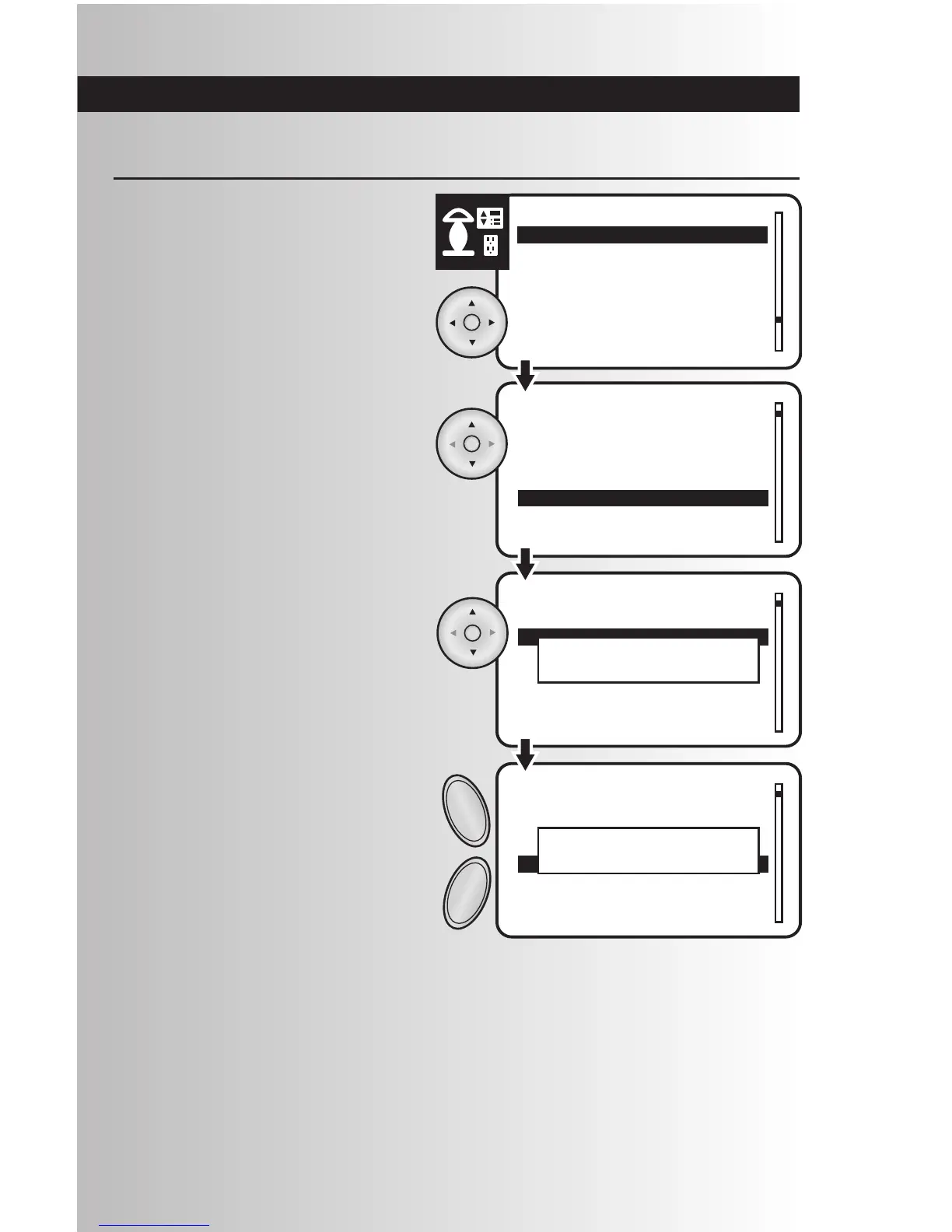
Activate Individual Devices
2. Highlight the location of the device you want
to activate or choose “Whole House.” Press
the OK button.
3. To turn a device on or off, highlight the
device. On the handheld controller, you can
enter the number of the device you would
like to highlight. Press the OK button. This
can also be done by pressing the ALL ON
button to turn the device on and by pressing
the ALL OFF button to turn the device off
while the device is highlighted.
1. Select the “Control” option from the devices
menu. Press the OK button.
4. For dimmer control, highlight the device, then
use the ALL ON and ALL OFF buttons. A
window will display the dim level from 0%
to 100%.
• To increase the brightness level, press and
hold the ALL ON button on the controller.
Release the ALL ON button when desired dim
level is reached.
• To decrease the brightness level, press and
hold the ALL OFF button on the controller.
Release the ALL OFF button when desired
dim level is reached.
23



 To Next Page