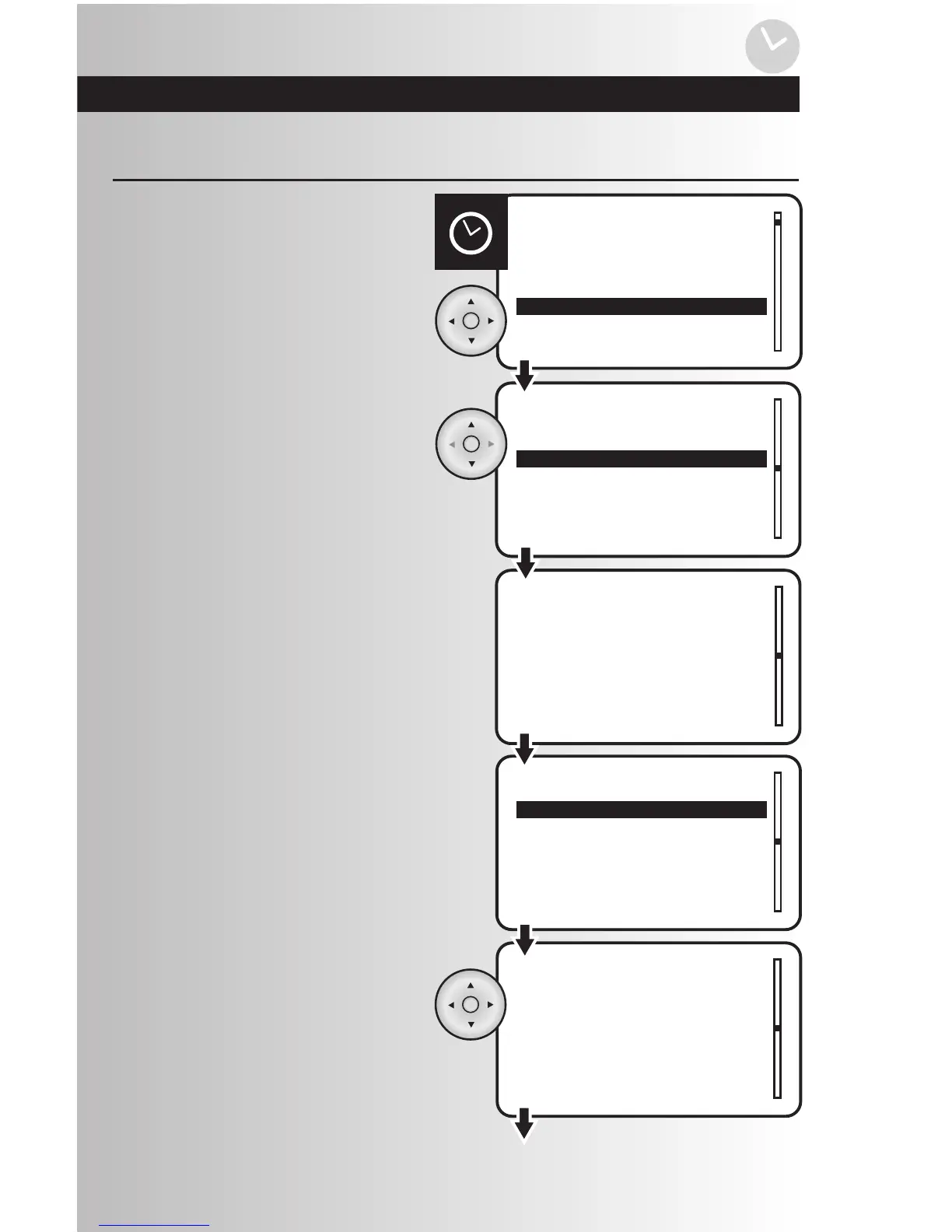
1. Select the “Edit” option from the Events
menu. Press the OK button.
2. Use the up and down arrows and scroll to
highlight the event to be edited.
Press the OK button.
Edit an Event
• Once you are in the time settings, the
hour number will be flashing slowly. Use
the up or down arrows to select the
correct hour, then use the right arrow to
proceed to the next hour, then to minutes,
then select AM or PM. Press the OK
button to save. Note: To enter 8:30 AM
the user must enter 08:30 AM
3. Scroll through the menu to view the setting
options for the event: Time, Day, Type,
Scene, and Active.
• To edit the time, highlight “Time” and press
the OK button.



 To Next Page