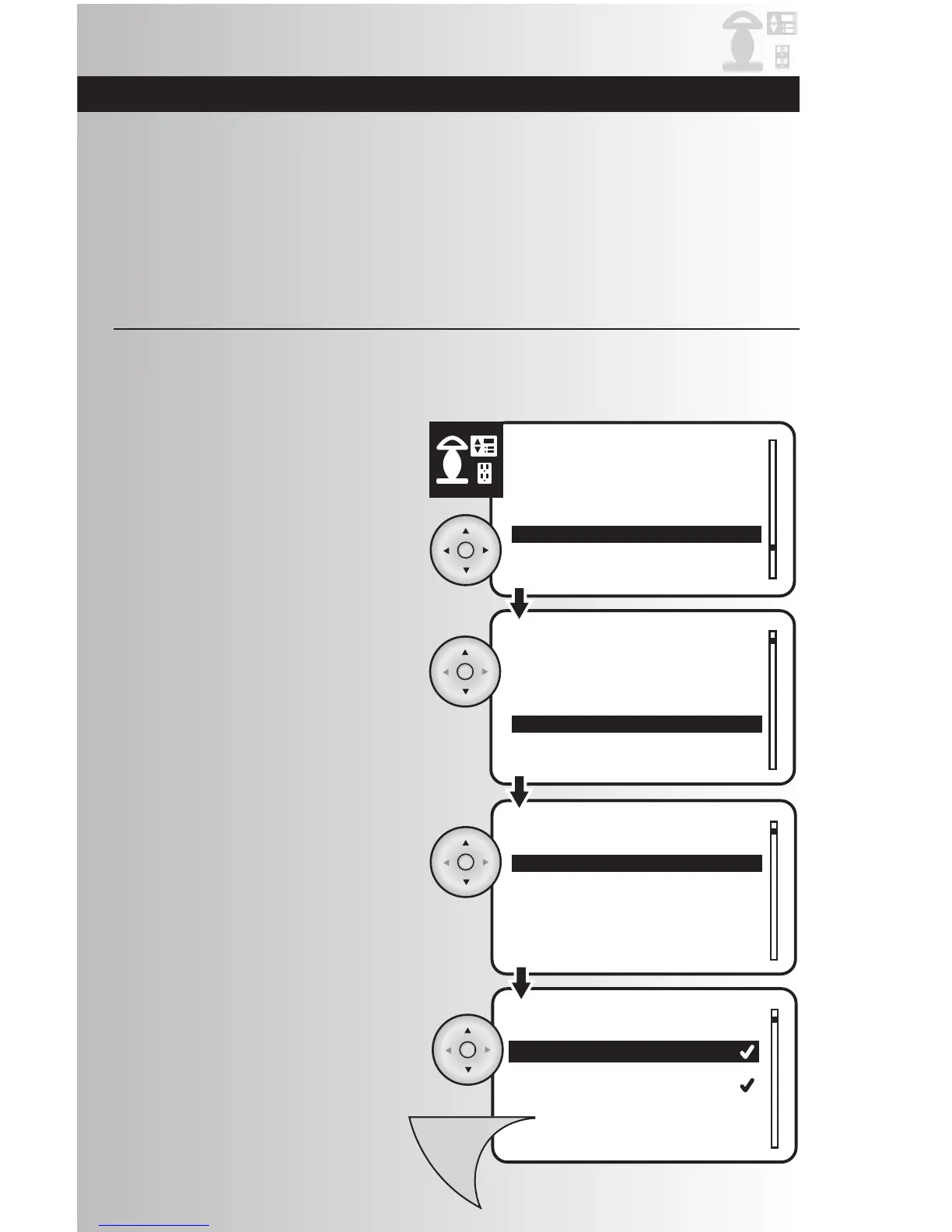
1. Select the “Associate” option from the
Devices menu. Press the OK button.
Note: Associations only work from device
to device–Not from controllers.
Create an Association Between Devices
2. Use the up and down arrows and scroll to
highlight the location of the device that
you would like to associate and press the
OK button.
After learning about the basics of your wireless control system, you may want to make further changes to
the system. In this section, you will learn to perform these additional functions:
• Create an Association Between Devices • Uninstall a Device
• Replicate Handheld Information to a • Activate Child Lock Out
Second Controller • Reset the System
• Select a New Primary Controller • Scan for Devices
An association is a feature that you can program to allow a device in your system (source device) to
control another device (destination device). Source device can only be a dimmer or switch. Your Aspire RF
wireless system supports up to five associations for each source device. Example: By associating two
dimmer switches you can turn on both by only turning on one device.
3. Use the up and down arrows and scroll to
highlight the specific source device that you
would like to associate and press the OK
button.
4. Using the arrow pad, highlight the desired
destination device. A checkmark indicates
associated devices. Press the OK button to
Associate or Disassociate devices. To save the
association, press the Menu button. To create
additional associations, repeat steps 1-4.
Note: For multi-way associations,
destination devices can be associated
back to the source device-So devices
can be controlled from either location.
55



 To Next Page