Create and Control Scenes
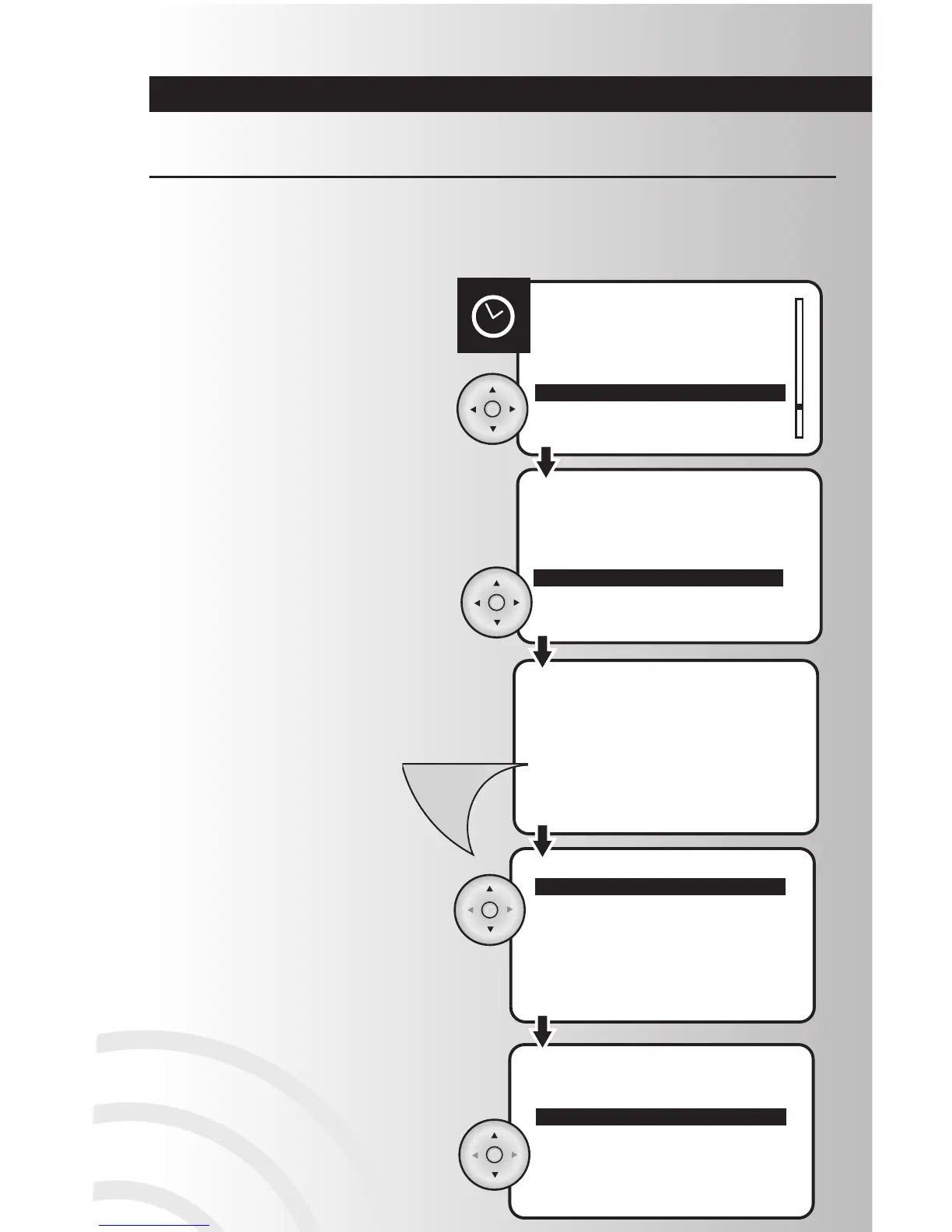
1. Select “Hide” from the Scenes menu. Press OK
button.
Hide Scenes
2. To hide a scene, use the arrow pad to highlight the
desired scene to be hidden, and press OK. A letter
“H” will appear beside the scene indicating that the
scene will be hidden.
3. Repeat the process for all scenes to be hidden.
After placing an “H” beside all scenes to be hidden,
press the Menu button to return to the main menu.
4. Within the “Hide” feature you may also select “Hide
All.” Use the arrow pad to highlight “Hide All,” then
press OK. This will place an “H” beside all scenes.
You can then use the arrow pad to move to only
the scenes that you wish to unhide, and press OK
to remove the “H.”
40
The “Hide” function allows a user to customize a particular Handheld or Table Top Controller, such that
some scenes that have been created are not displayed on the scene list. The hiding of some scenes may
be preferred if control of those scenes is not desired from that controller. The hiding of scenes does not
delete them, but rather only removes them from being visible on that controller.
5.
An “Unhide All” feature exists to allow you to
unhide all scenes with one quick step. Use the
arrow pad to highlight “Unhide All,” and press OK.
All scenes will be unhidden with this single step.



 To Next Page