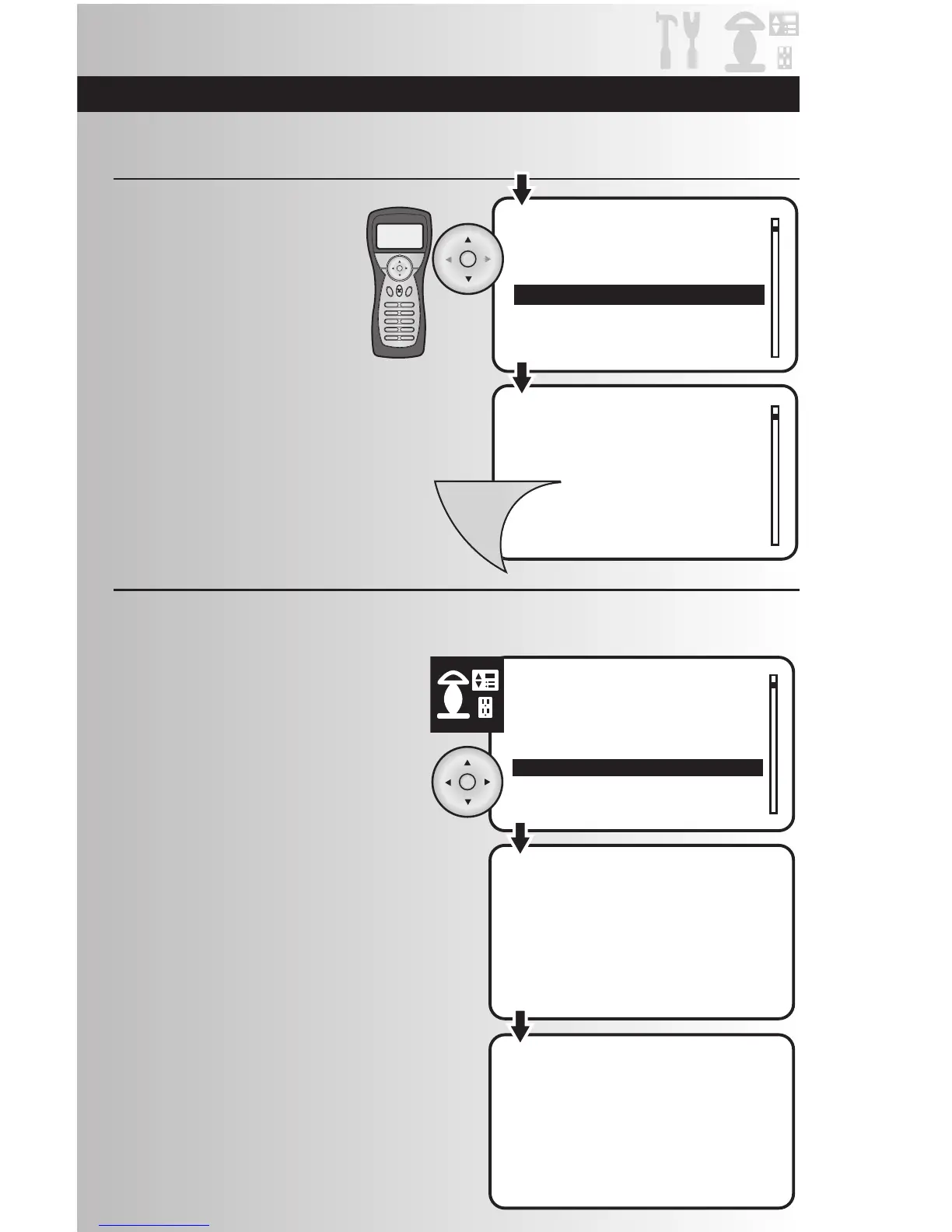
2. Press the Install button on the device that you
want to uninstall.
• The process to uninstall the device will last
several seconds.
• If you don’t want to uninstall the device,
press the Back button on the controller during
the waiting period.
3. When the uninstall is complete, a window
will display a message saying that the
operation was successful.
• The LED on the device will blink when it has
been successfully uninstalled.
59
4. Use the down arrow to scroll and
highlight “Shift Primary.” Press the
OK button.
5. When the replication is complete,
windows on both controllers will
display a message saying that the
operation was successful. To return
to the main menu press the Menu
button.
Primary
Controller
1. Select the “UnInstall” option from the
Devices menu. Press the OK button.
Uninstall a Device
Before uninstalling a device, the device must be installed in the wireless system. If you receive an
“Unknown device” error message during this operation, the device is not installed in your system.
Select a New Primary Controller (continued)



 To Next Page