67
Troubleshooting Guide and Maintenance
Note: Use this function to remove a failed device from the network that you do not want to replace.
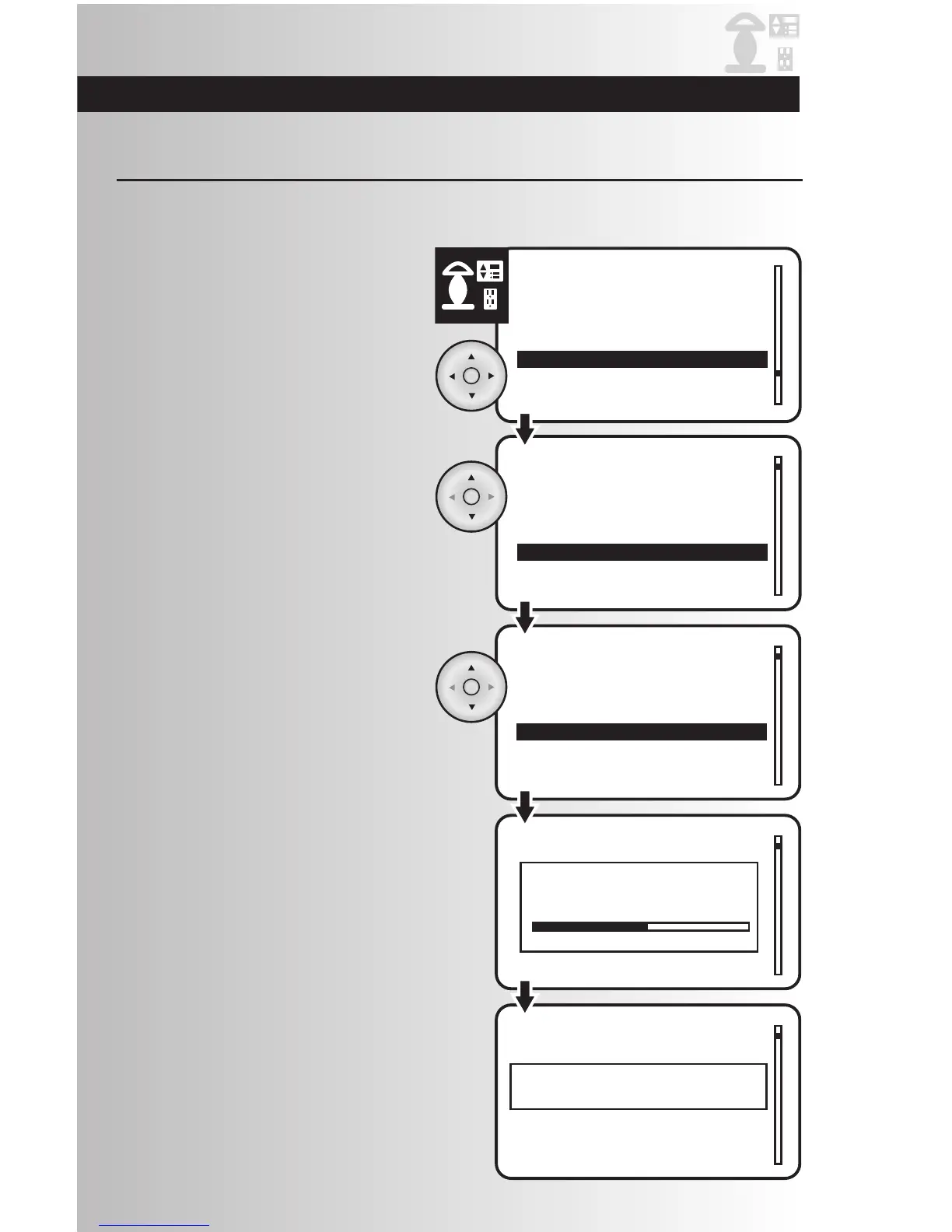
1. Select the “Remove” option from the Devices
menu. Press the OK button.
Remove a Failed Device
2. Use the up and down arrows to scroll and
highlight the location of the device to be
removed. Press the OK button.
3. Use the up and down arrows to scroll and
highlight the specific device to be removed.
Press the OK button.
4. The controller will check the system to
confirm that the device has failed.
5. A message will confirm that the device has
been removed.



 To Next Page