Create a Scene
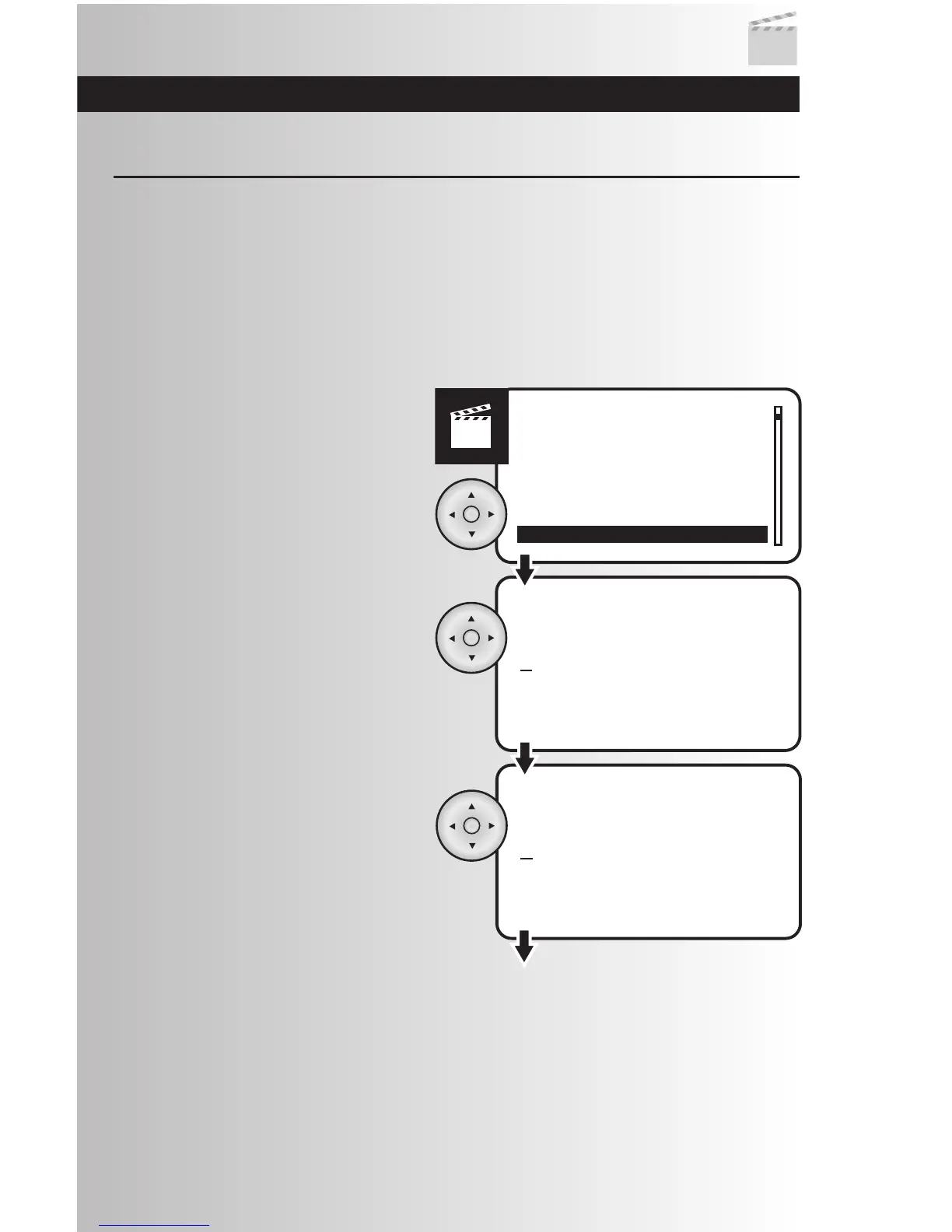
1. Select the “Create” option from the Scenes
menu. Press the OK button.
2. Using the arrow pad, enter a name for the
scene.
• To use one of the system’s pre-
programmed scene names, press the up
arrow and scroll through the options until
you find the desired name. You can also use
the right arrow to scroll to the end of the pre-
programmed name and add additional
characters or remove part of the name. Press
the OK button to save.
A scene is a combination of lighting or appliance devices selected by the user that can be controlled as a
group by the wireless system. Now that you’ve installed devices into the system, you can program your
controllers to create and control up to 64 scenes in your home. Up to 32 devices can be included in one
scene. Example: When watching movies, you can create a Scene that dims the overhead light and turns
on accent lights.
After reviewing this section, you will be able to perform the following basic functions:
• Create a Scene • Renumber a Scene • Hide Scenes
• Activate a Scene • Delete a Scene
• Create Favorite Scenes • Edit a Scene
• Rename a Scene • Transfer a Scene to a Wall Mount Controller
• If you want another name, press the
down arrow once. Scroll through the
alphabet until you find the first letter of the
name. When the letter appears, press the
right arrow and continue the process until
the name is spelled out. Press the OK
button to save.
31



 To Next Page