66
Use this function to replace a failed device. When you use the “Replace” function, the configuration of the
replaced device, device association, and Scene/Event information will no longer be available for the new
device. The user must reconfigure the device, reconfigure associations, as well as edit Scenes and Events
that use this device. Note: Scenes and Events names will still show in the Scene list and Event List. The
user must edit these functions and resave.
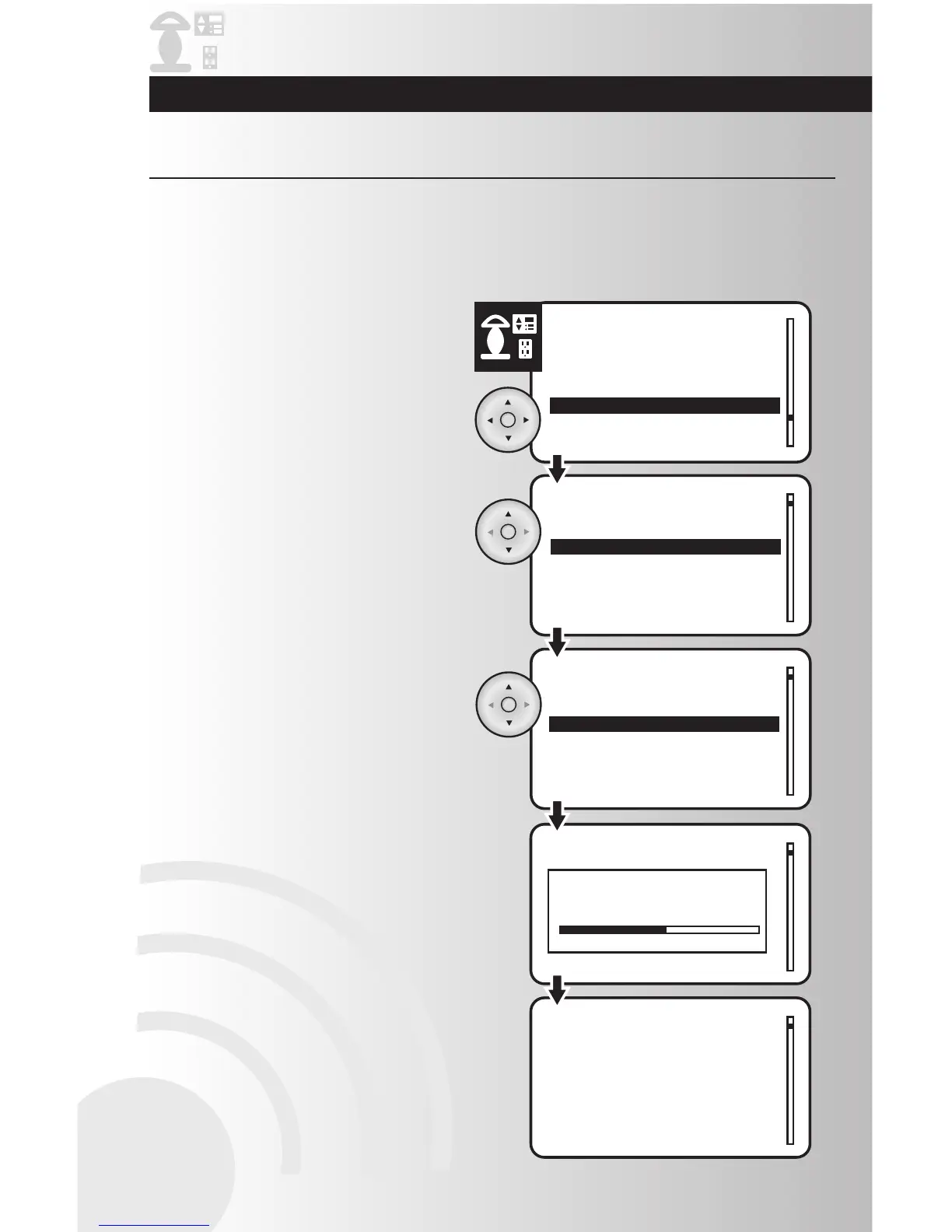
1. Select the “Replace” option from the Devices
menu. Press the OK button.
Replace a Failed Device
2. Use the up and down arrows to scroll and
highlight the location of the device to be
replaced. Press the OK button.
3. Use the up and down arrows to scroll and
highlight the specific device to be replaced.
Press the OK button.
4. The controller will check the device. If the
device has failed, the controller will prompt
you to install a new device.
5. Press the install button on the new device.
The controller will generate new node
information for the system and complete the
replacement process. The installation process
may last thirty seconds (in larger networks
time may be longer). A message will confirm
that the device has been replaced.
Note: The new device will be installed at it’s
default settings.
Troubleshooting Guide and Maintenance



 To Next Page