Create and Control Scenes
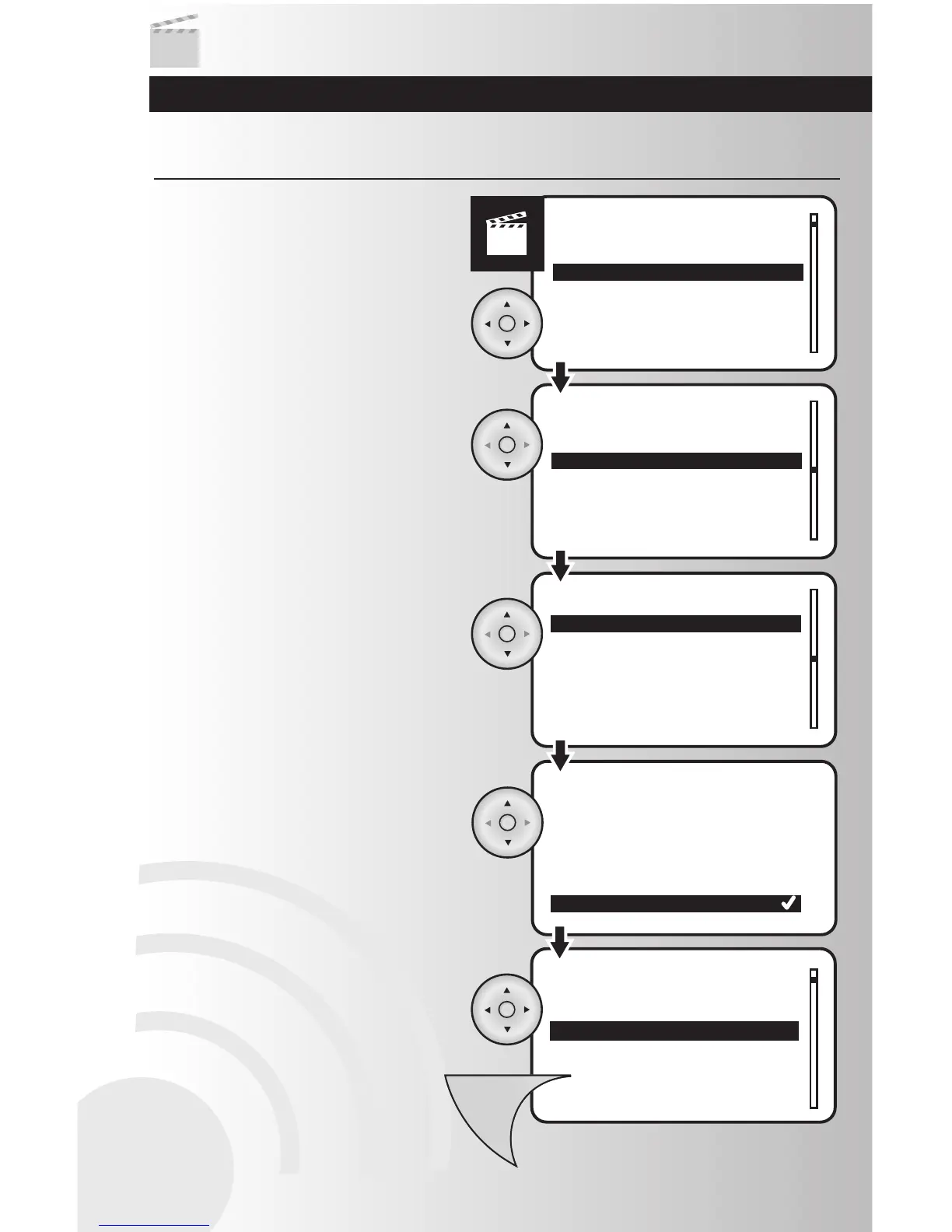
1. Select the “Edit” option from the Scenes
menu. Press the OK button.
2. Use the up and down arrows to scroll and
highlight the scene to be edited. Press the
OK button.
Edit a Scene
3. You will go to a screen detailing the device
status for the selected scene. Use the up and
down arrows to scroll through the list to see
the status of the scene. To change the status
of a device, highlight the device and press
the OK button.
4. Highlight one of four setting options for the
device: Not used, On, Off, or a specific light
level. Press the OK button.
38
• To select a specific light level, you can
select a percentage from 90% to 0%. On
will be 100% and Off will be 0%. Use the
up and down arrows to select desired light
level. Press the OK button when finished.
Note: If a device does not allow a specific
light level, you will not be given the option.
5. Repeat Steps 3-5 for all devices within the
scene.
6. To save the scene, press the Menu button.



 To Next Page