Install and Control Devices
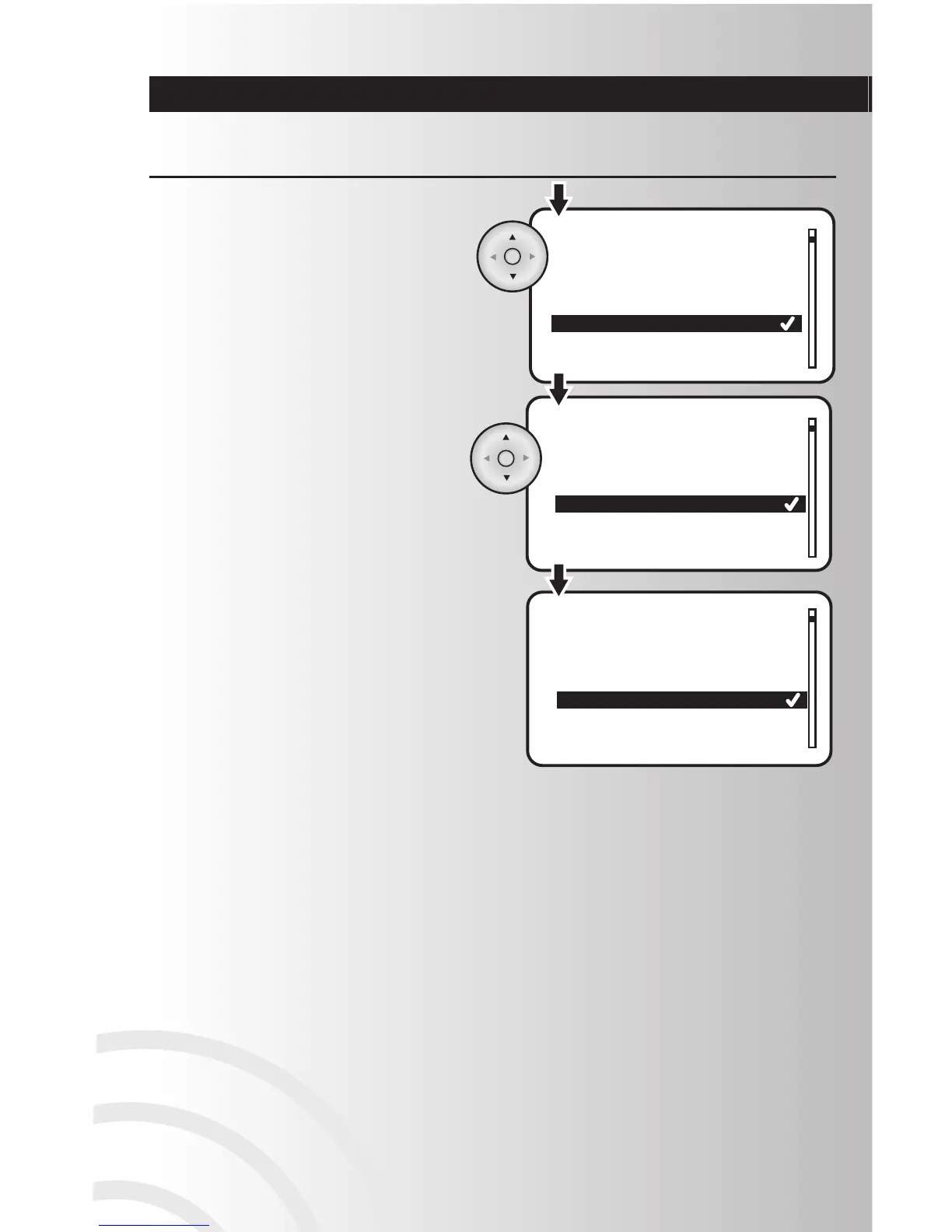
6. You will see a momentary indication that the device
has been updated. After this, the screen will go
back to the Parameter Number screeen as shown
in Step 4 so you may select additional Parameters
to change is desired.
Non-Cooper Parameters (continued)
22
4. When this screen appears, scroll to the Parameter
Number you wish to change. Press the OK button.
5. This screen is where you select the value for the
Parameter Number you are configuring. The value
currently in the device will be highlighted. Scroll to
the value you want and then press OK. The values
will range from 0 to 127 and then from -128 to -1.



 To Next Page