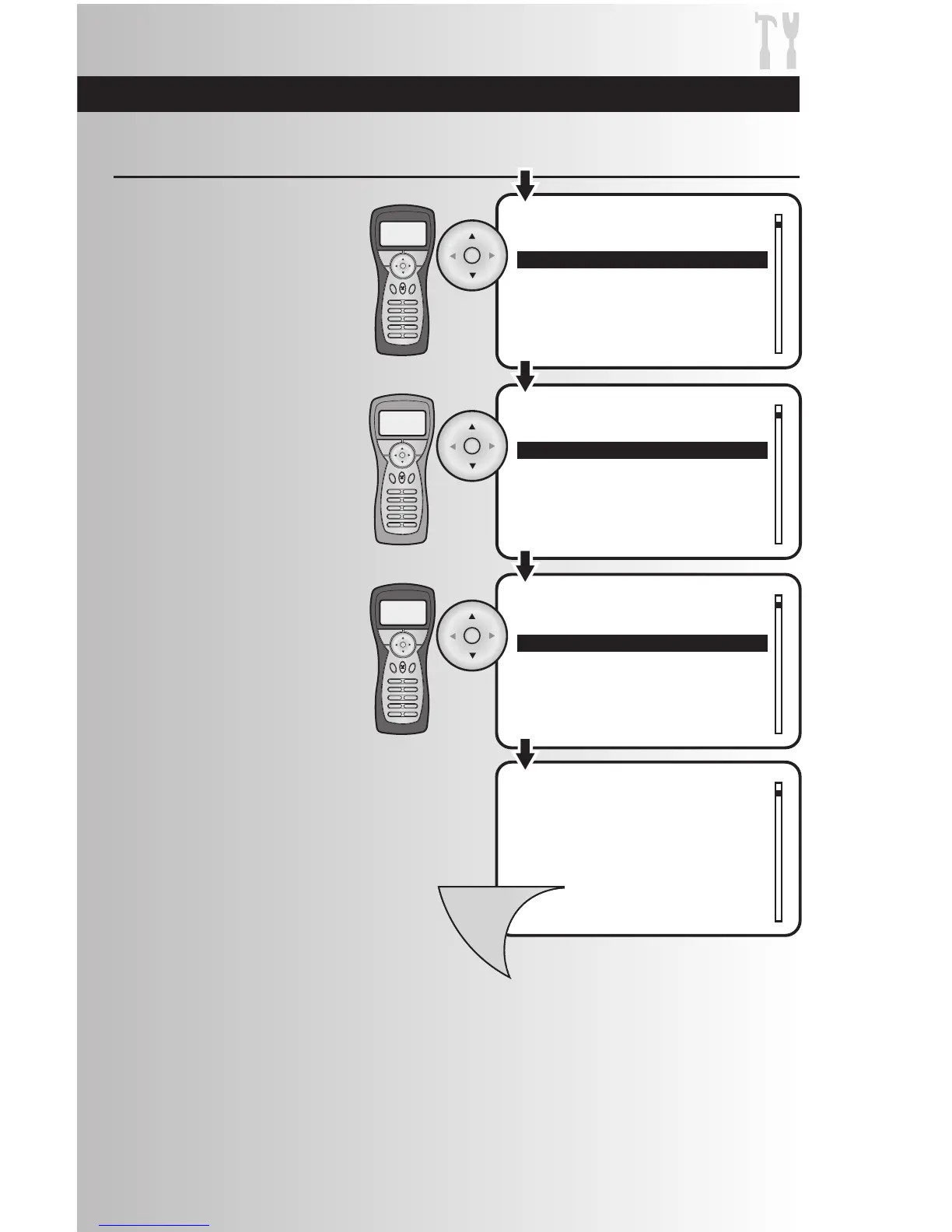
3. Replication requires choosing
whether the controller is a Cooper
controller or an unknown controller.
• On the primary controller, choose
to send “To Cooper Controller or “To
Unknown Controller.”
Press the OK button.
Note: Replication to an
unknown controller may not
support inclusion of settings,
events and scenes.
Replicate Handheld Information to a Second Controller
• On the secondary controller, choose
to receive “From Cooper Controller
or “From Unknown Controller.”
Press the OK button.
4. The primary will then give you the
option to remain the primary
controller or shift the primary
controller to the secondary
controller. Select one and press
the OK button.
Primary
Controller
Secondary
Controller
Primary
Controller
5. When the replication is complete,
windows on both controllers will
display a message saying that the
operation was successful. To return
to the main menu press the Menu
button.



 To Next Page