106 Scan
5. Change the scan settings, such as file format, file name, destination file path, resolution, or color, if needed.
NOTE: To change the file name or destination file path, click Change.
6. Click the Start Scanning button.
The machine starts scanning. The scanned image will open in the application you have selected.
Save Scanned Data to a Folder as a PDF File Using ControlCenter (Macintosh)
1. Load your document.
2. In the Finder menu bar, click Go > Applications > Dell Printers, and then double-click the
(ControlCenter) icon.
The ControlCenter screen appears.
3. Click the SCAN tab.
4. Click the File button.
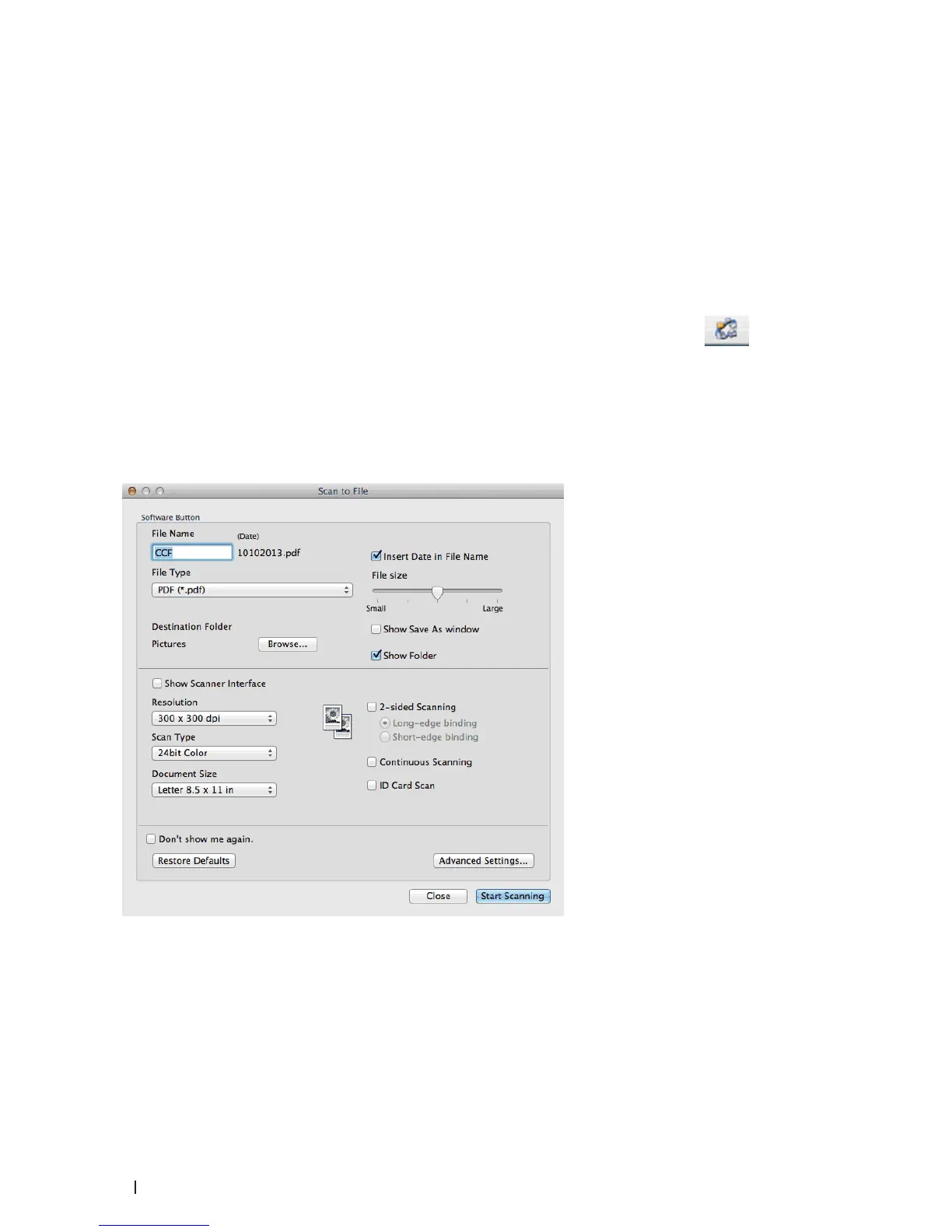
The scan settings dialog box appears.
5. Click the File Type pop-up menu, and then select PDF (*.pdf).
NOTE: To save the document as a password-protected PDF, select Secure PDF (*.pdf) from the File Type pop-up
menu, type your password in the Password and Re-type Password fields, and then click OK.
6. Change the scan settings, such as file format, file name, destination folder, resolution, or color, if needed.
7. Click the Start Scanning button.









 To Next Page