110 Scan
The machine scans the document, converts it to editable text, and then sends it to your default word processing
application.
Scan Using TWAIN-Compliant Applications (Macintosh)
1. Launch your scanning application.
The first time you use the Dell TWAIN driver, you must set it as the default driver.
2. Select the scan command in your application.
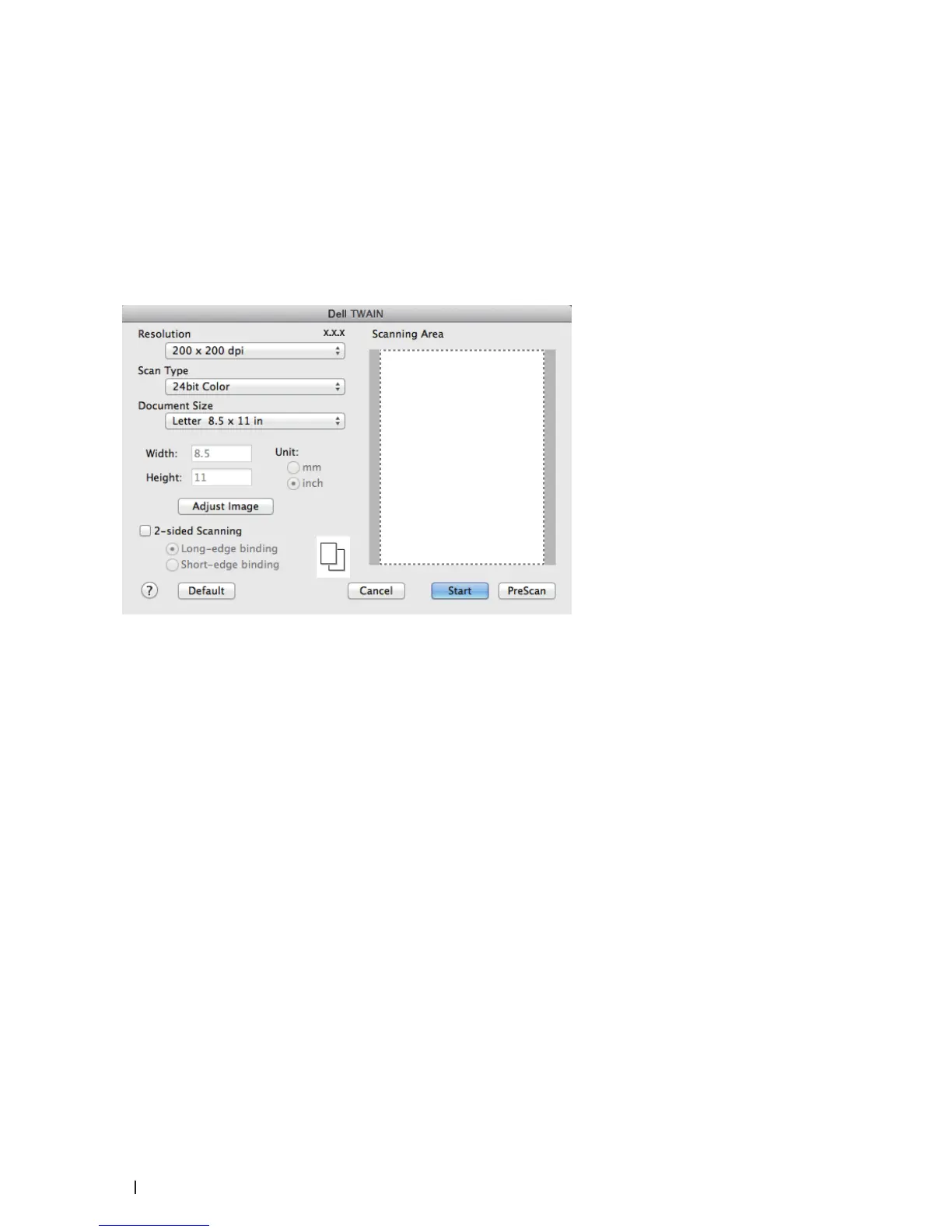
The scanner setup dialog box appears.
3. Change the scan settings, such as Resolution, Scan Type, or Adjust Image options, if needed.
4. Click the Document Size pop-up menu, and then select your document size.
NOTE: After you select a document size, adjust the scanning area by holding down the mouse button and dragging
your mouse pointer over the portion you want to scan.
5. Click the PreScan option to preview your image and crop unwanted portions before scanning.
6. Click Start.
The machine starts scanning.










 To Next Page