109Scan
Scan to an Editable Text File (OCR) Using ControlCenter (Macintosh)
Your machine can convert characters in a scanned document to text data using optical character recognition (OCR)
technology. Edit this text using your preferred text-editing application.
(Macintosh) OCR Software must be installed on your computer.
Download OCR Software from Install OCR Software.
NOTE: The Scan to OCR feature is available for English, French, German, Dutch, Italian, Spanish, Brazilian Portu-
guese, Danish, Swedish, Japanese, Korean, Traditional Chinese and Simplified Chinese.
1. Load your document.
2. In the Finder menu bar, click Go > Applications > Dell Printers, and then double-click the
(ControlCenter)
icon.
The ControlCenter screen appears.
3. Click the SCAN tab.
4. Click the OCR button.
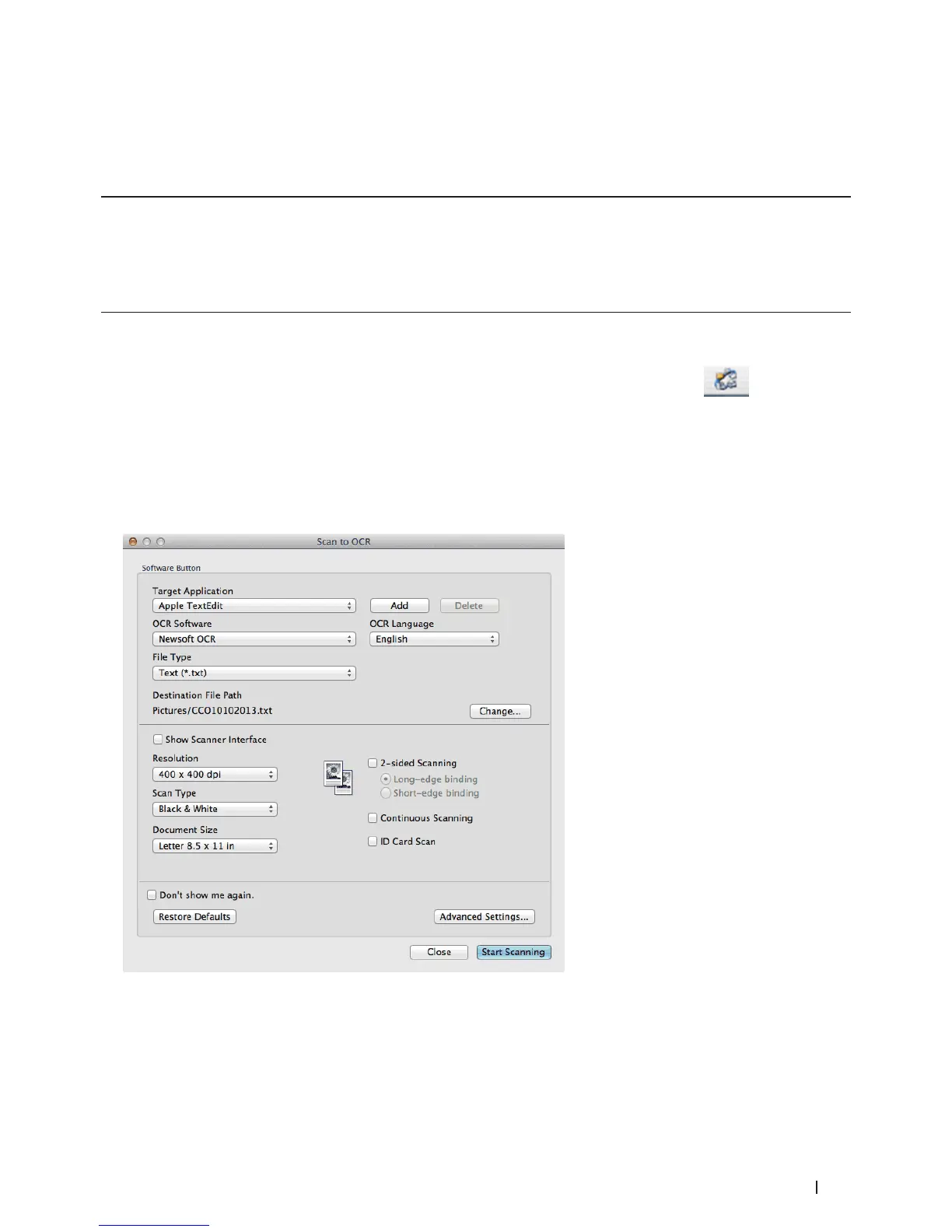
The scan settings dialog box appears.
5. Change the scan settings, such as file format, file name, destination file path, resolution, or color, if needed.
NOTE: To change the file name or destination file path, click Change.
6. Click the Start Scanning button.









 To Next Page